

Audit Your YouTube Channel Settings for 2026
YouTube adds features faster than most creators revisit their settings. One deliberate pass through YouTube Studio each year keeps your channel competitive, legally protected, and fully configured — including 2026’s new toggles for AI dubbing, channel insight sharing, and third-party training permissions. By the end of this walkthrough, you’ll have a repeatable annual audit covering every layer of YouTube Studio, from individual video metadata to the channel-level settings most creators never touch.
- In your Content list, type the current year into the filter field at the top. This surfaces every video with a dated title. Update titles, descriptions, and tags on evergreen content to remove stale year references — skip anything inherently time-stamped, like news recaps or annual roundups.
- Open each video published in the past twelve months and click every outbound link in its description. Domain ownership changes hands constantly — a defunct company’s URL can be redirected to content that violates YouTube’s Community Guidelines, and that exposure lands on your channel.
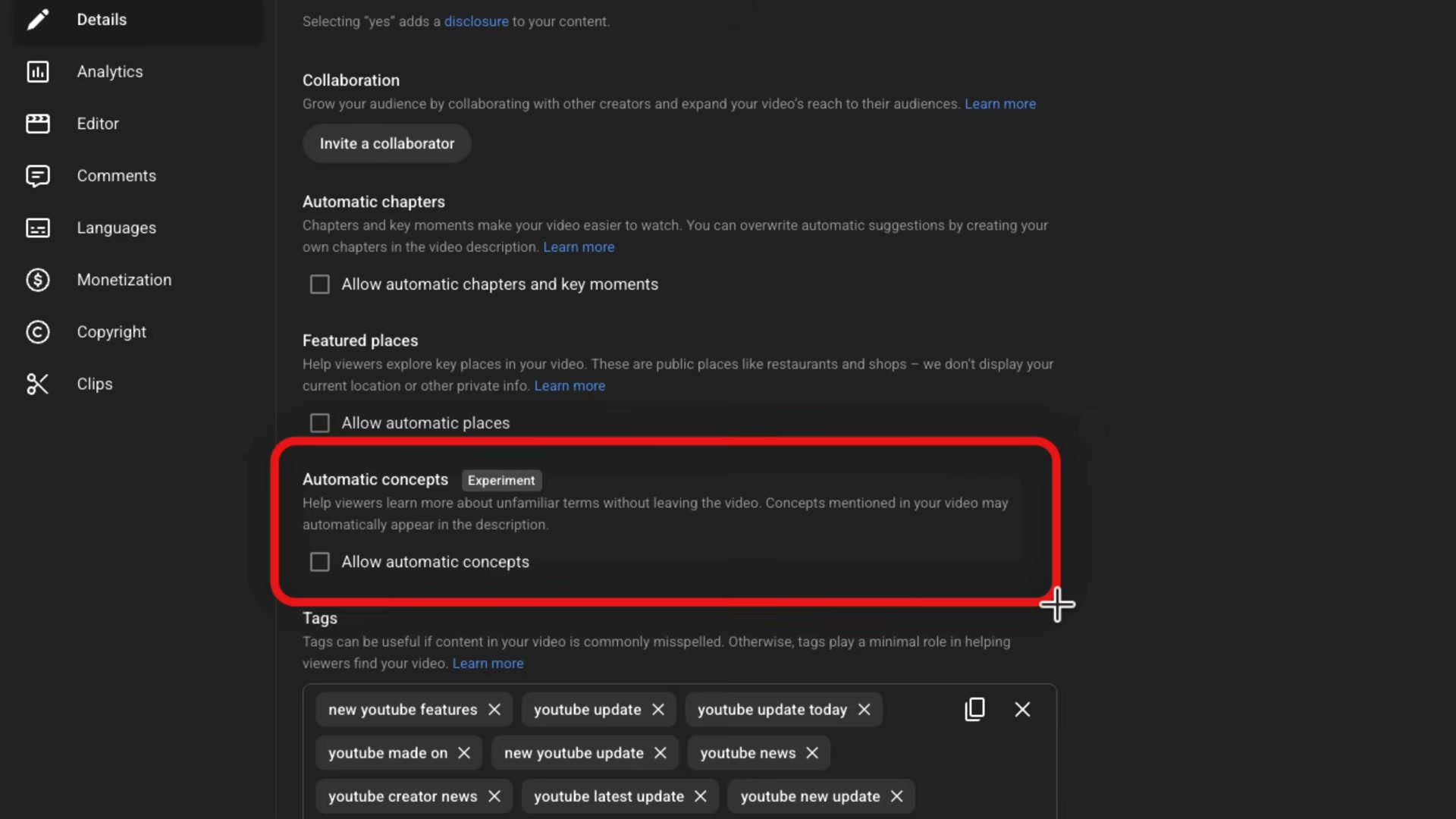
- On each video’s details page, click Show More and locate the Automatic Concepts checkbox. This experimental feature appends AI-generated term definitions to your public description. Decide whether that aligns with how you present your content and toggle it accordingly.
- While still in video details, confirm the License dropdown reads Standard YouTube License — not Creative Commons, which permits others to freely reuse your content.
- Check end screens and cards on older videos. If you’ve published stronger content since those videos went live, update the placements to point to it.
- Visit your public channel page and verify your channel art reflects current offerings. Open Customize Channel, then update the Description — About page copy is frequently written at launch and never touched again.
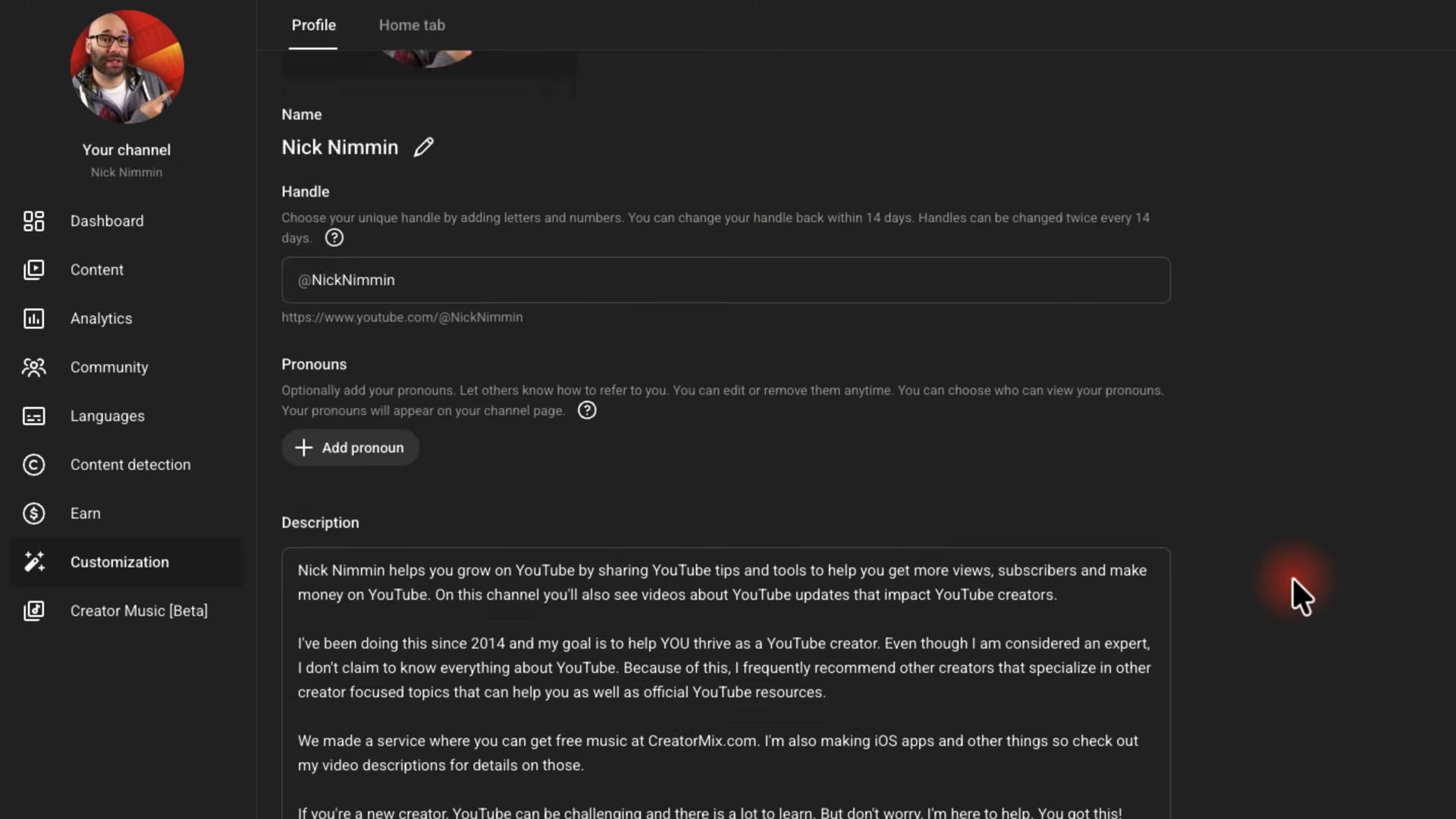
- In Customize Channel, audit every entry under Links and replace any outdated URLs. If you own the linked domains, confirm their renewal dates while you’re at it.
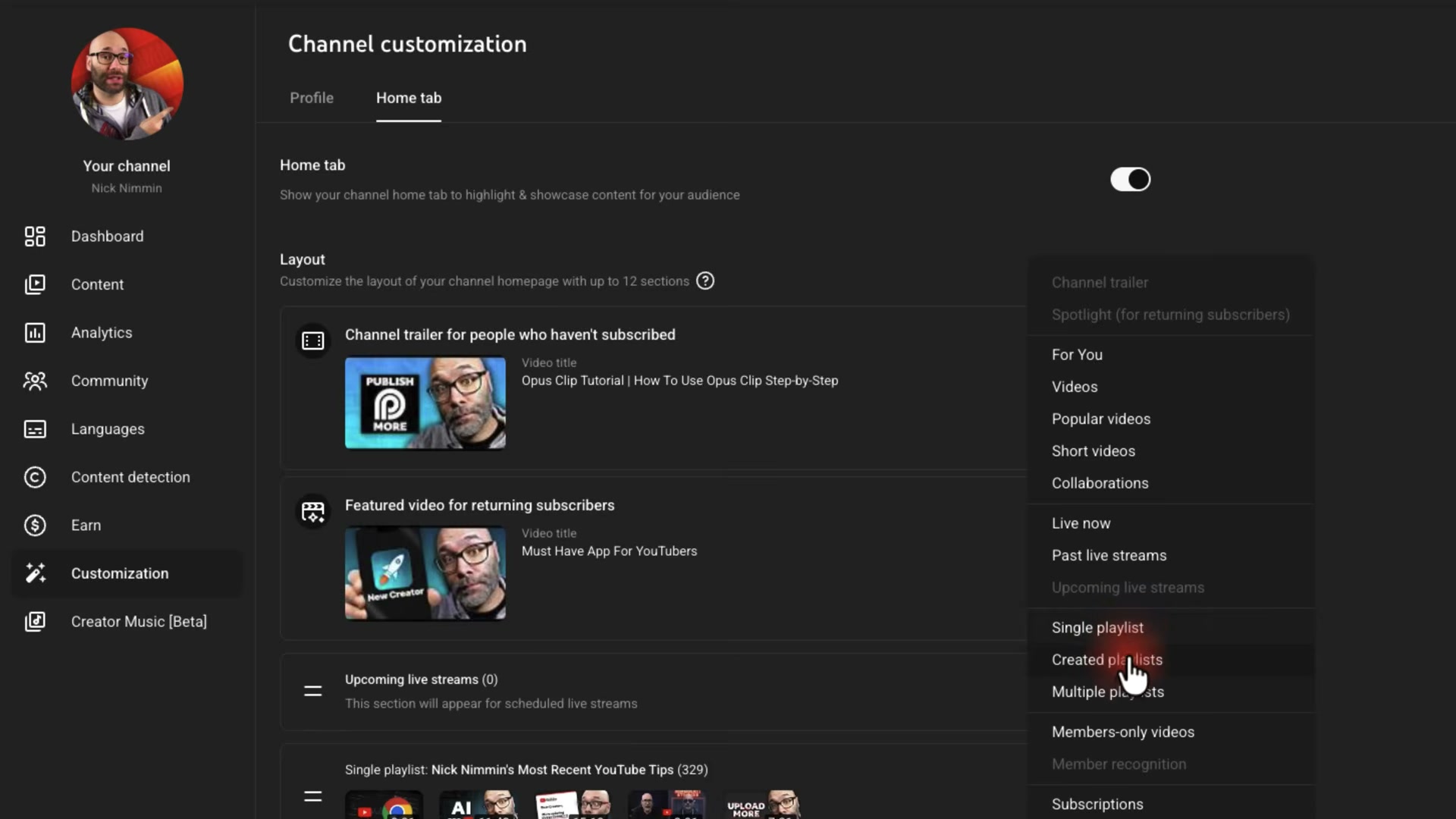
- Navigate to the Home tab in Customize Channel. Enable it if it’s off, then assign a channel trailer for new visitors and a returning-subscriber featured video — something that deepens the relationship with people who already follow you.
- Use Add Section to structure your channel page: most recent uploads or a curated playlist at the top, followed by upcoming live streams, topic-specific playlists, community posts, and a merch shelf if applicable.
- Go to Settings > Basic Info and refresh your channel keywords to match what you actually make now, not what you planned when you launched.
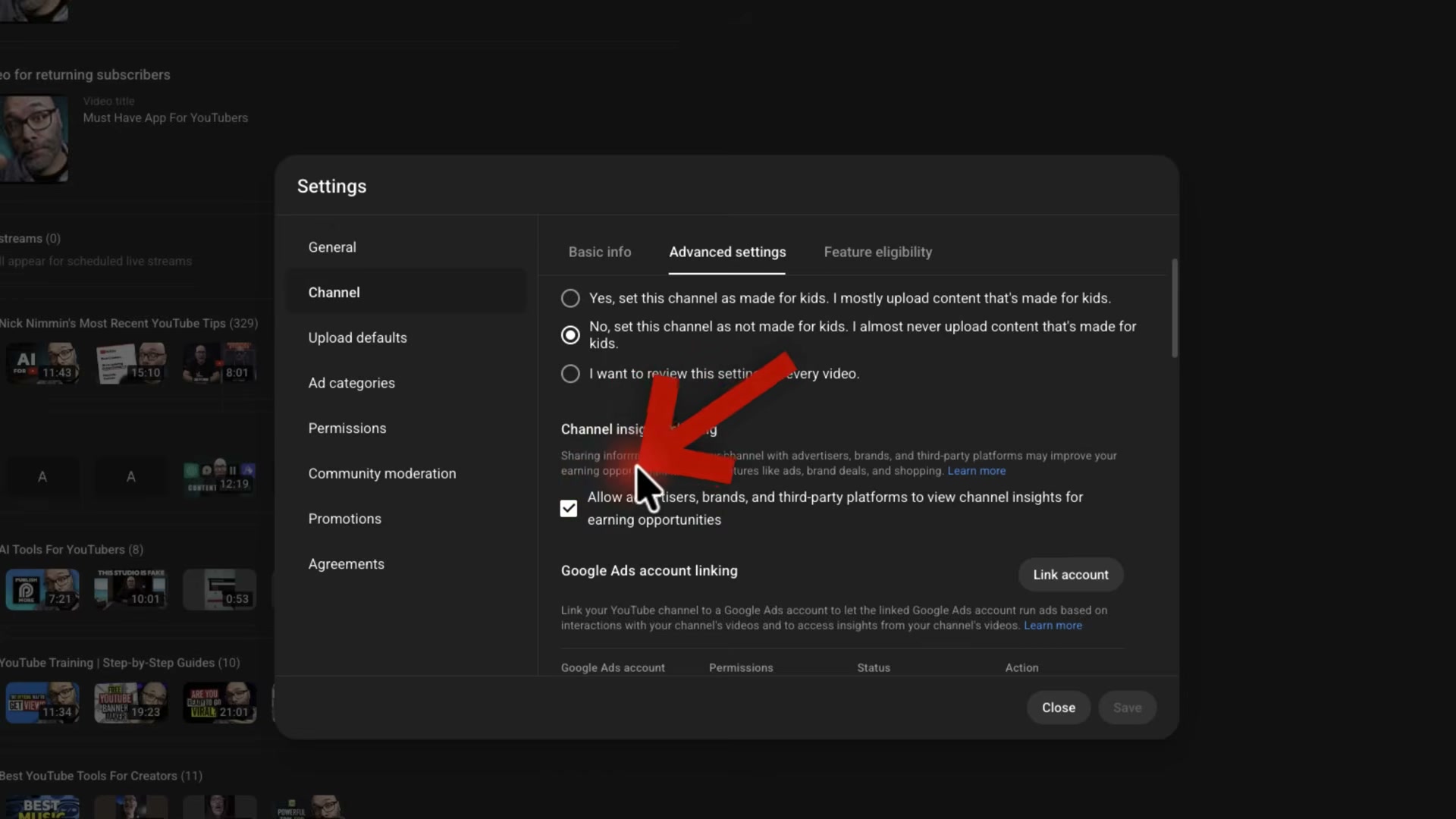
- Open Settings > Advanced Settings and find Channel Insight Sharing. Enabling it lets advertisers and third-party platforms view your demographics and average view counts for brand deal evaluation — a data-sharing decision worth making deliberately rather than by default.
- Locate Automatic Dubbing in the same panel. If the Enable button is present, opt in to have uploads automatically dubbed into additional languages.
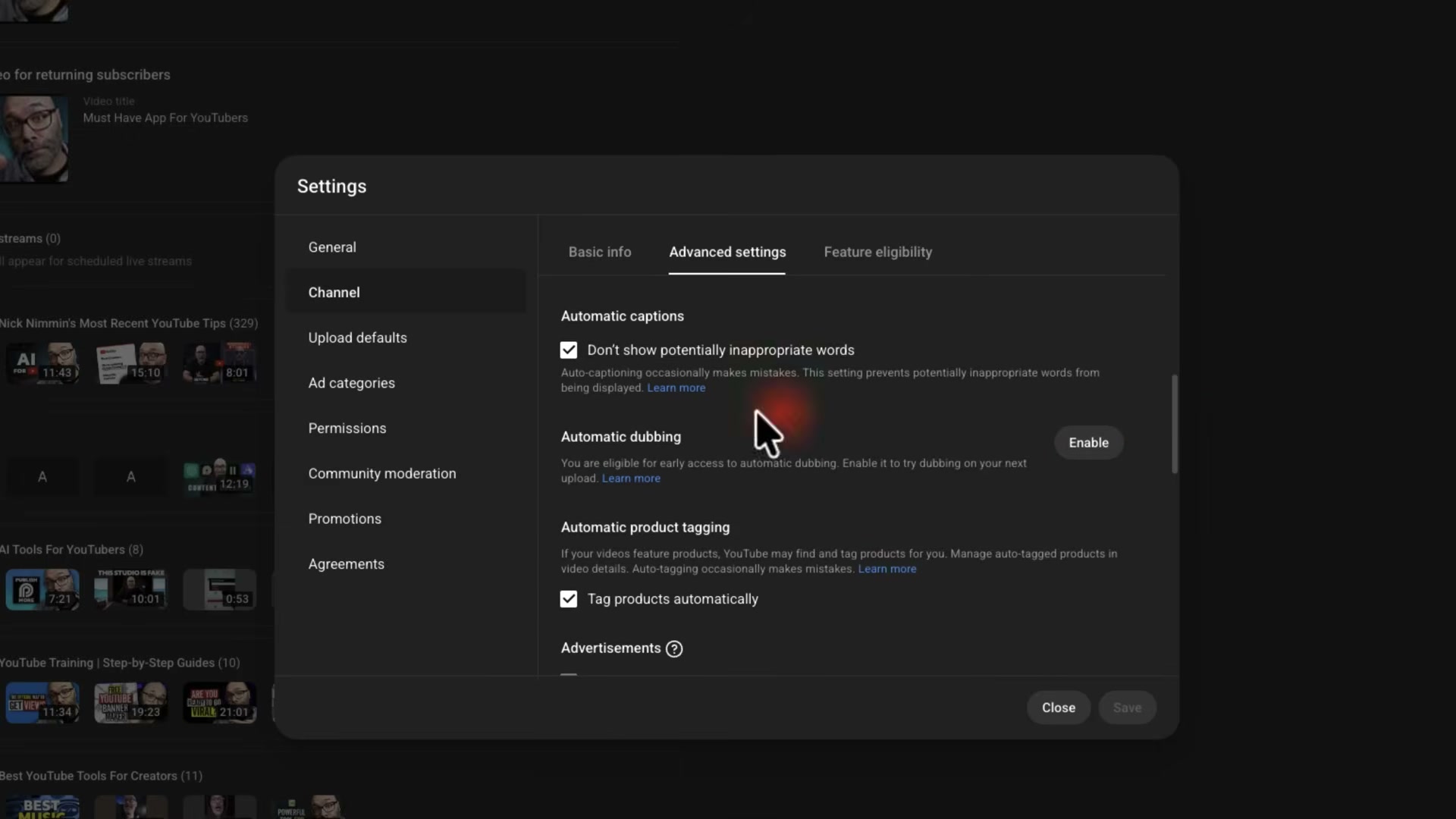
- Also in Advanced Settings, review Allow Users to Clip per your preference, and enable Video Quality Enhancements to let YouTube optimize playback for TV and large-screen devices.
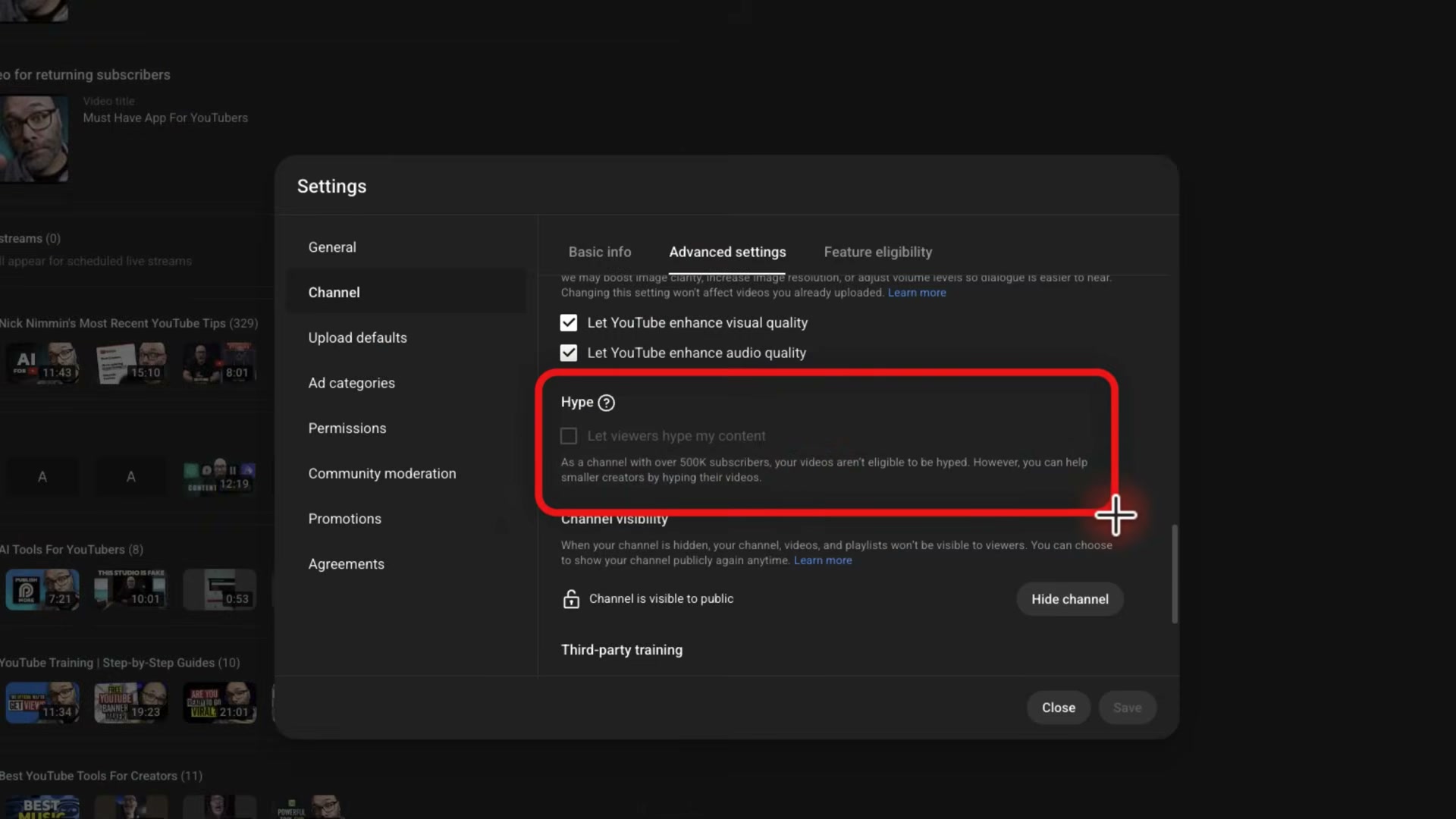
- Find the Hype section — restricted to channels under 500K subscribers — and directly below it, set the Allow Third-Party Training toggle. This controls whether your content is available for external AI model training.
- In Settings > Upload Defaults, add a standard description template that auto-populates on every future upload. Under Upload Defaults > Advanced Settings, set the default license to Standard YouTube License so you never accidentally publish under Creative Commons.
- Open Settings > Ad Categories and block any advertiser URLs you don’t want associated with your content.
How does this compare to the official docs?
Several of these 2026 settings — especially Automatic Dubbing and Channel Insight Sharing — are moving targets, and the official YouTube documentation fills in configuration details and eligibility requirements that a video walkthrough doesn’t have time to cover.
Here’s What the Official Docs Show
The walkthrough above covers the right audit sequence — this section adds what official documentation can confirm, notes where source pages fell short of the specific guidance the video references, and flags two 2026 features where the official docs have gone dark. Nothing below changes the process; some of it updates the confidence level on specific steps before you act.
Steps 1, 3, 5 — Annual content audit, Automatic Concepts toggle, end screen updates
No official documentation was found for these steps — proceed using the video’s approach and verify independently.
Step 2 — Audit outbound description links for policy violations
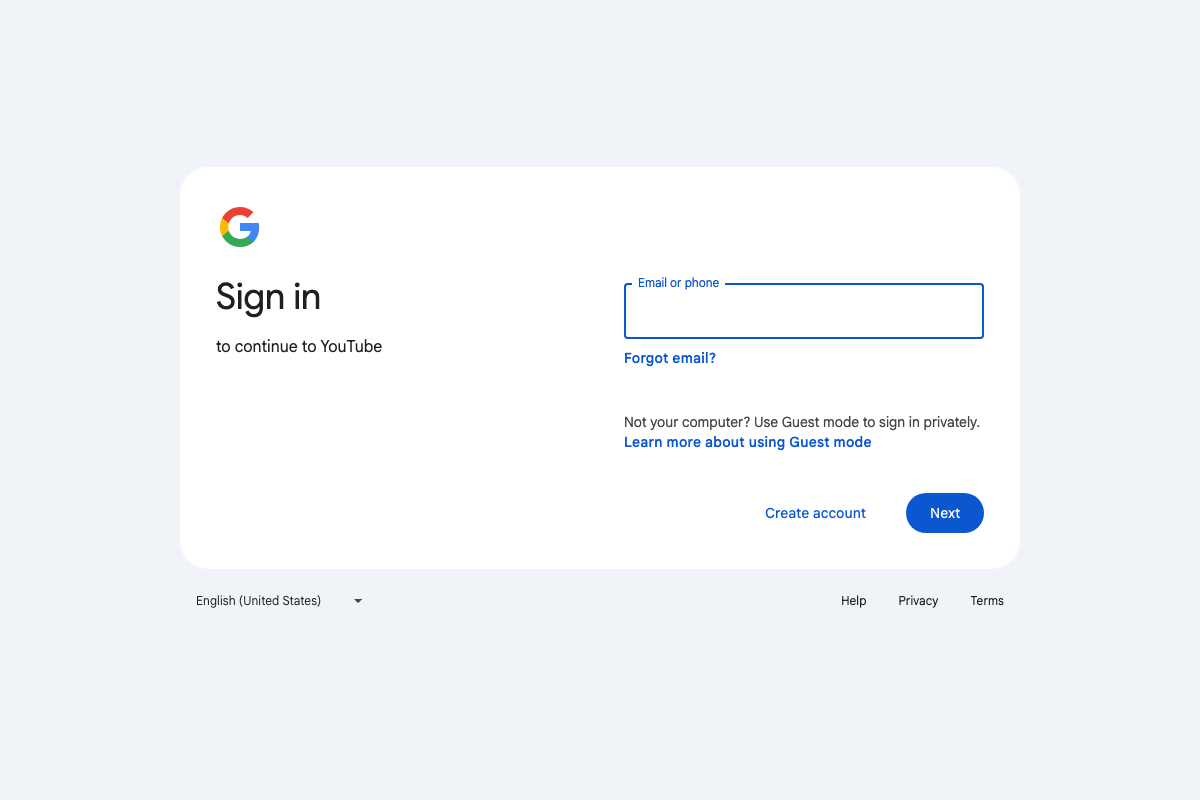
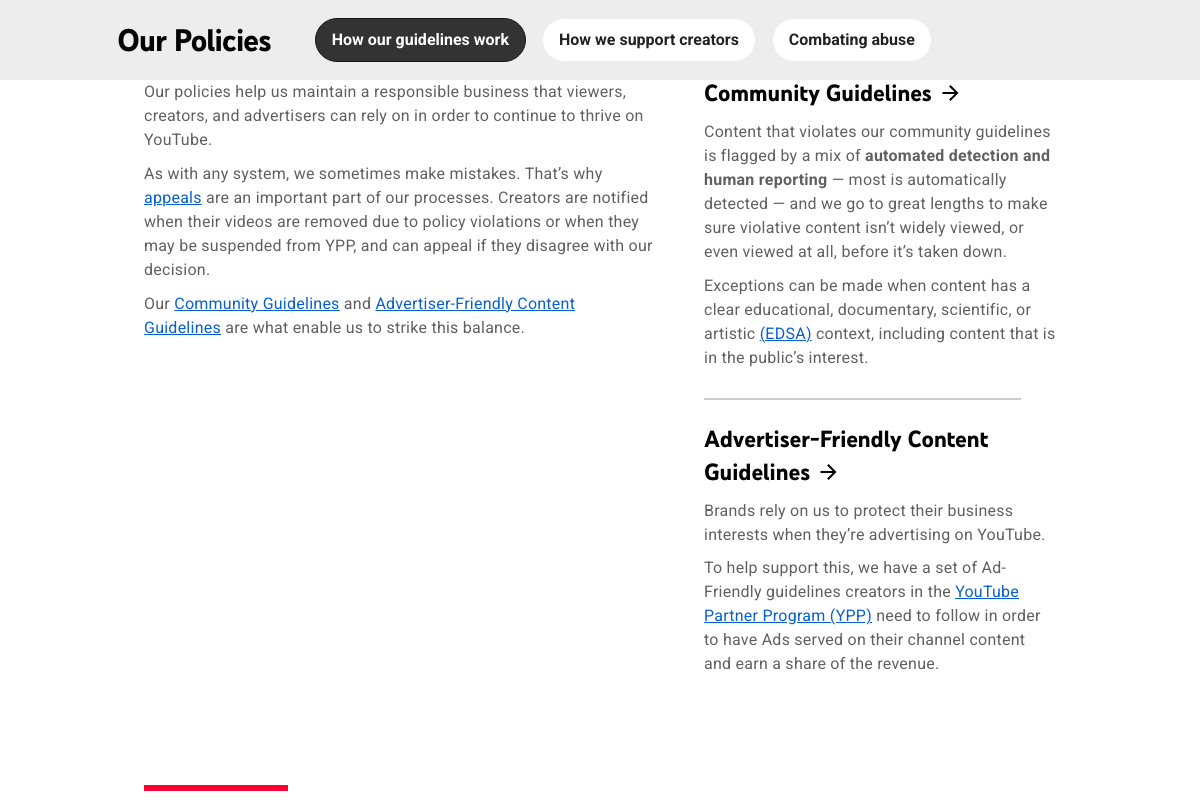
The specific External Links Policy page (support.google.com/youtube/answer/9054257) did not load during capture — screenshots landed on YouTube’s general Our Policies overview instead. That page confirms YouTube operates two enforcement frameworks: Community Guidelines (detected via automated systems and human reporting) and Advertiser-Friendly Content Guidelines (applicable to YPP creators). Neither contains the domain-safety guidance the video describes. Run the audit as instructed, but verify the specific prohibited link types at YouTube Help directly.
Step 4 — Confirm the License dropdown reads Standard YouTube License
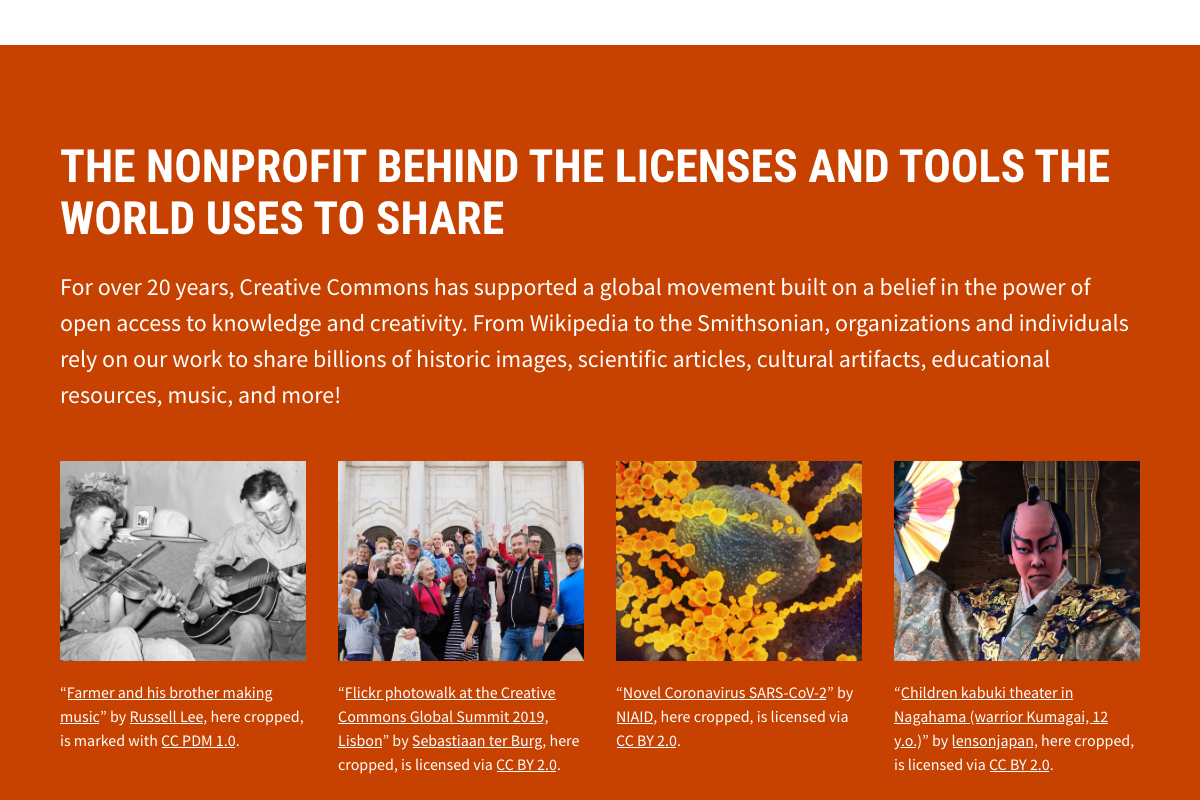
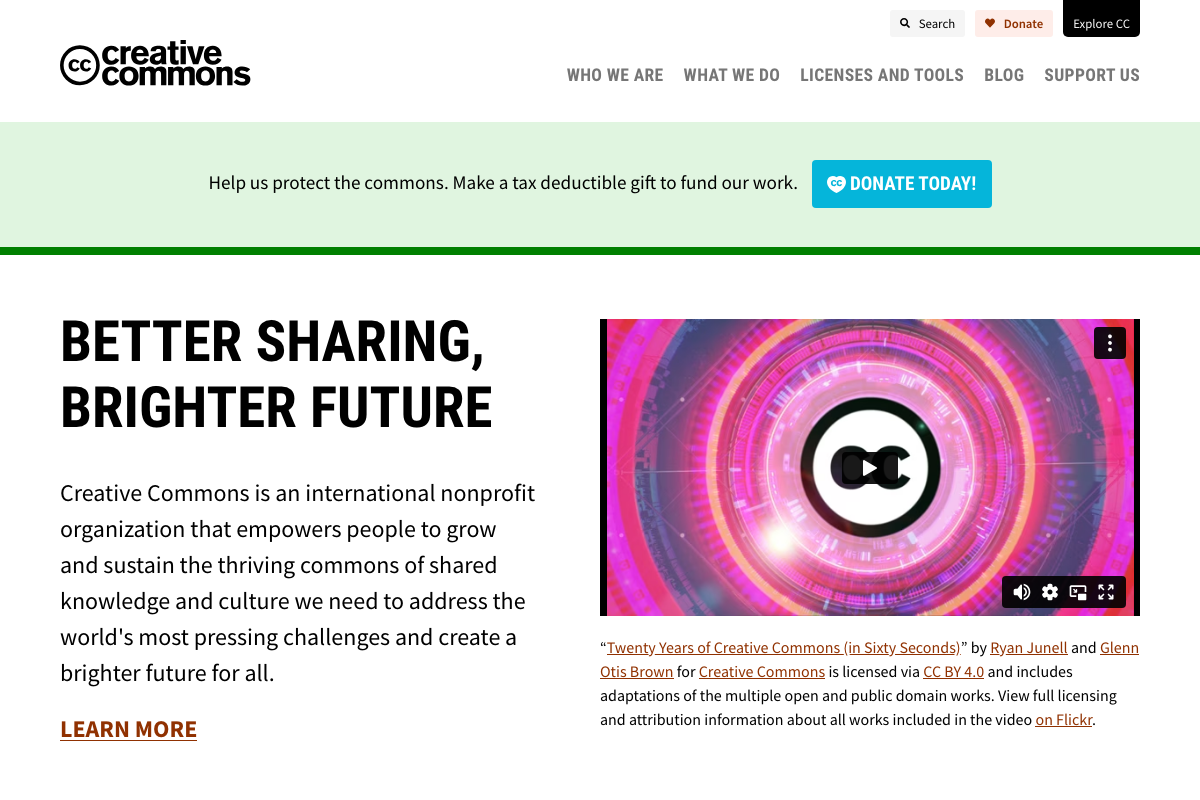
The video’s approach here matches the current docs exactly. Creative Commons is confirmed as a real, independent nonprofit licensing framework — CC-licensed content is legally remixable by third parties under the applicable CC terms. Wikipedia (55M+ articles), The Metropolitan Museum of Art (492,000+ images), and Khan Academy all publish under CC. Standard YouTube License prevents that exposure on your channel.
Steps 6–11 — Channel page customization, channel keywords, Channel Insight Sharing
No official documentation was found for these steps — proceed using the video’s approach and verify independently.
Step 12 — Enable Automatic Dubbing in Advanced Settings
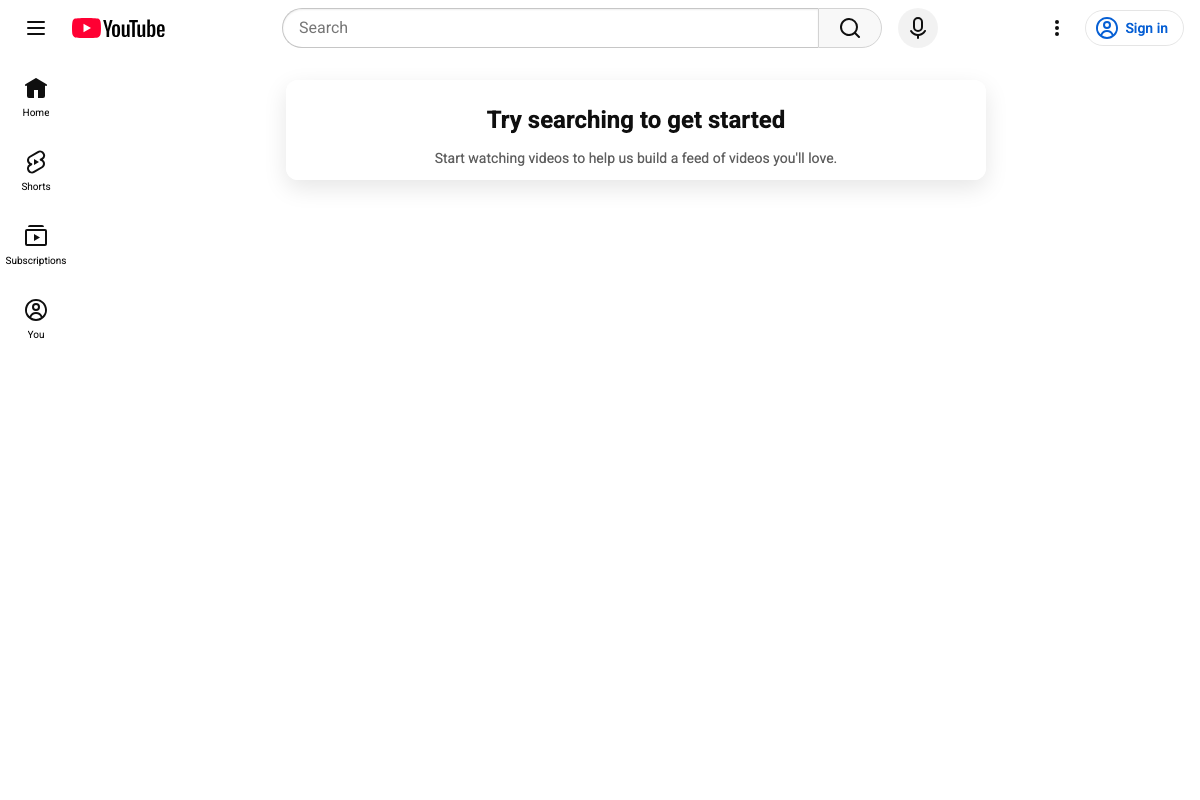
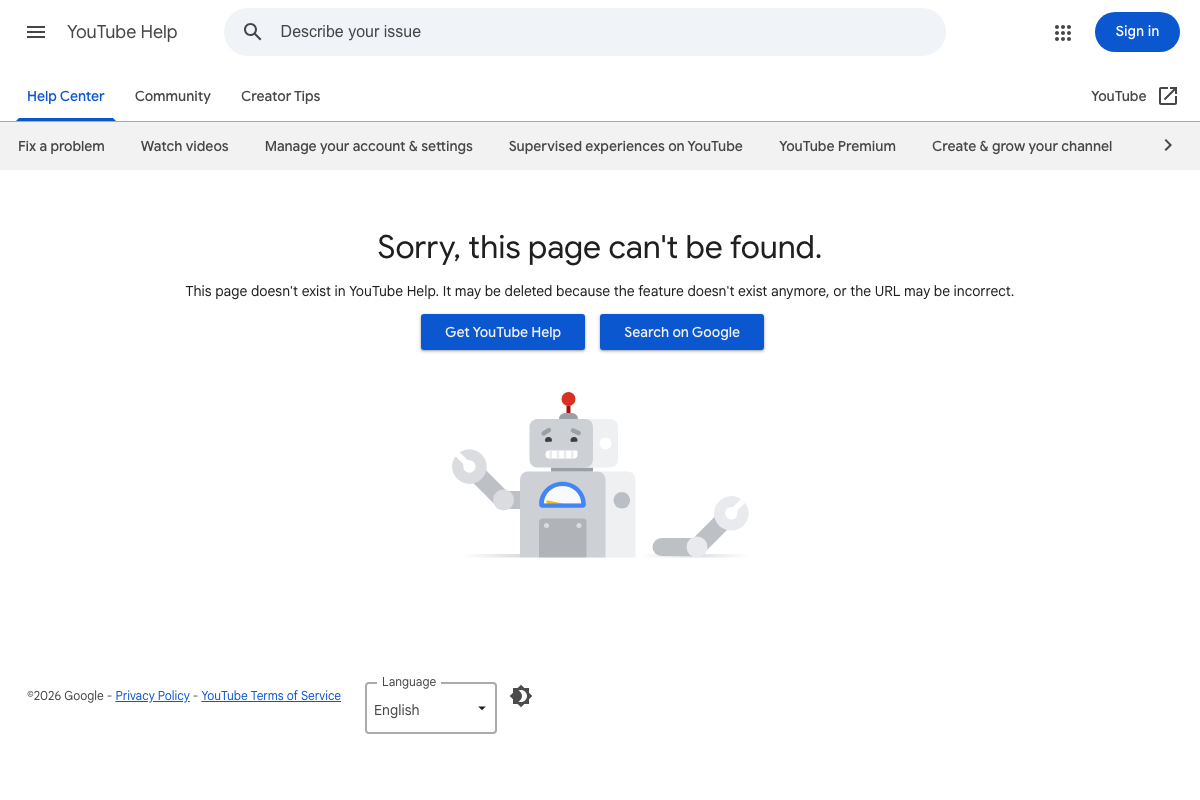
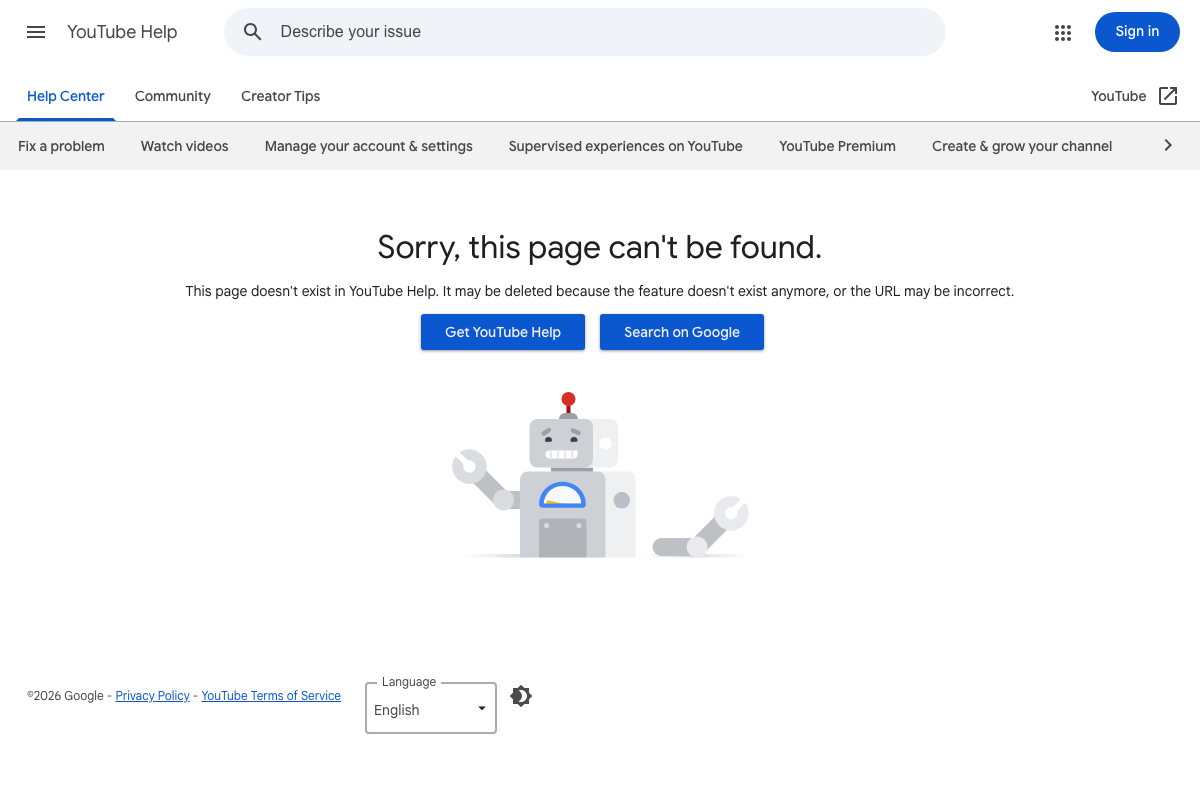
As of March 24, 2026, the official YouTube Help documentation for Automatic Dubbing (support.google.com/youtube/answer/13559056) returns a 404. YouTube Help’s own message states the page “may be deleted because the feature doesn’t exist anymore, or the URL may be incorrect.” The video presents this as a currently accessible Advanced Settings toggle — that status cannot be confirmed from official documentation. Check YouTube Studio directly before acting on this step.
Step 13 — Allow Users to Clip and Video Quality Enhancements
No official documentation was found for this step — proceed using the video’s approach and verify independently.
Step 14 — Hype eligibility and Allow Third-Party Training toggle
As of March 24, 2026, the official YouTube Help documentation for the Hype feature (support.google.com/youtube/answer/14930781) returns a 404, with the same system message: the page “may be deleted because the feature doesn’t exist anymore.” The video describes Hype as an active toggle for channels under 500K subscribers — that cannot be confirmed from official sources. Verify both the Hype section and the Allow Third-Party Training setting directly in YouTube Studio before making a decision on either.
Step 15 — Upload Defaults: description template and default license
The video’s approach here matches the current docs exactly. Setting Standard YouTube License as your Upload Default is the correct safeguard — without it, a single dropdown slip publishes under CC terms that grant third parties legal reuse rights on every upload going forward.
Useful Links
- Overview — YouTube Help — YouTube Help’s Studio topic hub; authentication required to access most content.
- YouTube — YouTube’s logged-out homepage, showing the current top-level navigation structure.
- YouTube Policies Crafted for Openness — How YouTube Works — Overview of YouTube’s Community Guidelines and Advertiser-Friendly Content Guidelines enforcement frameworks.
- Homepage — Creative Commons — Official site for the Creative Commons nonprofit, explaining license types and their real-world reuse implications.
- Hype Feature — YouTube Help — Returns a 404 as of March 2026; verify current Hype feature status directly in YouTube Studio.
- Automatic Dubbing — YouTube Help — Returns a 404 as of March 2026; verify current Automatic Dubbing availability directly in YouTube Studio.


0 Comments