

Schedule AI Agents to Run While You Sleep with Claude Routines
Claude’s new cloud-hosted Routines feature removes the single biggest friction point in AI automation: your machine has to be on. After completing this walkthrough, you’ll have a recurring routine that connects to Zoom, pulls meeting transcripts, and delivers a daily summary — entirely from Anthropic’s cloud, whether your laptop is open or not. The tutorial also covers the new Gemini desktop app for Mac and Google’s Gemini 3.1 Flash text-to-speech studio.
-
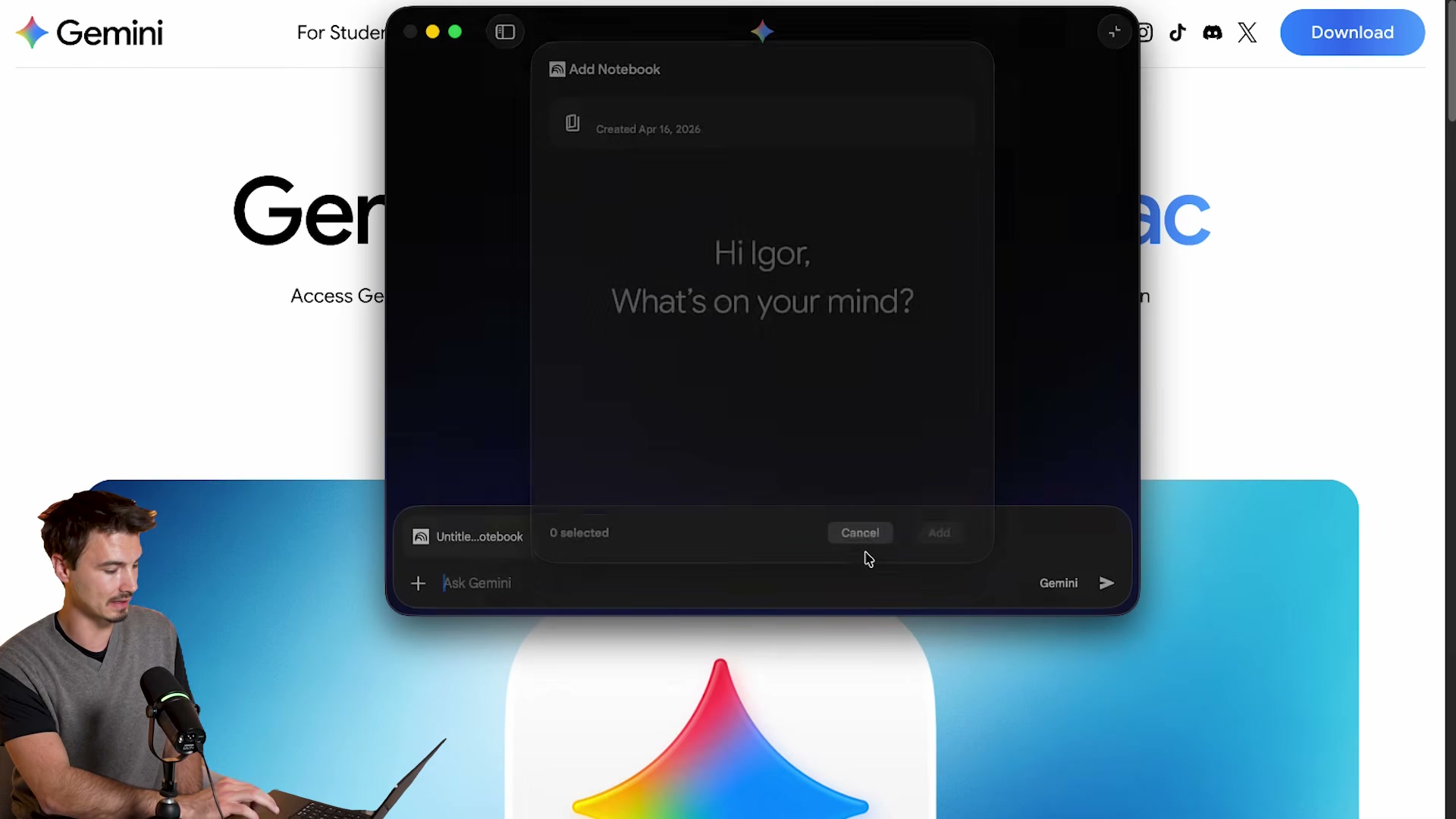
Download the Gemini desktop app for Mac from Google’s site and install it. Once launched, press Option+Space to open it as an overlay from anywhere on your desktop.
-
Click the app’s dropdown menu and confirm that your NotebookLM notebooks surface directly inside Gemini for Mac — no browser tab required.
- Update the Claude desktop app. After the update, navigation moves from the top bar to a left-side panel with three tabs: Chat, Co-work, and Claude Code.
-
Inside the Claude Code tab, open two separate sessions. Grab the second session window, drag it out of the main app frame, and position both windows side by side. The desktop app now supports native multi-window split view.
-
Open the integrated terminal pane from within the Claude Code tab — previously this required leaving the app entirely.
-
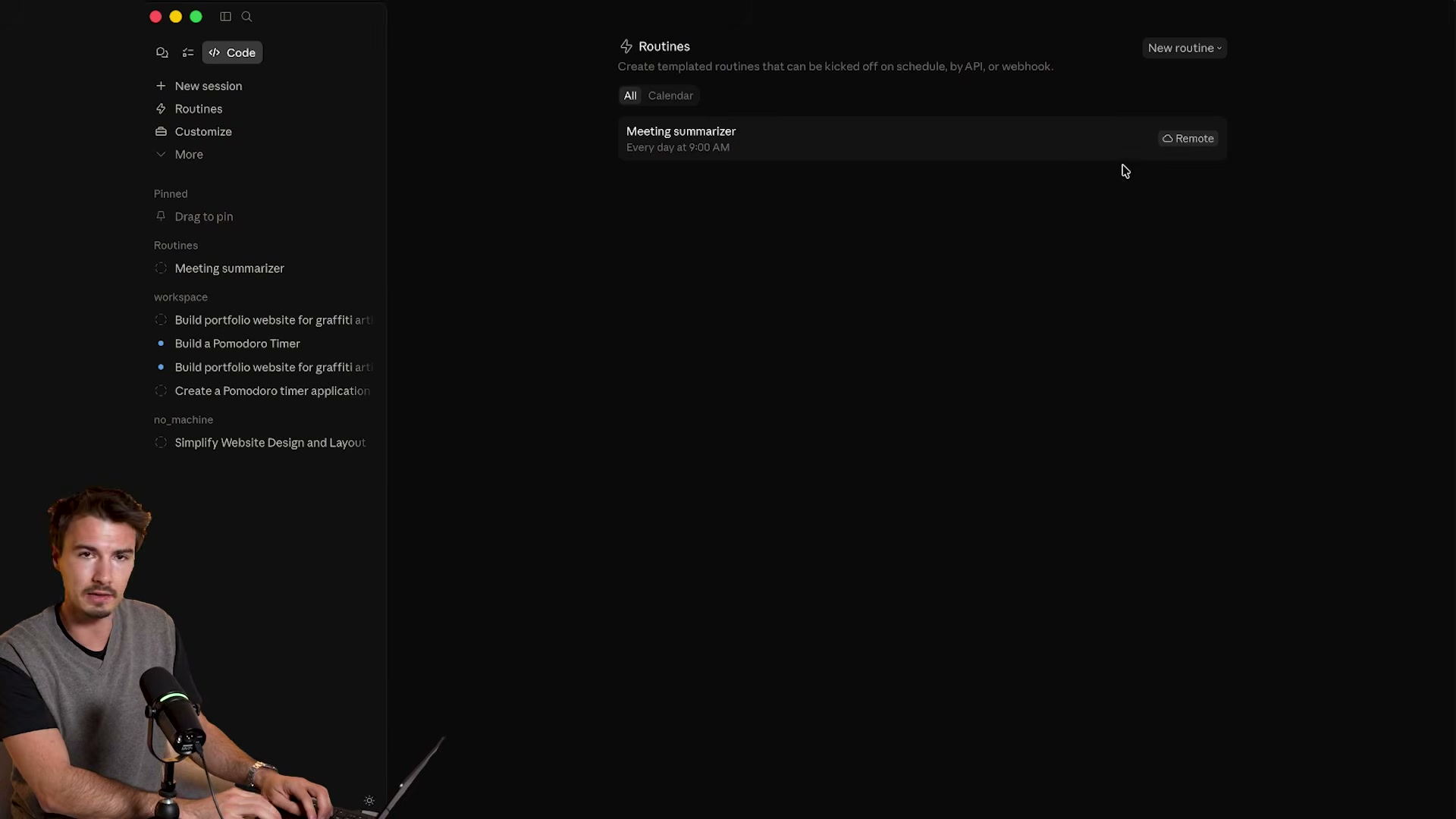
Navigate to Routines in the left sidebar and click New Routine.
- When prompted to choose an execution mode, select Remote. This offloads the routine to Anthropic’s cloud infrastructure so your local machine plays no role in execution.
-
Write your routine prompt — for example, a meeting summarizer that retrieves transcripts from the past 24 hours and outputs a structured summary. Set the model to Opus 4.7.
-
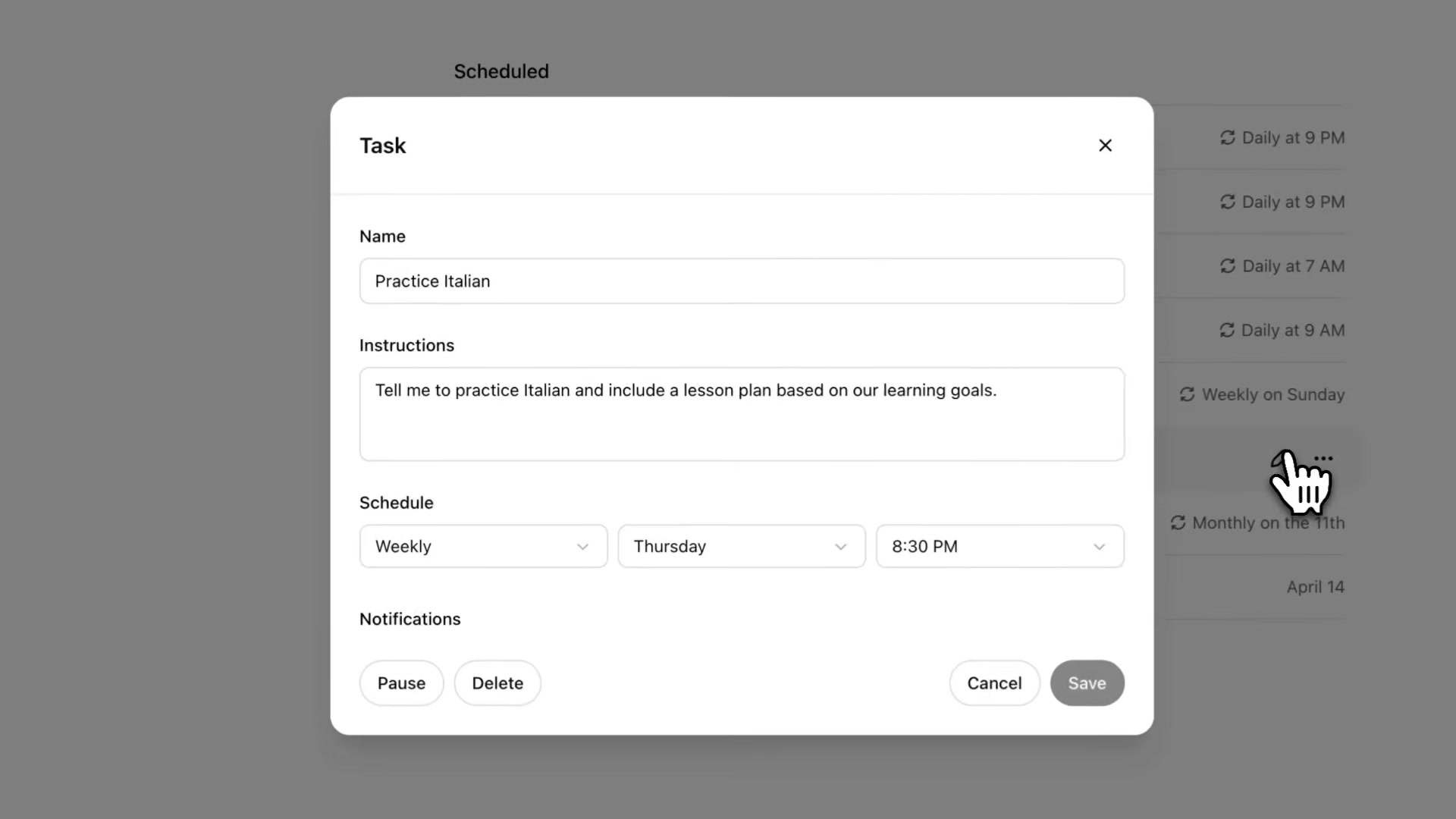
Set a recurring schedule: Every day at 9:00 AM.
-
Go to Customize → Connectors → Browse Connectors, search for Zoom, and click Add. Authenticate with your Zoom login when prompted.
-
Grant the Zoom connector read-only access to
search_meetingsandget_recording_resource. Select Always Allow for those tool permissions, then return to your routine and attach the Zoom connector. -
Click Create. The routine is saved and queued in Anthropic’s cloud — no local machine required from this point forward.
-
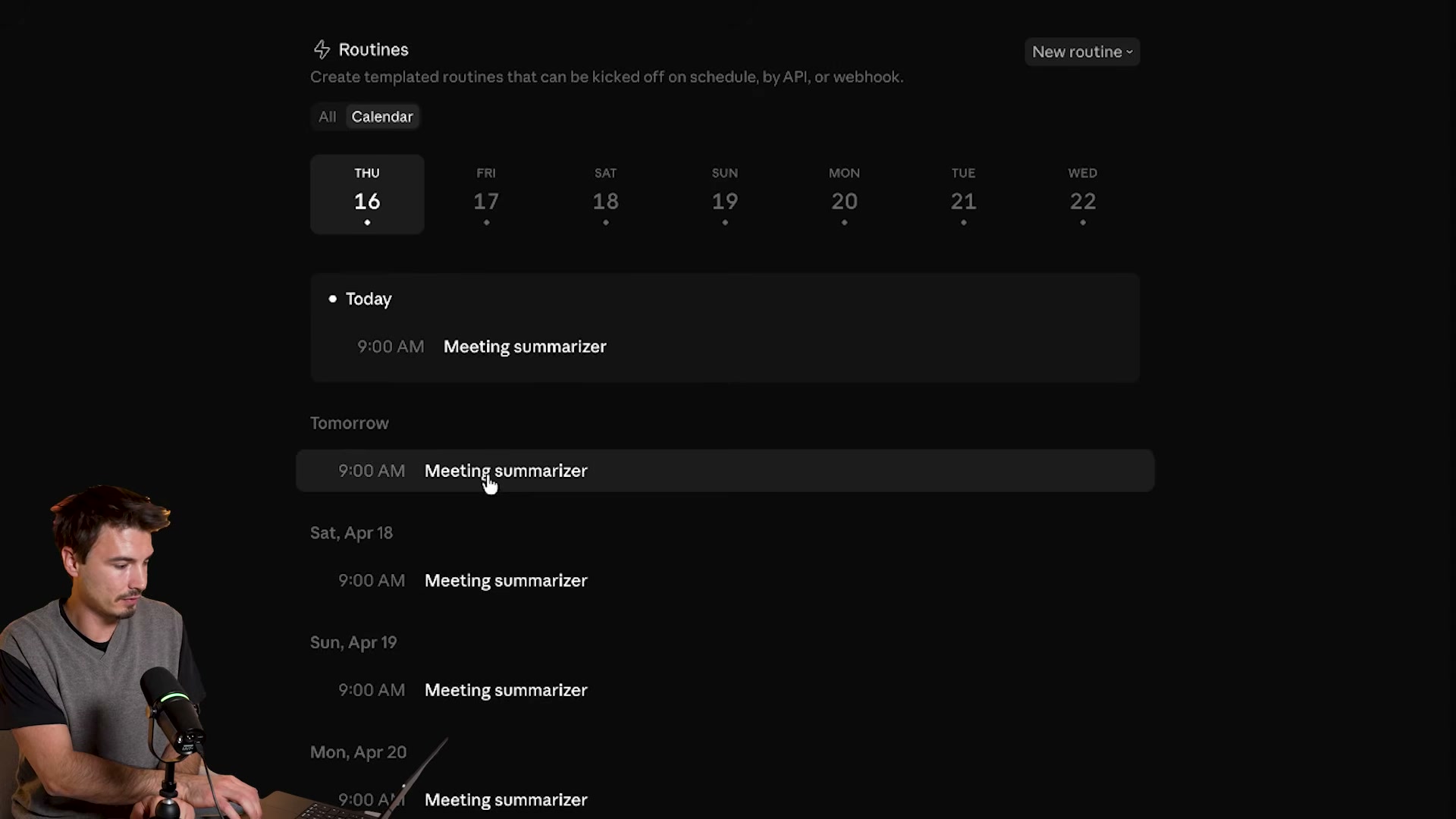
Switch to the Calendar view inside Routines to see every scheduled run plotted across the week.
- To try Gemini 3.1 Flash TTS, navigate to the Google AI Studio speech generation tool. Type text with square-bracket emotion tags — such as
[excited]or[whisper]— to generate expressive audio without an API key on the free tier.
Warning: this step may differ from current official documentation — see the verified version below.

- For production use, integrate the Gemini TTS API into a custom application or connect it directly inside Google Vids for automated voiceovers.
How does this compare to the official docs?
Anthropic’s Routines documentation and Google’s TTS API reference reveal the full scope of what the video only introduces — including webhook and API trigger modes, connector permission scopes, and the complete list of supported audio emotion tags — all of which Act 2 maps out against the source material.
Here’s What the Official Docs Show
The video covers a fast-moving week of AI releases, and the core Claude Code and Google Vids details hold up well against official sources. What follows confirms what the docs back, fills in a few missing details, and flags where you should verify before building.
Step 1 — Gemini Mac app and Option+Space shortcut
No official documentation was found for this step — proceed using the video’s approach and verify independently.
Step 2 — NotebookLM notebooks inside the Gemini app dropdown
No official documentation was found for this step — proceed using the video’s approach and verify independently.
Step 3 — Update Claude desktop app; new left-side navigation
The video’s approach here matches the current docs exactly on Claude Code’s availability inside the desktop app. One naming note worth catching before you go looking: claude.ai spells it Cowork as one word — not “Co-work” with a hyphen.
Step 4 — Claude Code dual-window split view
The video’s approach here matches the current docs exactly on Claude Code shipping inside the desktop app. The multi-window drag-and-split behavior isn’t described in the official documentation — treat it as a UI capability to discover in-app rather than a documented workflow.
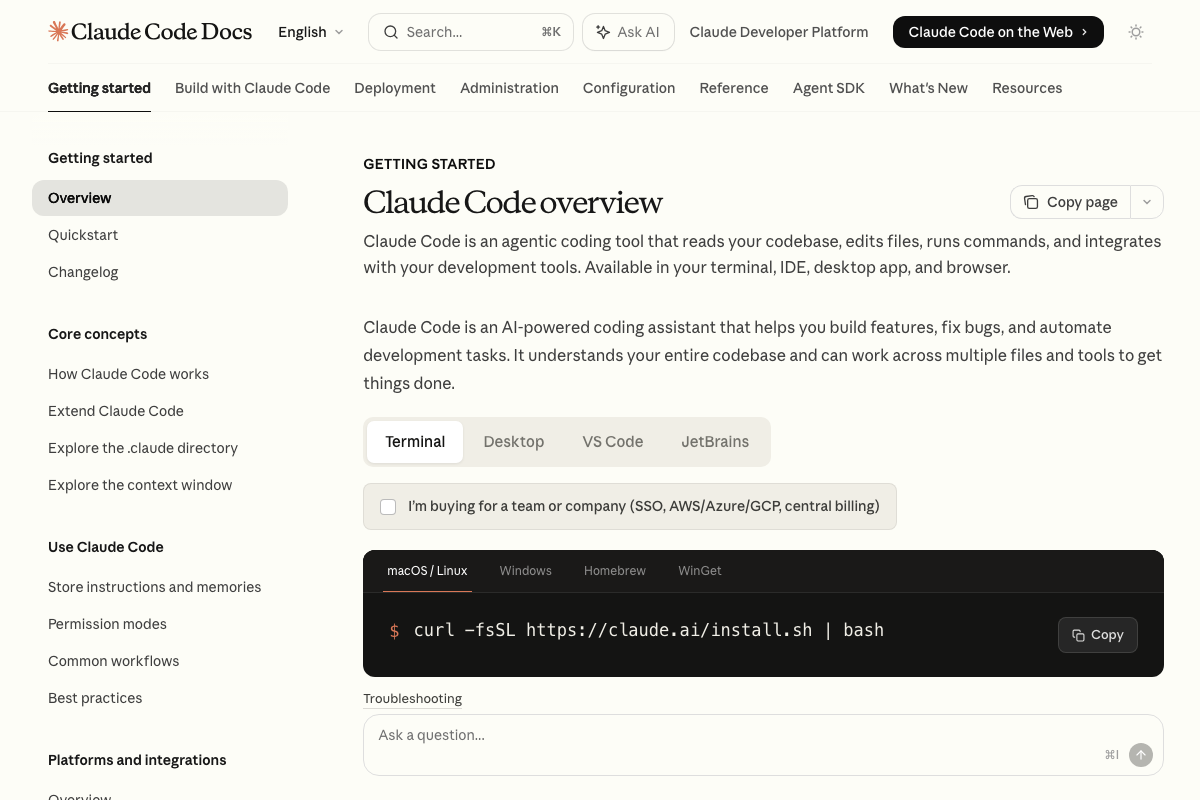
Step 5 — Integrated terminal pane inside the Claude Code tab
No official documentation was found for this step — proceed using the video’s approach and verify independently.
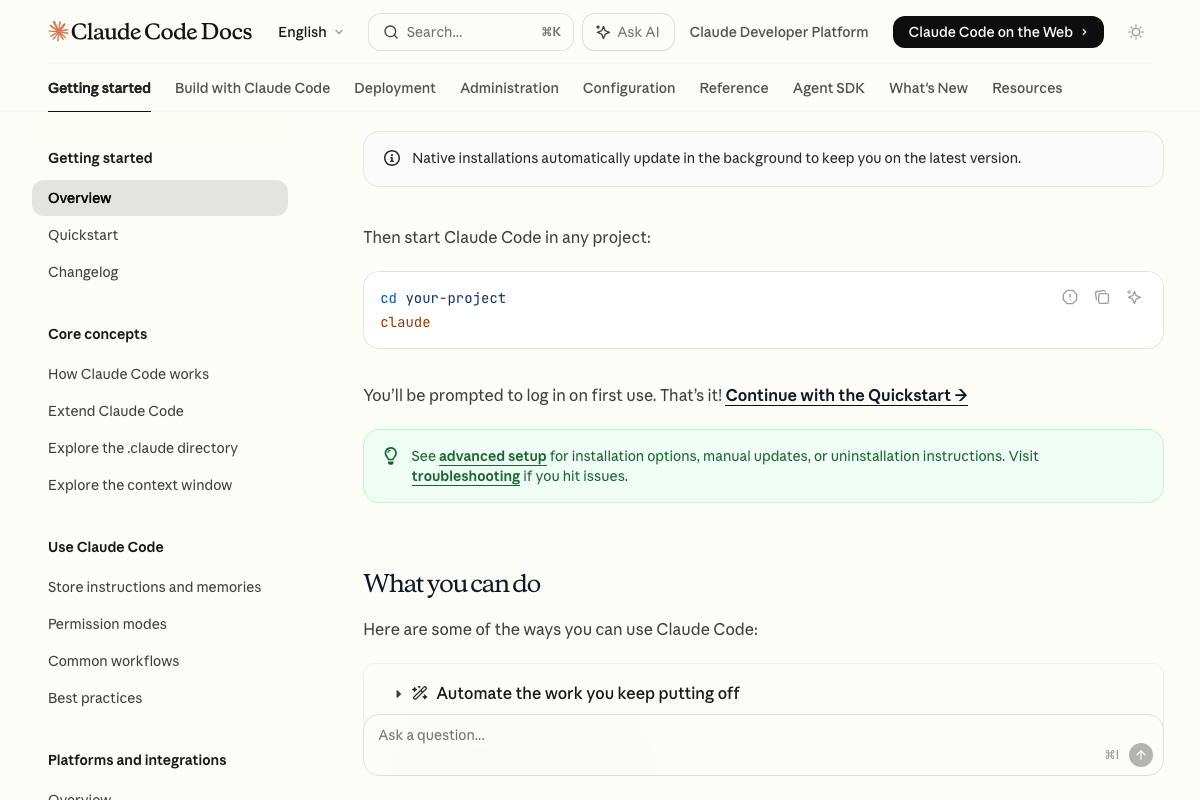
Steps 6–13 — Routines: New Routine, Remote mode, scheduling, Zoom connector, Calendar view
No official documentation was found for this step — proceed using the video’s approach and verify independently.
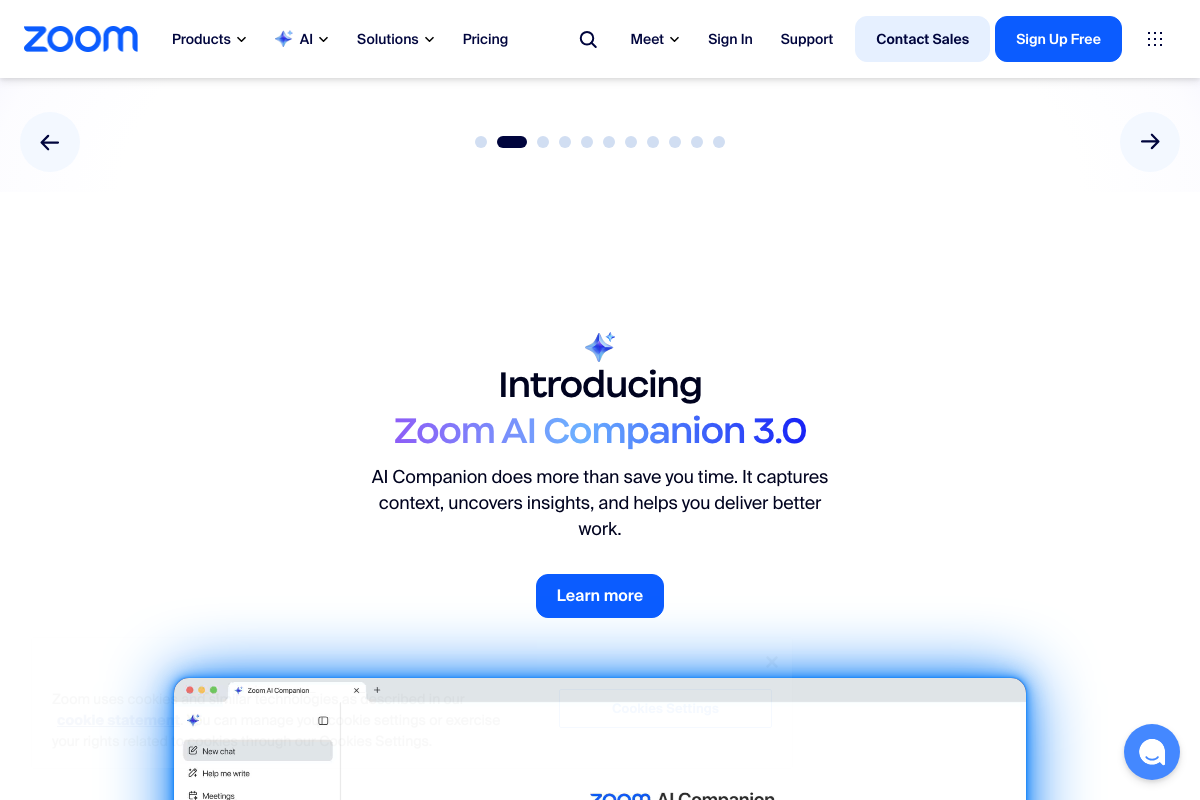
One important flag on steps 10–12 specifically: as of April 2026, Zoom’s public documentation shows no Claude connector. What Zoom has is AI Companion 3.0 — its own native meeting intelligence product. A connector granting Claude read-only access to Zoom transcript data would require a separate OAuth integration layer not documented anywhere in Zoom’s public-facing pages.
Step 14 — Gemini TTS studio (no API key) and Whisper Flow as an offline Gemma 4 app
Two corrections to note here.
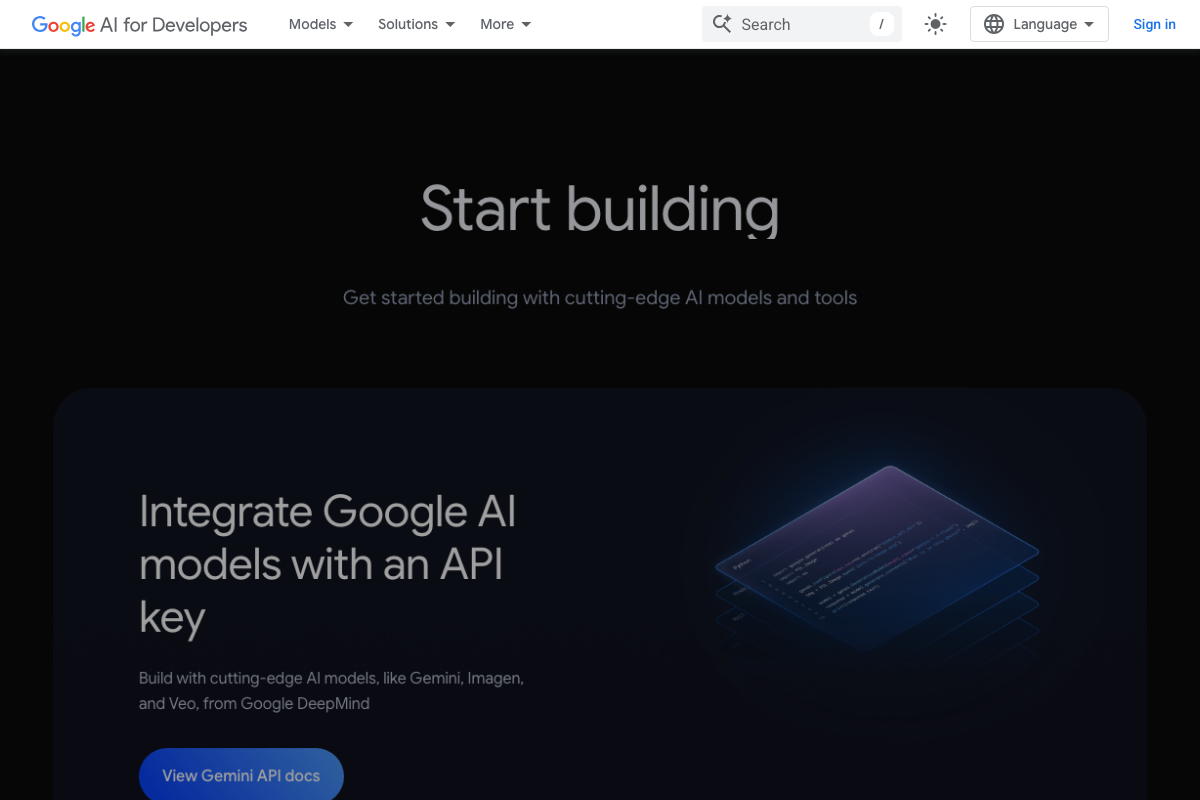
As of April 2026, the correct model designation is Gemini 3 Flash — the “.1” sub-version referenced in the video does not appear in the official ai.google.dev homepage banner. On the API key question: the standard access path shown on ai.google.dev is “Integrate Google AI models with an API key” — a confirmed keyless free-tier TTS path is not documented in any visible official page.
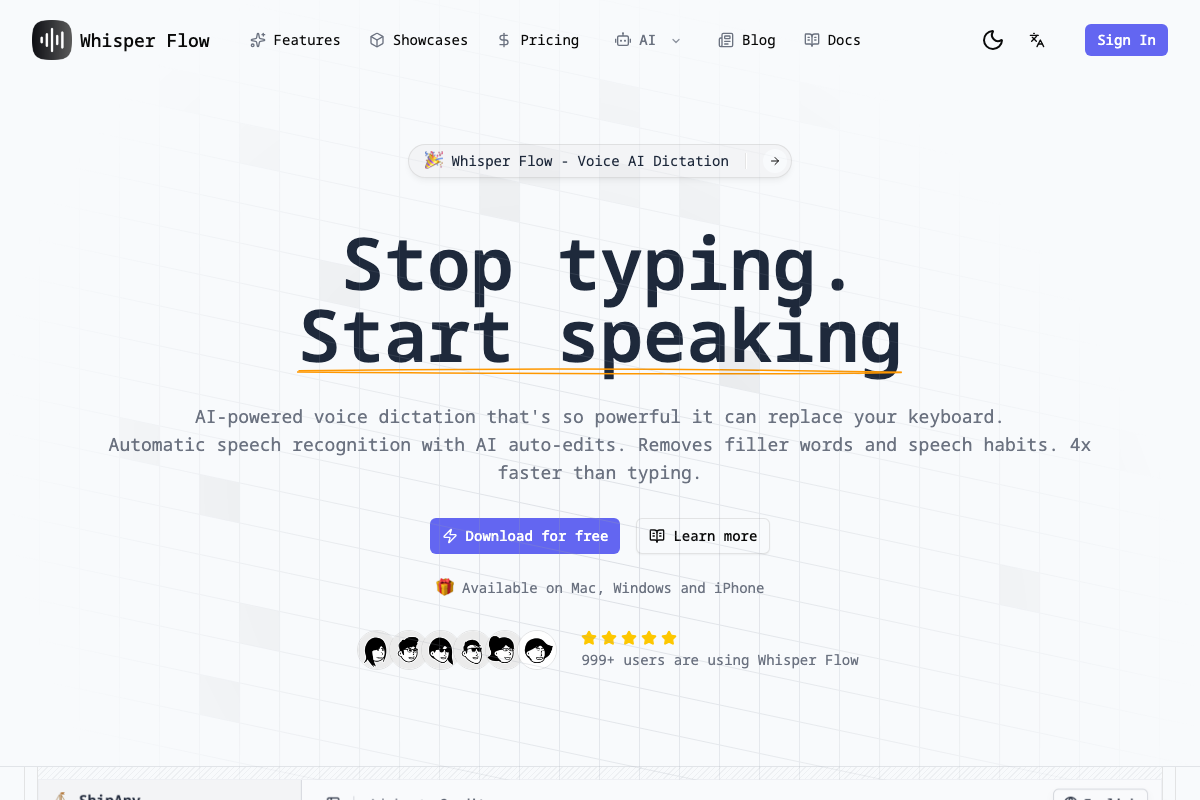
On Whisper Flow: the video describes it as a “free offline Gemma 4-powered dictation app.” Whisper Flow’s own homepage describes it as cloud-based AI voice dictation with no mention of Gemma 4 or offline operation. Google AI for Developers confirms Gemma as a locally deployable open model family but does not name a “Gemma 4” version in any visible screenshot.
Step 15 — Integrate Gemini TTS into Google Vids
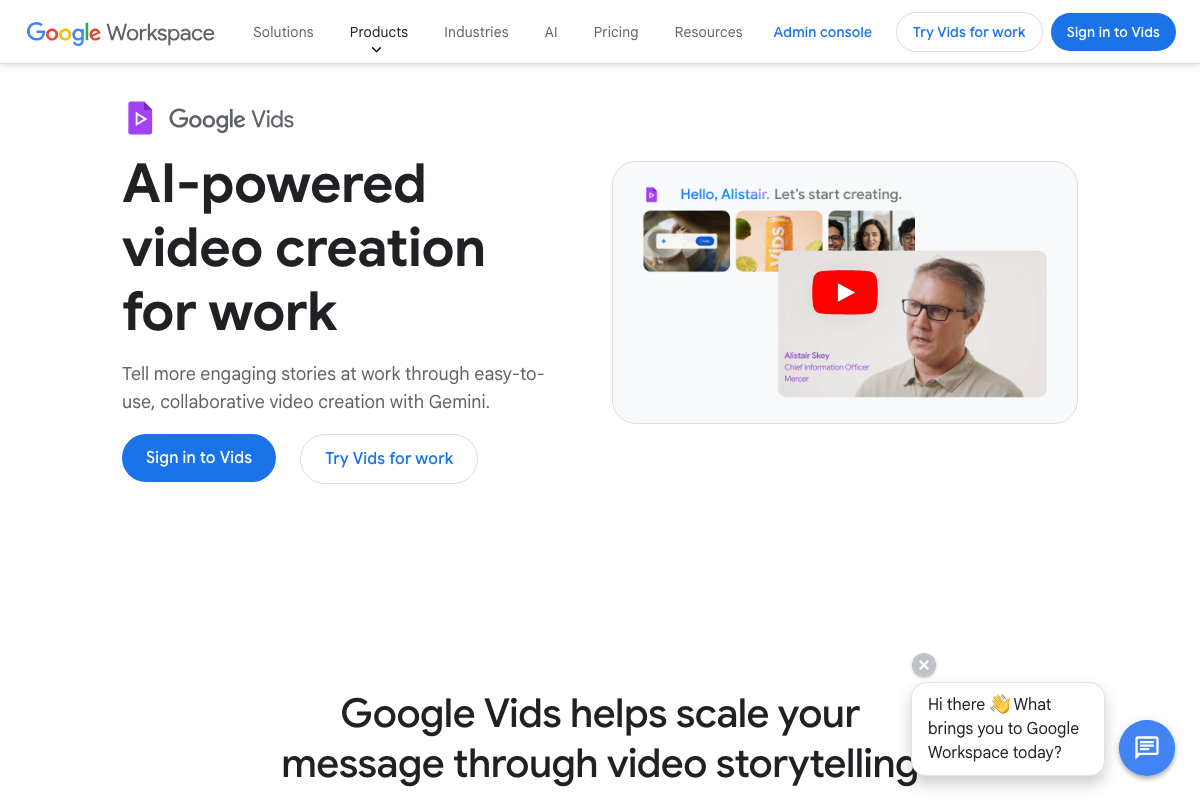
The video’s approach here matches the current docs exactly on Google Vids existing as a Gemini-powered video creation tool. One detail the video omits: Google Vids is a Google Workspace product and requires a business or enterprise account — personal Google accounts won’t have access. The emotion-tag TTS voice-over feature isn’t named in Vids’ visible documentation; Gemini’s confirmed role in Vids covers storyboarding, stock media selection, and background music — not expressive voice-over generation specifically.
Useful Links
- Claude — Official Claude homepage with desktop app download and Cowork feature overview
- Claude Code overview – Claude Code Docs — Installation guide and feature overview for Claude Code across all supported surfaces including the desktop app
- Gemini Apps Help — Google’s help center for Gemini apps, including the Connected Apps and integrated services category
- NotebookLM Help — Google’s help documentation for NotebookLM; requires Google account sign-in to access
- Gemini Developer API | Gemma open models | Google AI for Developers — Google’s developer hub covering Gemini 3 Flash, Gemma open models, and API key access via Google AI Studio
- Whisper Flow – Voice AI Dictation App — Whisper Flow’s official homepage describing its cloud-based AI voice dictation capabilities across Mac, Windows, and iPhone
- Google Vids: AI-Powered Video Creator and Editor | Google Workspace — Google Vids product page confirming Gemini integration for storyboarding and media generation; Workspace account required


0 Comments