

Free Chrome Extensions Every YouTuber Should Have Installed
Eight free Chrome extensions can replace scattered workflows, eliminate monitor glare during recordings, and surface competitor channel data in under a minute. By the end of this walkthrough, you’ll have a customized YouTube Studio dashboard, a one-click tab launcher for every workflow you run, and ambient sound controls ready before your next session.
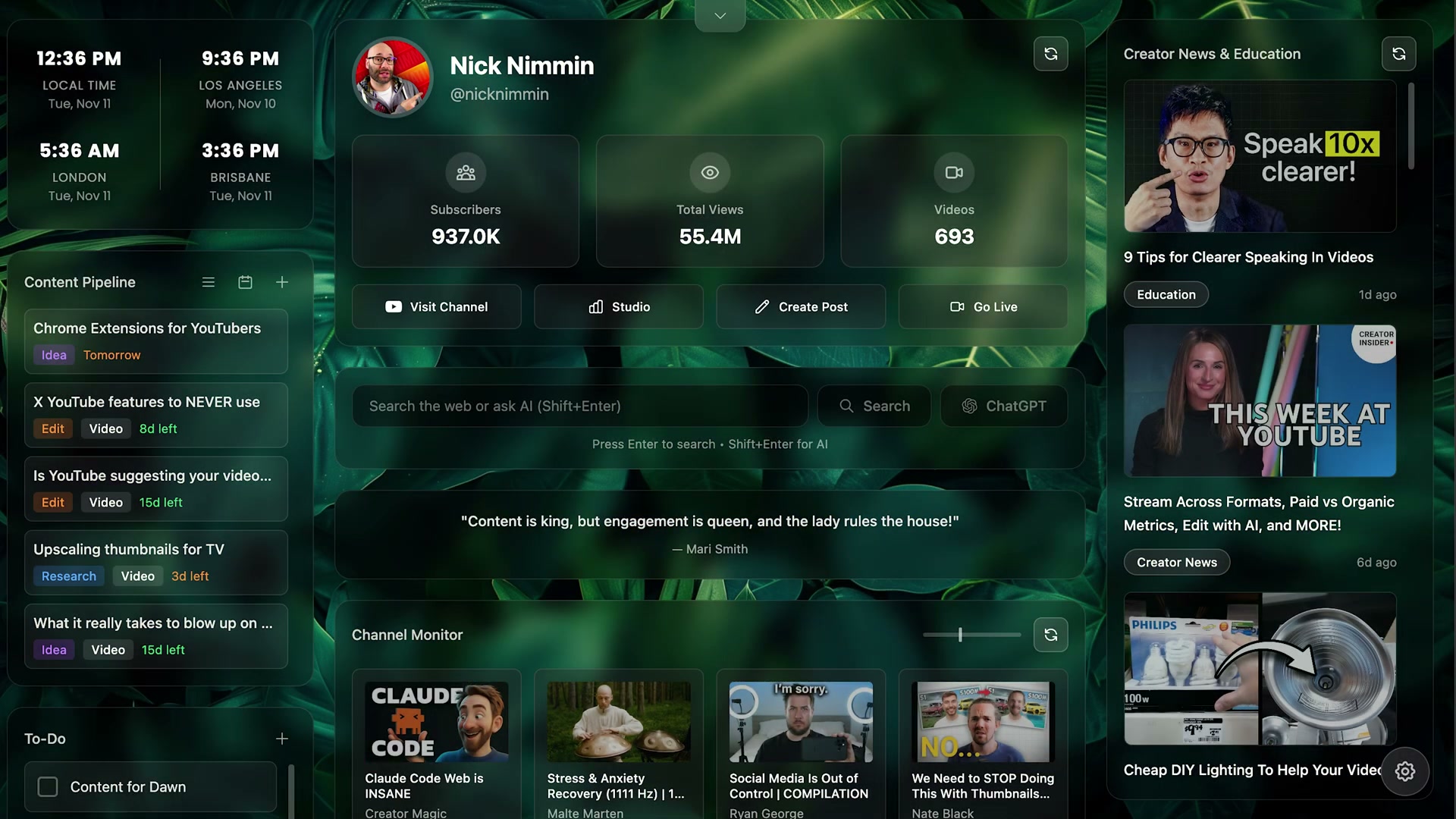
- Head to the Chrome Web Store and install Creator Dashboard. No account is required. Once installed, opening a new tab reveals a browser-based command center where you can plan upcoming content, track production stages, set deadlines, monitor up to 18 channels, and access a quick-link dock — all from a customizable wallpapered interface.
- To unlock channel monitoring, generate a YouTube Data API key. Creator Dashboard walks you through the process inside the extension — expect roughly two minutes of setup, done once. Paste the key into the extension settings to activate the feature.
Warning: this step may differ from current official documentation — see the verified version below.
- Navigate to the Videos tab of any YouTube channel while Creator Dashboard is active. The extension overlays upload cadence analysis, outlier videos, the top 10 videos from the last 90 days, and a heatmap of which weekdays a channel publishes most.
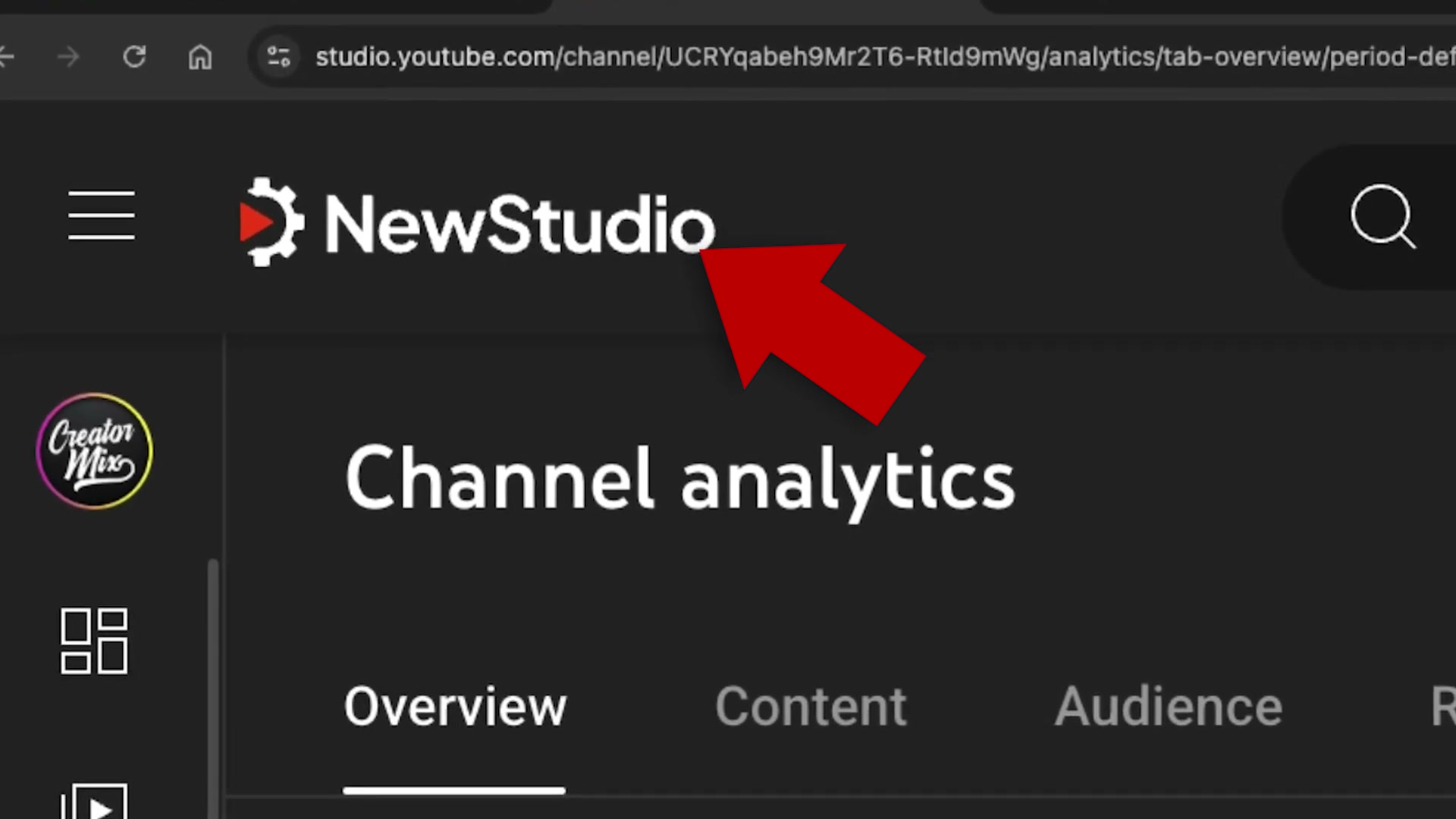
- Install New Studio — no account required. Open YouTube Studio and use the extension’s toggle panel to hide dashboard widgets you don’t need: brand deal prompts, the Creator Insider feed, or anything else. Shorts creators can enable the engaged real-time views metric as an alternative to raw view counts.
-
To remove New Studio’s persistent blue Discord button, click the extension icon in the Chrome address bar and open its settings. The toggle isn’t exposed in the main dashboard — only in the address-bar popup.
-
Install Simple Color Picker. When you spot a thumbnail color worth replicating, click the extension icon, select Pick a Color, and sample the target. Clicking any swatch in the panel copies the hex value directly to your clipboard — no screenshot, no Canva import, no eyedropper gymnastics.
-
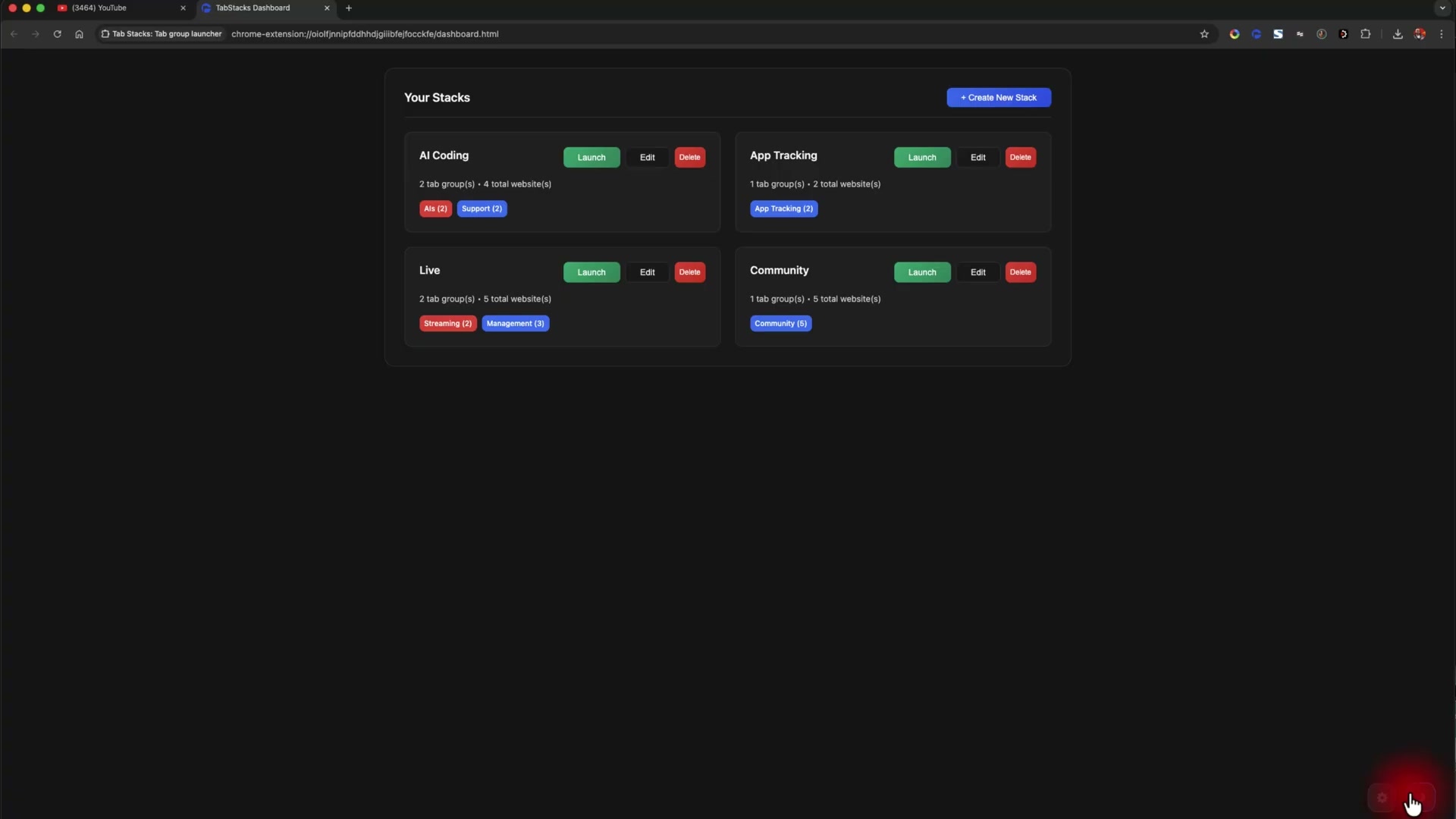
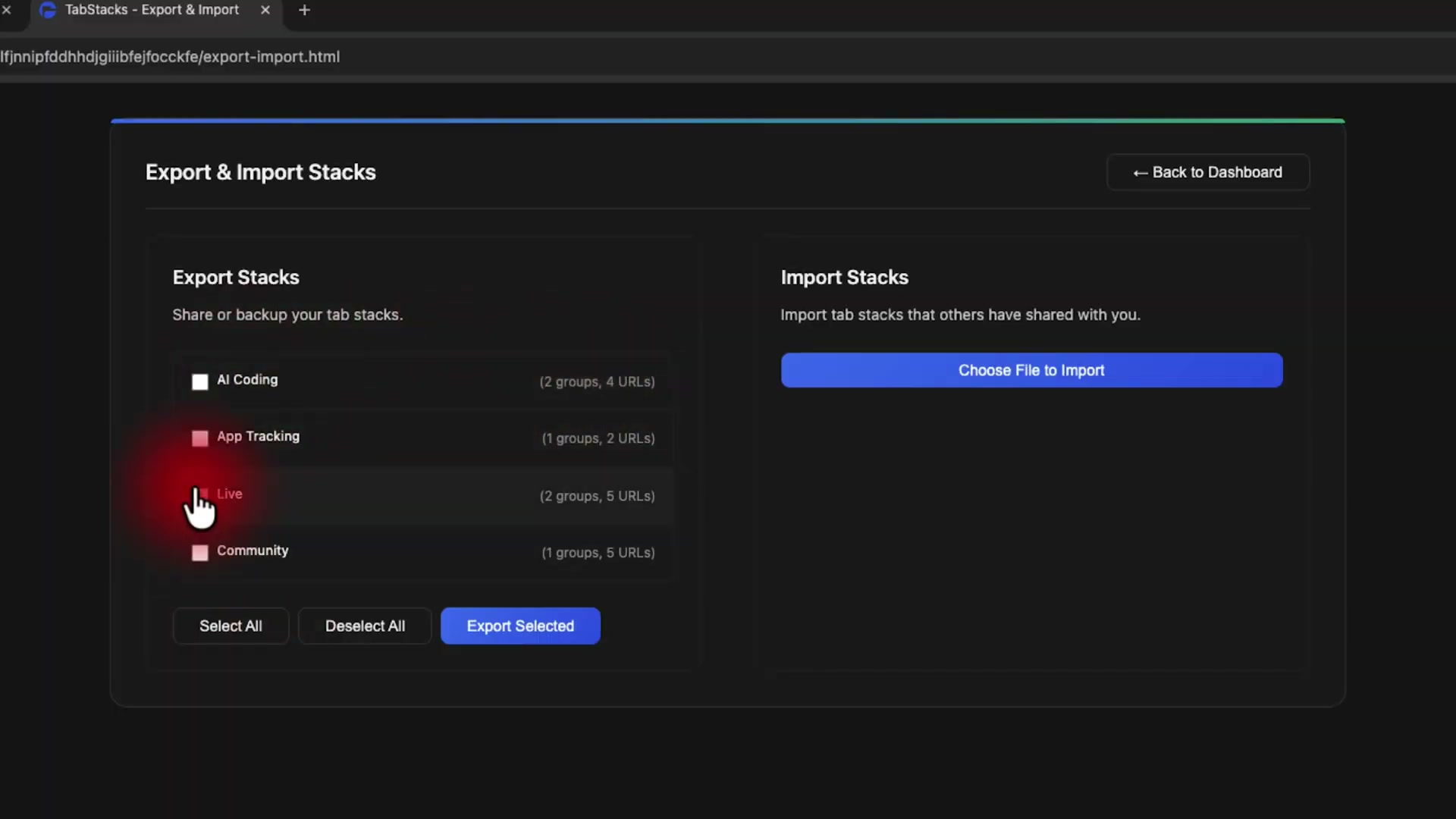
Install Tab Stacks and build a named stack for each workflow. Assign a color, a title, and the URLs that belong together. Clicking the toolbar icon and selecting a stack opens every tab in that group at once. To replicate your setup across machines, use the export screen to save a configuration file and import it on the target computer.
-
Install Dark Reader to apply dark mode across all websites. For creators with monitors in frame, white-heavy pages can cast unwanted light on your face or reflect in glasses — Dark Reader neutralizes that. If it makes documents unreadable, install Google Docs Dark Mode as a lighter alternative that preserves the document’s white canvas while dimming the surrounding UI.
-
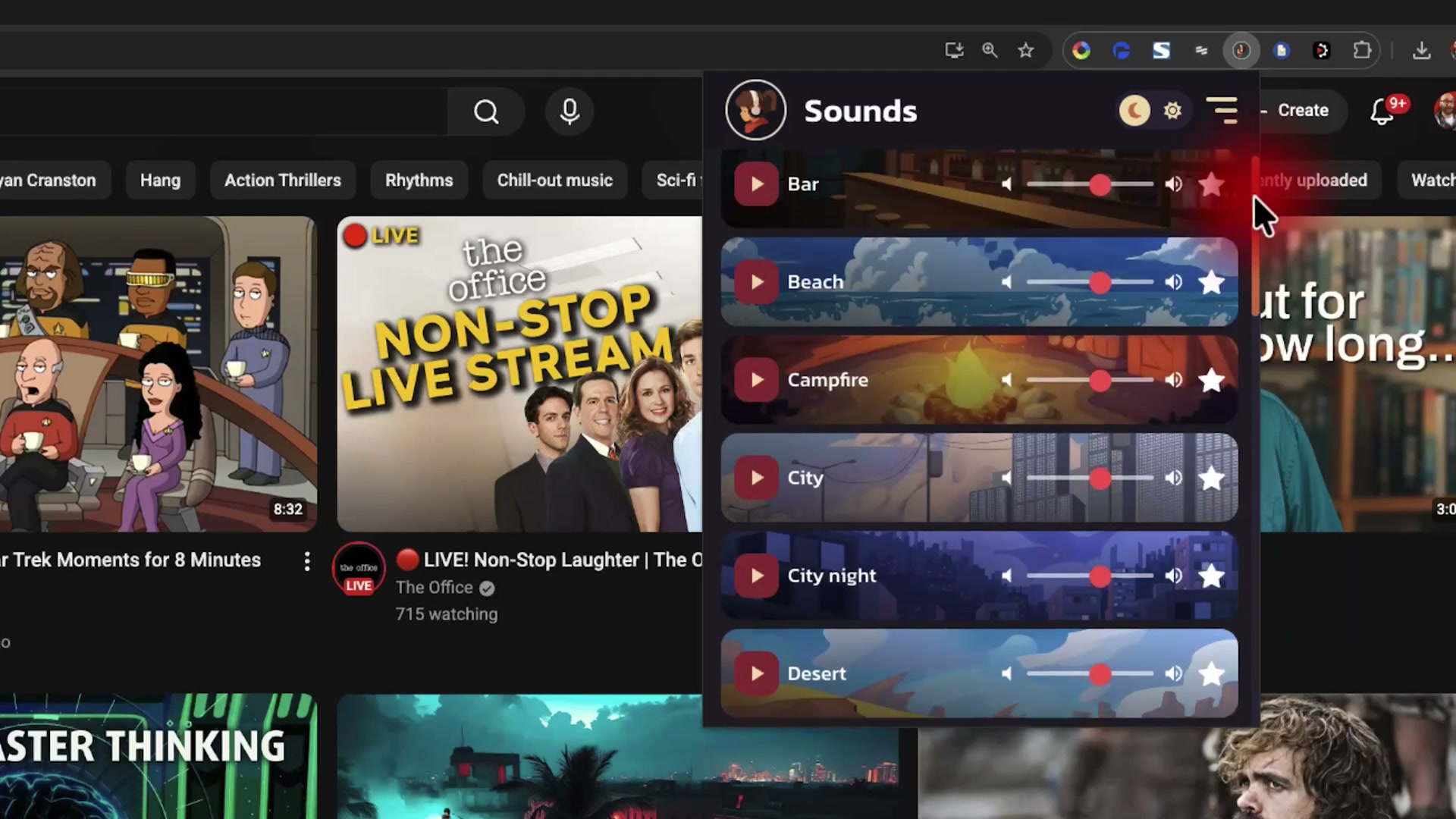
Install the Lofi Girl extension. Open the panel to select ambient sound layers — campfire, ocean, city noise, and more — and stack them for a mixed soundscape. A built-in Pomodoro timer, sticky notes, and a to-do list round out the productivity layer.
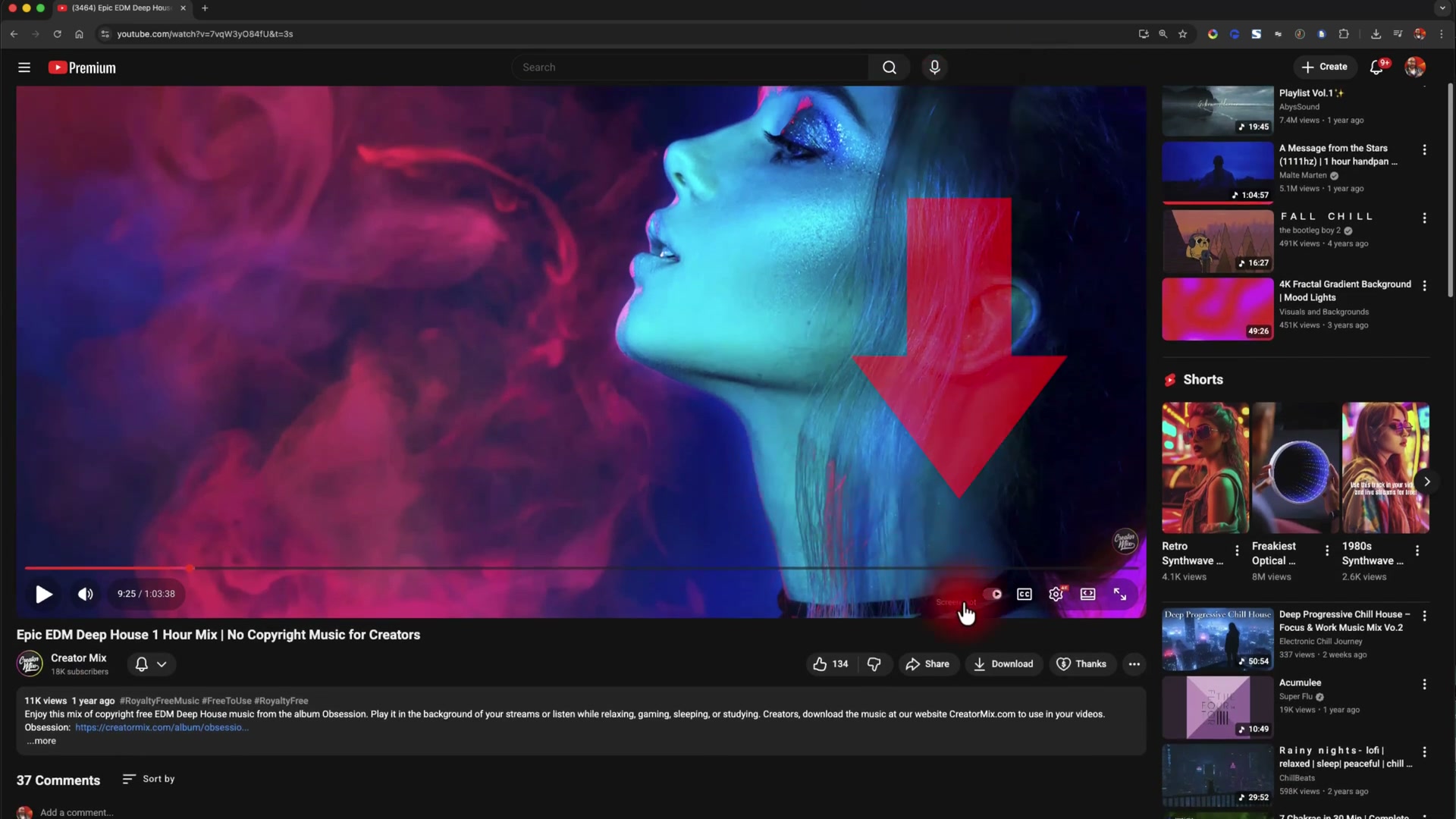
- Install Screenshot YouTube. When you land on the frame you need, click the capture button in the YouTube player. The extension exports a clean crop at your current player resolution — if you’re watching at 4K, you get a 4K file with no manual cropping required.
How does this compare to the official docs?
Several of these extensions rely on third-party APIs and update independently of the Chrome Web Store listings shown in the video, so it’s worth checking current documentation before you build these tools into a production workflow.
Here’s What the Official Docs Show
The video covers a lot of useful ground, and most of what it shows translates directly to practice. This act fills in the two areas where official sources add meaningful context: the full API setup process behind Step 2 and Dark Reader’s feature set beyond a simple toggle.
Step 1 — Creator Dashboard
No official documentation was found for this step — proceed using the video’s approach and verify independently.
Step 2 — YouTube Data API Key
The video’s approach here matches the current docs exactly — the YouTube Data API v3 is the correct API for channel monitoring.
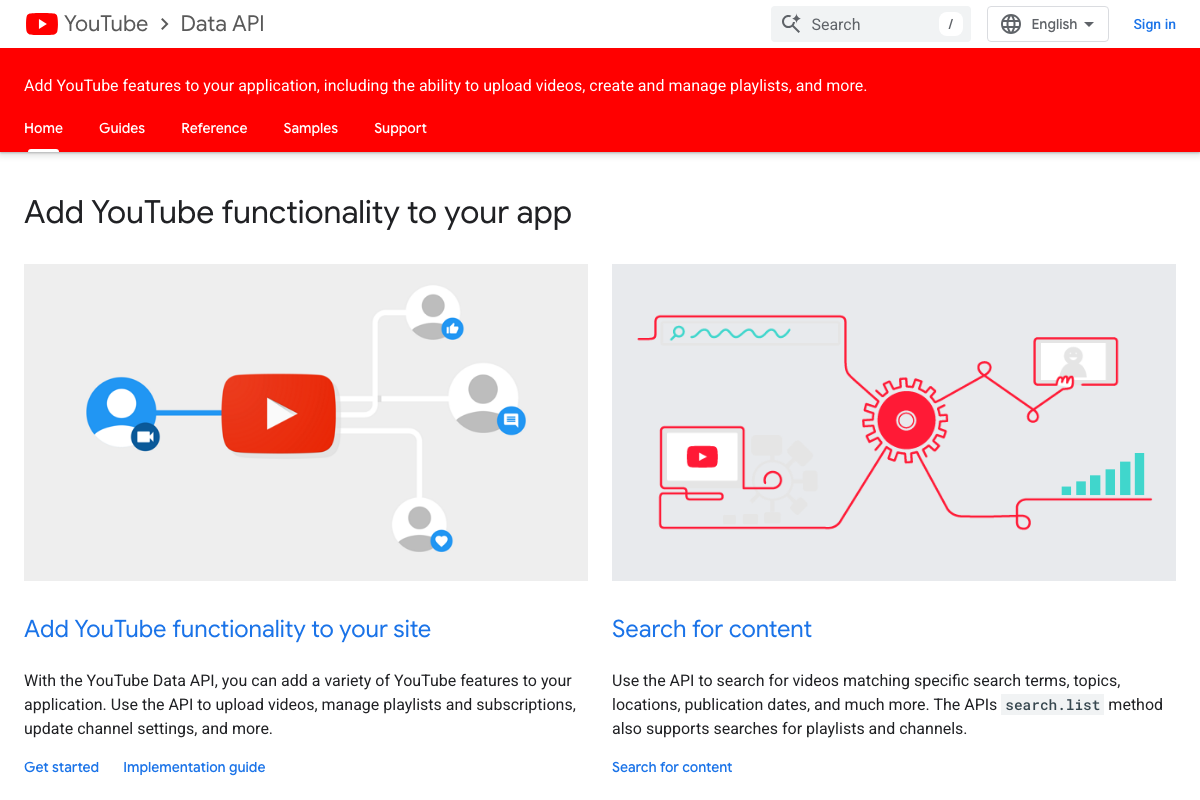
What the docs add: generating a key is more involved than an in-extension walkthrough implies. You need to create a Google Cloud project, navigate to the APIs & Services library, enable the YouTube Data API v3, and generate credentials from the Credentials screen — budget 10–15 minutes on first setup. The docs also surface a detail the video skips entirely: the API operates on daily quota limits. If Creator Dashboard stops refreshing channel stats, check quota consumption in Google Cloud Console before reinstalling the extension.
Step 3 — Competitor Channel Analysis (Creator Dashboard)
No official documentation was found for this step — proceed using the video’s approach and verify independently.
Steps 4–5 — New Studio
No official documentation was found for this step — proceed using the video’s approach and verify independently.
Step 6 — Simple Color Picker
No official documentation was found for this step — proceed using the video’s approach and verify independently.
Step 7 — Tab Stacks
No official documentation was found for this step — proceed using the video’s approach and verify independently.
Step 8 — Dark Reader
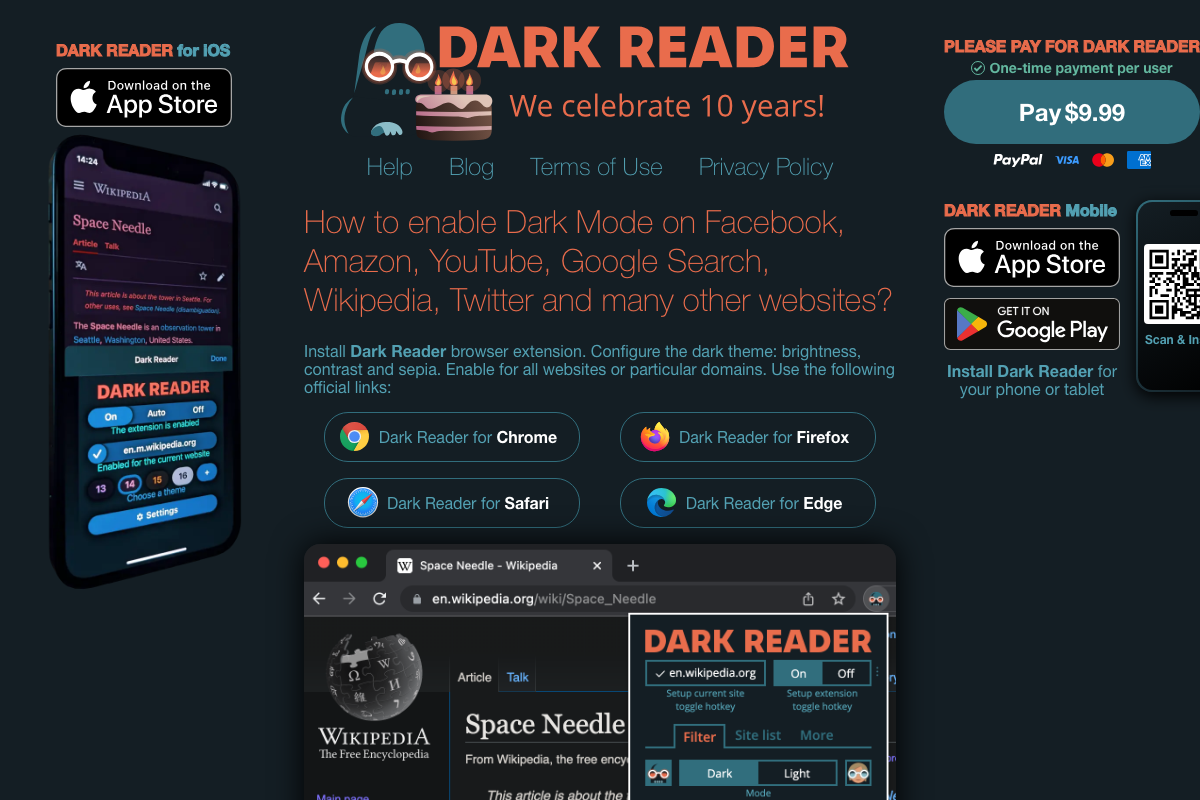
The video’s approach here matches the current docs exactly — Dark Reader is free to install and applies dark mode globally, including across YouTube.
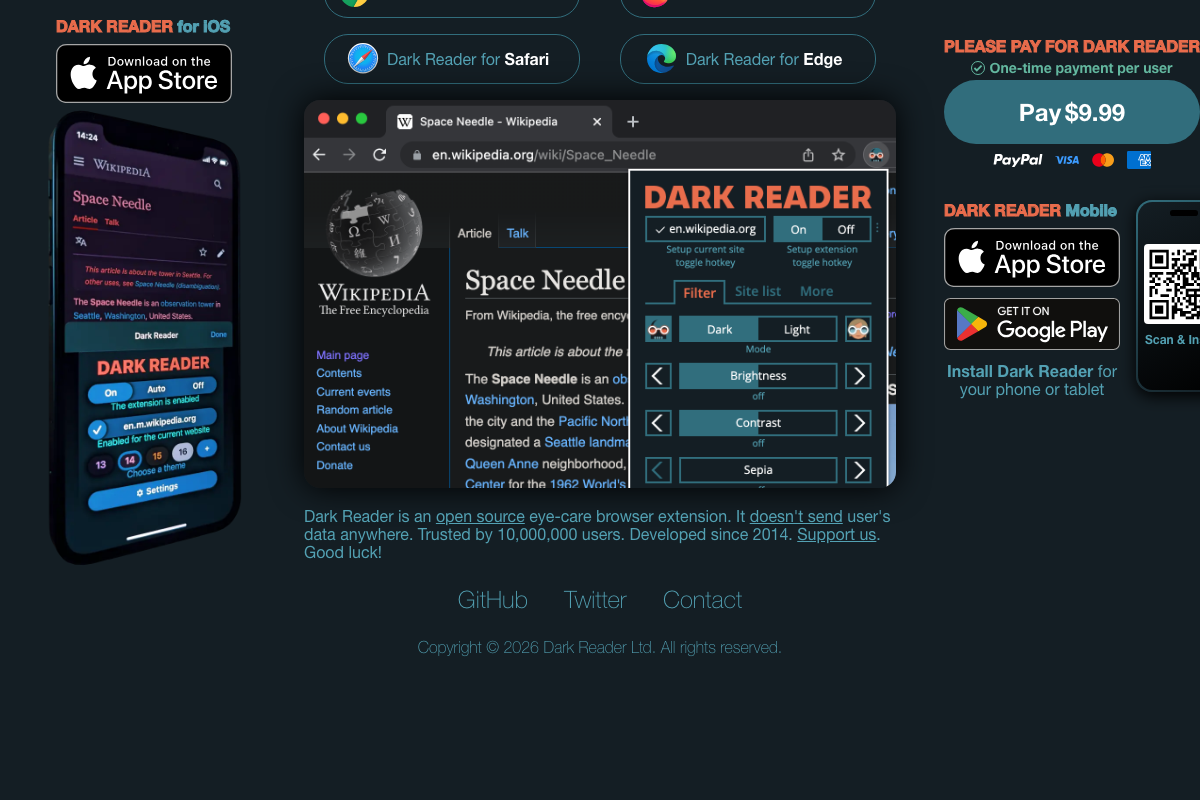
Two additions worth noting: the extension is not Chrome-exclusive. It installs in Firefox, Safari, and Edge as well, so teams using mixed browsers can standardize on it. And if you visit darkreader.org and see a $9.99 prompt, that is a voluntary one-time support payment to the developer — not a paywall. The Chrome Web Store install is free. Beyond the on/off toggle the video demonstrates, the popup panel includes Brightness, Contrast, and Sepia sliders for per-site control. If dark mode is distorting your thumbnail previews or shifting palette accuracy in Canva, dial those sliders back rather than disabling the extension entirely.
Step 9 — Lofi Girl
No official documentation was found for this step — proceed using the video’s approach and verify independently.
Step 10 — Screenshot YouTube
No official documentation was found for this step — proceed using the video’s approach and verify independently.
Useful Links
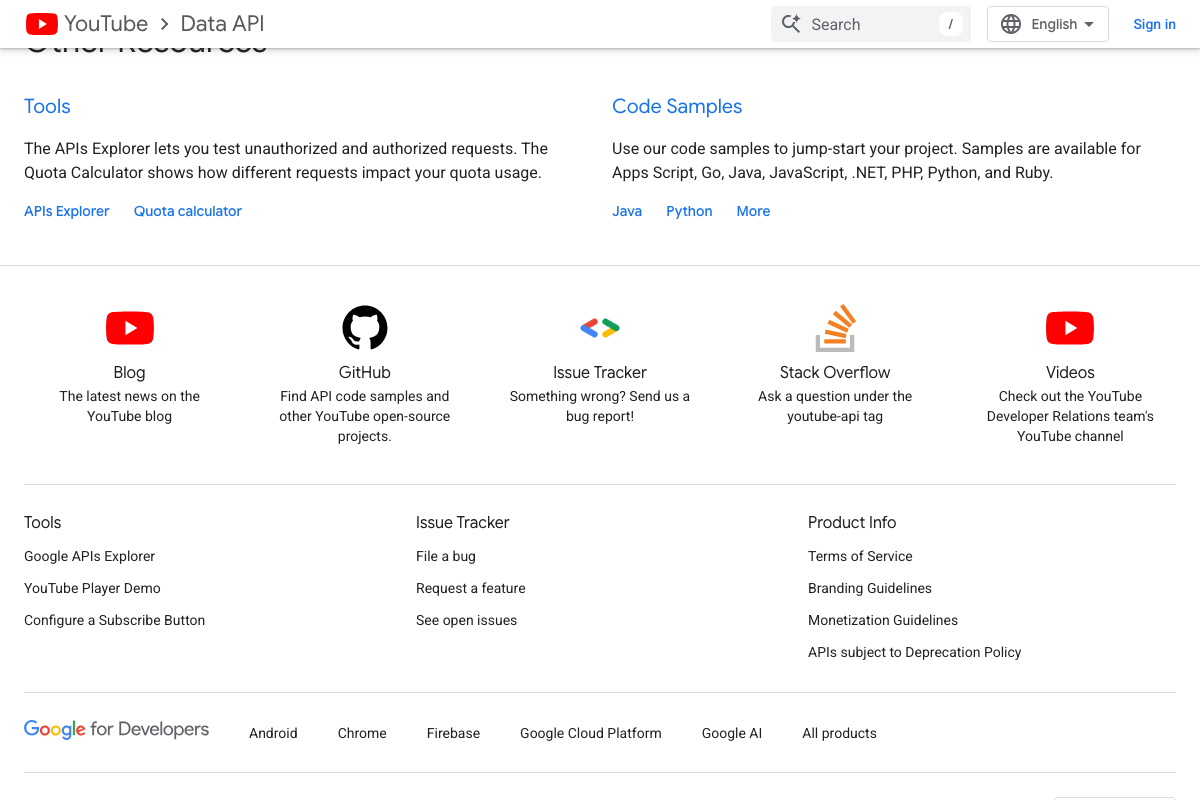
- YouTube Data API | Google for Developers — Official API reference for YouTube Data API v3, including quota documentation, the Quota Calculator, and the APIs Explorer for testing requests before committing to an integration.
- Dark Reader — Official Dark Reader site covering browser compatibility across Chrome, Firefox, Safari, and Edge, and clarifying that the $9.99 CTA is a voluntary developer support payment.
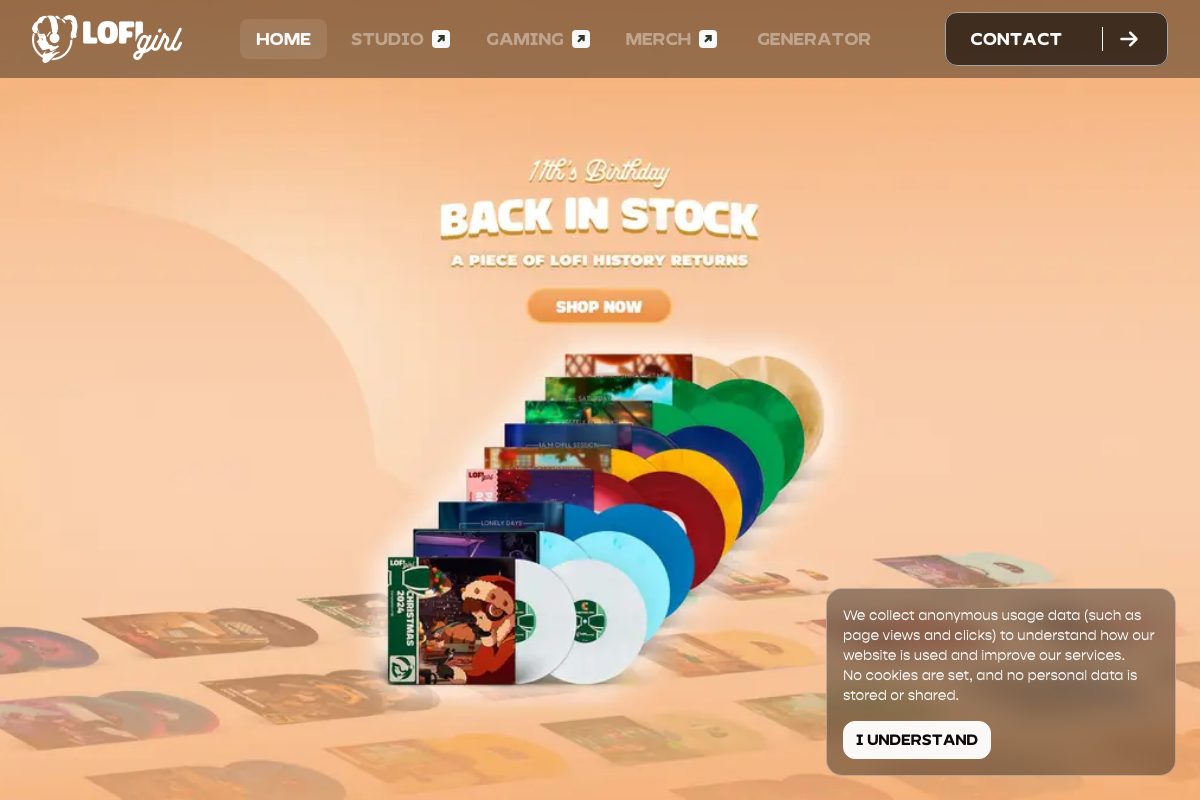
- Lofi Girl — Official Lofi Girl brand site; browser extension features are not surfaced at the homepage level — verify Pomodoro, sound-layering, and productivity features directly via the Chrome Web Store listing.


0 Comments