

Claude’s Inline Visual Generation: Interactive HTML Visualizations in Any Chat
Claude now renders interactive HTML visualizations — calculators, flowcharts, comparison displays — directly inside a conversation, without opening a code editor or a separate artifact window. By the end of this walkthrough, you’ll know how to trigger these visuals, customize their styling, chain them onto research results, and export them as either a screenshot or a shareable web page.

- Create a free account at claude.ai. No paid plan is required to try the feature, though output quality varies by model — more on that in step 2.
- Open a new chat and switch the model selector to Claude Opus. Anthropic’s own documentation for this feature calls out Opus specifically for visual generation quality. If you’re on a free plan and results look thin, the model is the first thing to check.
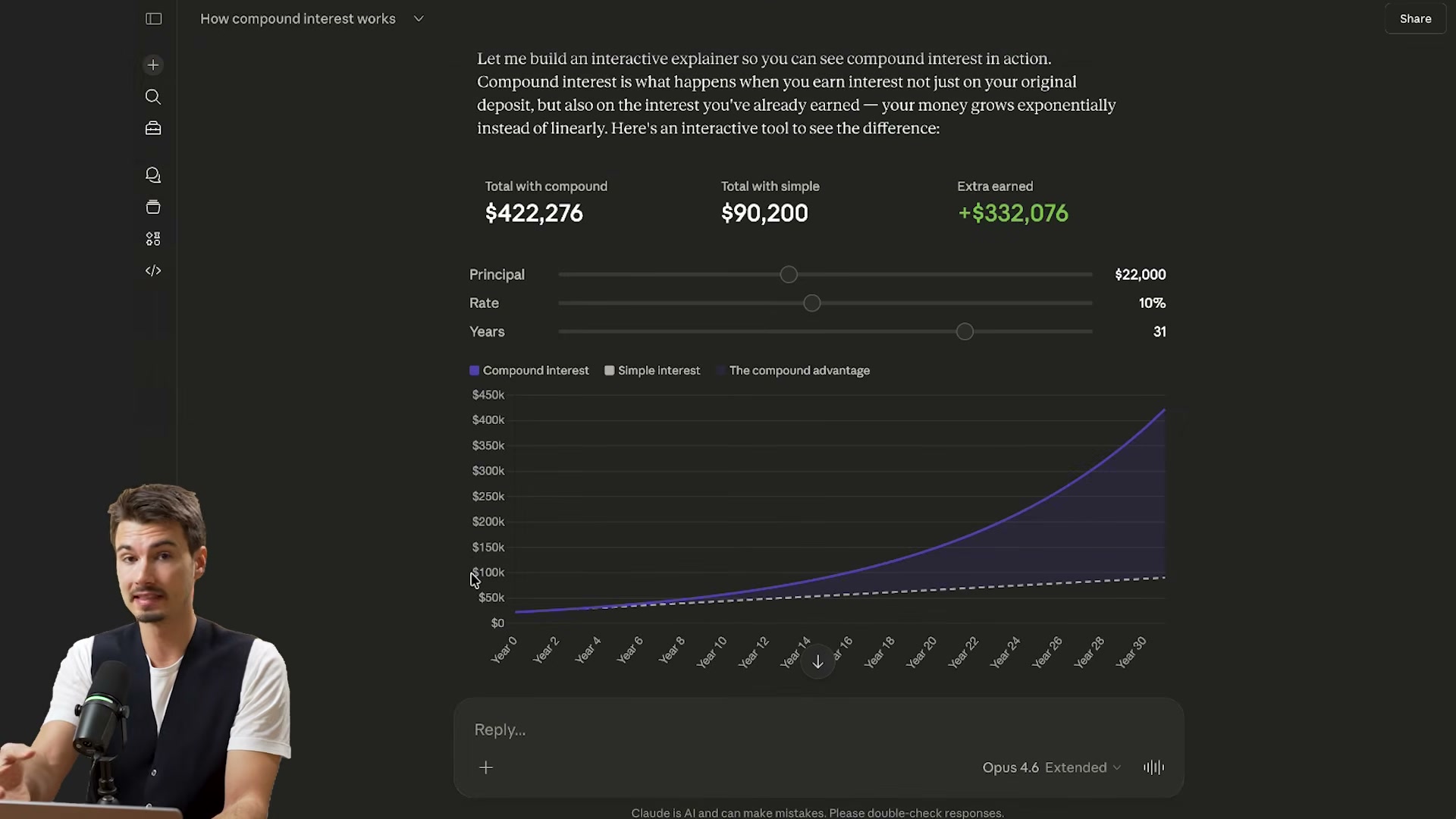
3. Type a prompt that begins with “Show me” — for example, Show me how compound interest works. The phrase acts as a reliable trigger for inline visual output. Alternatives like “draw a graph” or “create a visualization” also work, but “Show me” is the most consistent activator across prompt types.

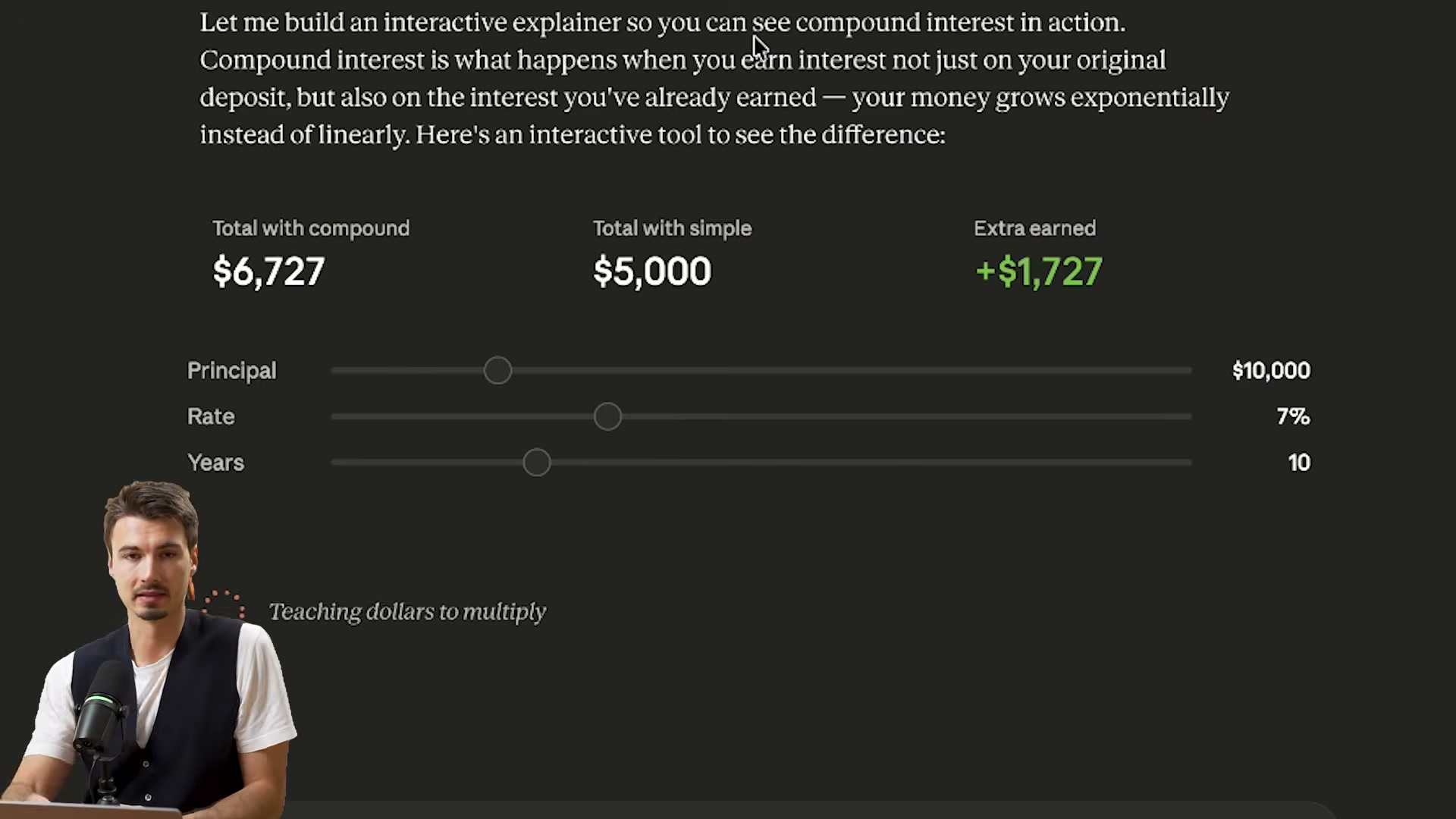
4. Watch the visualization render inline as part of Claude’s answer. The output is an interactive HTML widget — not a standalone app — embedded directly in the response. Sliders, tabs, and clickable nodes are live.
5. Hover over the visual to reveal the three-dot menu in the upper corner. Two export paths are available from here: Copy to clipboard captures a flat screenshot of the current visual state, and Save as artifact converts it into a proper shareable web page hosted by Anthropic.
6. Use “Copy to clipboard” when you need a quick image to paste into a doc or chat. The clipboard output is a screenshot, not an interactive element — by design, since inline visuals are scoped to the conversation.
7. Send a follow-up prompt to restyle the output — for example, Style the flowchart in a crazy way or, more practically, Apply our brand colors and remove the drop shadows. Claude treats the visual as editable context and rerenders it without regenerating the underlying research.

8. To combine web research with a visual, run a search-style prompt first — Research different wireless headphones under $300 — then follow up with Show me by visualizing the comparison. Claude pulls from its search results and maps them into a structured comparison display.

9. Use Save as artifact from the three-dot menu to promote the inline visual into a full artifact. This generates a shareable URL and makes the visualization usable outside the conversation as a standalone web page.
Warning: this step may differ from current official documentation — see the verified version below.
How does this compare to the official docs?
Anthropic’s own guidance on inline visuals and the distinction between quick HTML renders and full artifacts draws some important boundary lines that clarify exactly when each output type is appropriate — and that’s where Act 2 picks up.
Here’s What the Official Docs Show
The video gives you a workable mental model for Claude’s visualization output, and the official documentation adds the mechanical precision that makes it reliable in practice. What follows covers every step in the same sequence — affirming what holds up and filling in what the screenshots reveal.
Step 1 — Create a free account at claude.ai

The video’s approach here matches the current docs exactly. Google and email signup options are both present, and the Free tier grants access to the Chat interface used throughout this tutorial. The claude.ai landing page also surfaces a Cowork mode — a separate agentic interface unrelated to the visualization workflow here. You can ignore it.

Before Step 2 — Enable Artifacts first (prerequisite the video skips)
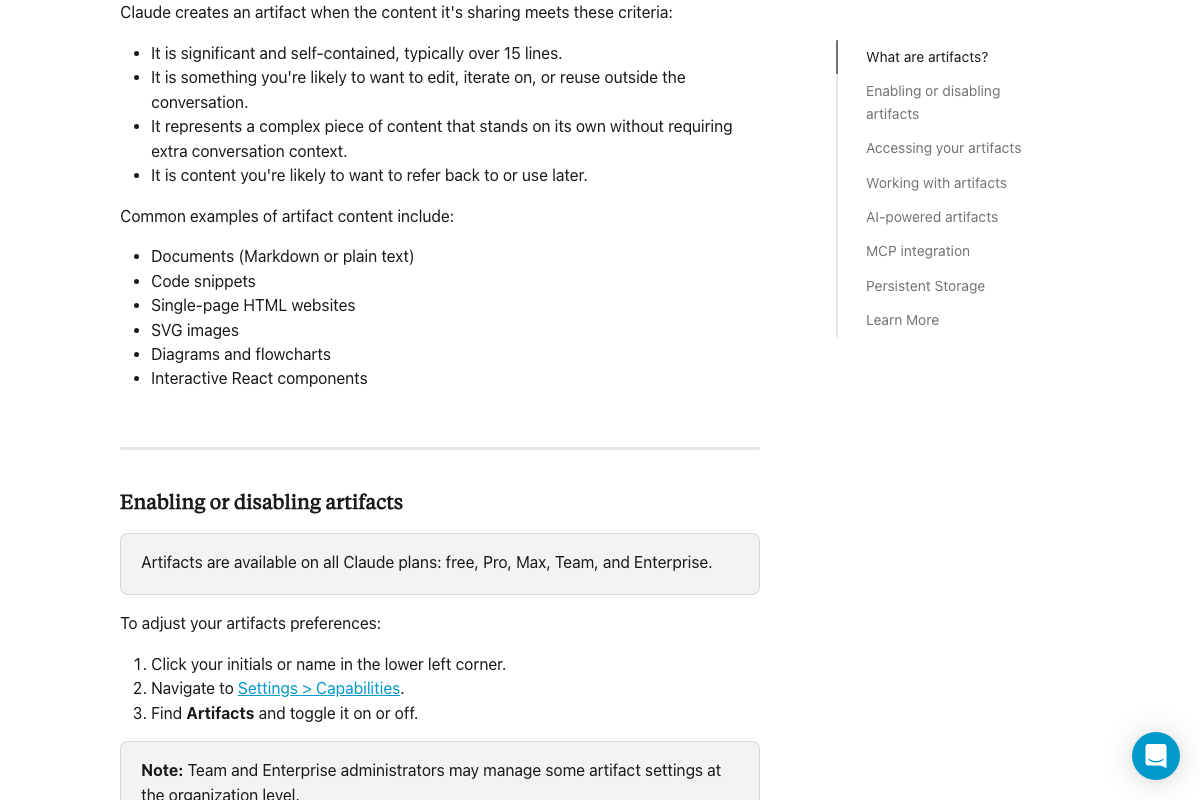
The official docs are explicit: Artifacts must be switched on before any of this works. Navigate to Settings > Capabilities and enable the Artifacts toggle. Without it, Claude will not produce artifact output regardless of how you prompt.
Step 2 — Switch model to Claude Opus
No official documentation was found for this step — proceed using the video’s approach and verify independently.
Step 3 — Use “Show me” as a prompt trigger
As of March 2026, the correct mechanism is automatic content evaluation, not a trigger phrase. The official artifacts documentation makes no mention of “Show me” — Claude determines whether to create an artifact based on whether the output is significant, self-contained, and typically over 15 lines. A clear, descriptive prompt is sufficient.
Step 4 — Watch the visualization render
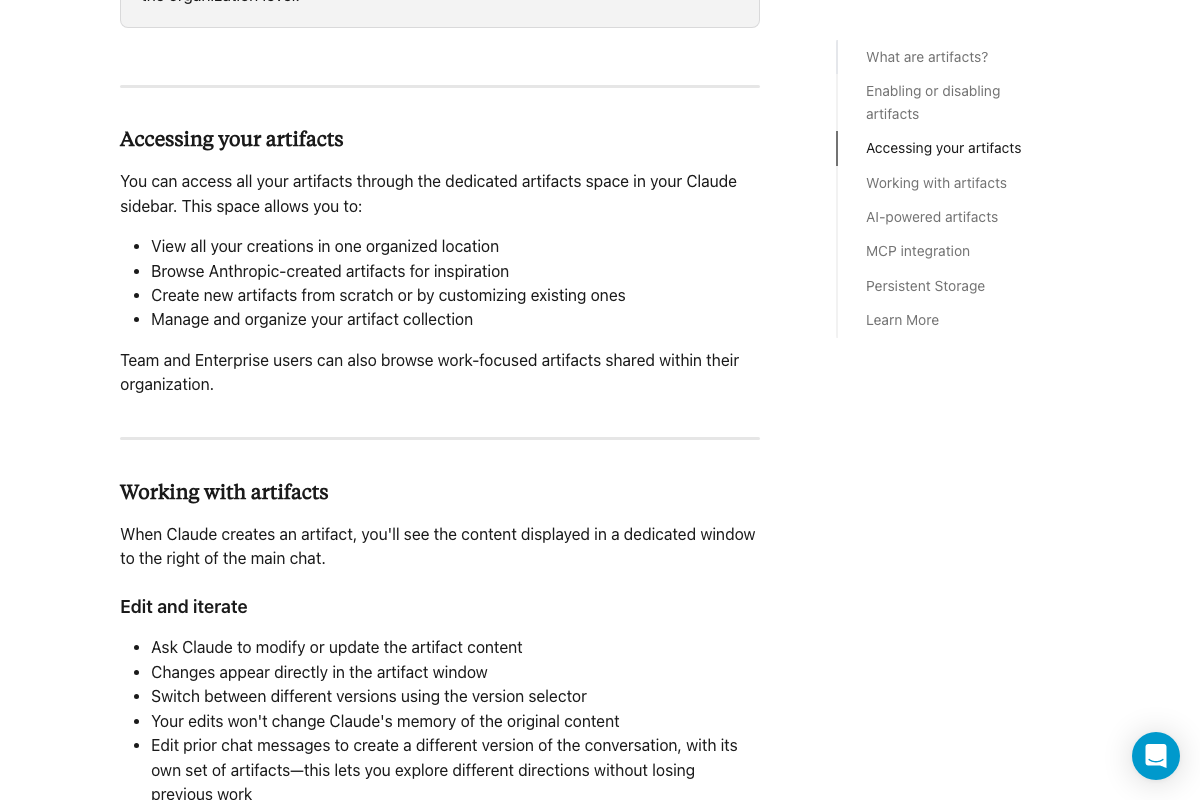
As of March 2026, the correct parameter is that artifacts open in a dedicated window to the right of the chat — the video describes the output as rendering “inline” within the conversation, which reflects a mischaracterization of the documented behavior.

Step 5 — Hover to reveal the three-dot export menu
No official documentation was found for this step — proceed using the video’s approach and verify independently.
Step 6 — Copy to clipboard for a quick image export
No official documentation was found for this step — proceed using the video’s approach and verify independently.
Step 7 — Follow-up prompt to restyle the output
The docs confirm follow-up modification works as described. One addition worth noting: version history is maintained automatically — you can switch between versions via a version selector, and editing a prior message creates a new version rather than overwriting the existing one.
Step 8 — Chain web research into a visualization
No official documentation was found for this step — proceed using the video’s approach and verify independently.

Step 9 — “Save as artifact” to create a shareable page
As of March 2026, there is no documented conversion step from an inline visual to an artifact. Artifacts are created directly in the dedicated window from the moment Claude generates them — the “Save as artifact” framing implies a two-stage workflow the official documentation does not describe.
Useful Links
- Claude — Official Claude web app for account creation and access to the Chat and Cowork interfaces.
- What are artifacts and how do I use them? | Claude Help Center — Complete official documentation covering artifact types, creation criteria, the Settings > Capabilities toggle, and the dedicated artifact window behavior.


0 Comments