

YouTube’s New AI Tools for Shorts: Add Motion, Reimagine, and Add Object
YouTube’s AI-powered Shorts tools — Add Motion, Reimagine, and Add Object — lower the barrier to short-form video for businesses that don’t have a camera crew or dedicated content team. After working through this tutorial, you’ll know what each tool does natively inside YouTube, how to replicate the same workflows today using Google Gemini and ChatGPT, and how to remix existing creator content in a way that builds brand authority rather than draining it. The strategic layer is where the real leverage lives, and that’s where most guides stop short.
- Understand Add Motion. Upload a single still photo to YouTube Shorts, then choose from YouTube’s preset motions and effects. The platform animates the image into an eight-second Short — no shoot, no edit timeline. A bakery can animate a hero product photo; a construction firm can bring equipment imagery to life. Your creative ceiling is YouTube’s preset palette, so think of it as a first-pass attention tool, not a production replacement.
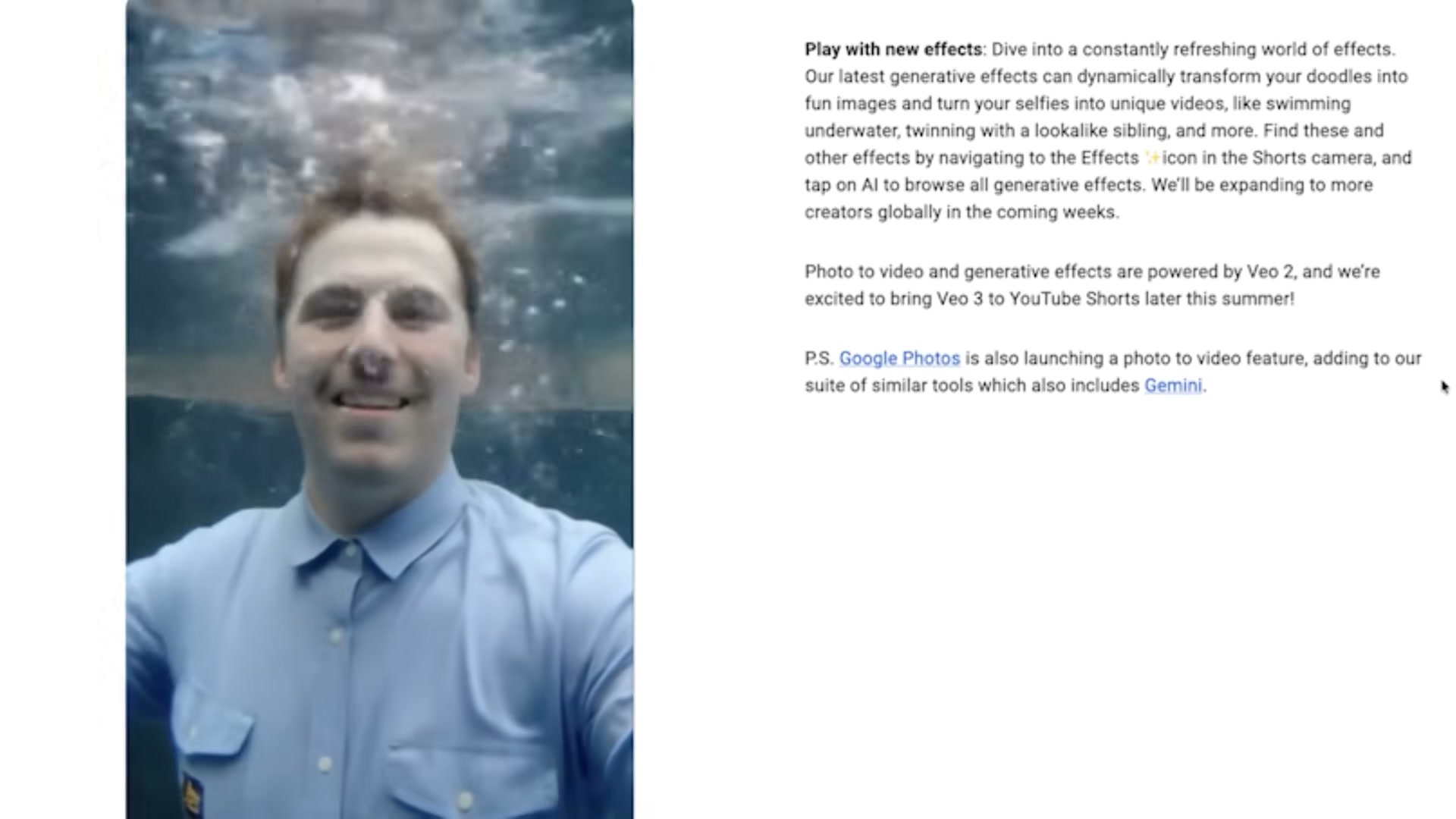
-
Explore Reimagine. Any viewer can pull a single frame from an existing YouTube Short and generate a new eight-second video from it. Attribution is preserved — the resulting Short links back to the source. For brands, this is a ready-made UGC mechanic: invite your audience to grab a frame from your content, remix it, and submit entries to a campaign.
-
Explore Add Object. Supply a photo of yourself alongside a separate image of a product or object. YouTube composites them into a short animated scene. This removes the on-camera barrier many business owners face while still producing a personalized Short tied to a real product.
- Replicate Add Motion manually with Google Gemini. Open Gemini, upload your image, and prompt it to animate the photo. The model produces a short video — typically a slow zoom with ambient audio — that you can export and publish to Shorts after adding your own audio track.
Warning: this step may differ from current official documentation — see the verified version below.
-
Apply the same object-insertion workflow in ChatGPT for thumbnail creation. Upload a photo of yourself, source a product or outfit image from a retail site, and prompt ChatGPT to composite the two. The output functions as a polished thumbnail even when the video itself was produced through a separate tool.
-
Layer brand authority over remixed content. When you remix a creator Short that features your product, pause the original clip at the key moment and add your own narration — health benefits, usage context, production detail. The goal is to redirect audience attention from the remixed clip to your brand’s expertise. Re-uploading with a logo and no added commentary signals low effort to both the viewer and the algorithm.
-
Use social listening to find remix candidates. Creators often use your product without tagging you. Monitor platforms for brand and product mentions, identify clips worth remixing, then add substantive value before publishing.
-
Evaluate each tool on its own terms for your brand. A workflow that converts for a DTC supplement brand may do nothing for a B2B equipment supplier. Run your own experiments rather than adopting tactics wholesale because a thought leader validated them elsewhere.
How does this compare to the official docs?
YouTube’s own documentation fills in what the video leaves open — platform eligibility requirements, regional rollout status, and the audio-sync behavior the hosts flagged as unresolved — which changes the implementation picture meaningfully.
Here’s What the Official Docs Show
The tutorial above covers the tool landscape and workflow logic effectively. This section layers in what official documentation confirms, clarifies, or — in several cases — simply couldn’t reach, so you know exactly where to apply independent judgment.
1. Understand Add Motion
No official documentation was found for this step — proceed using the video’s approach and verify independently.
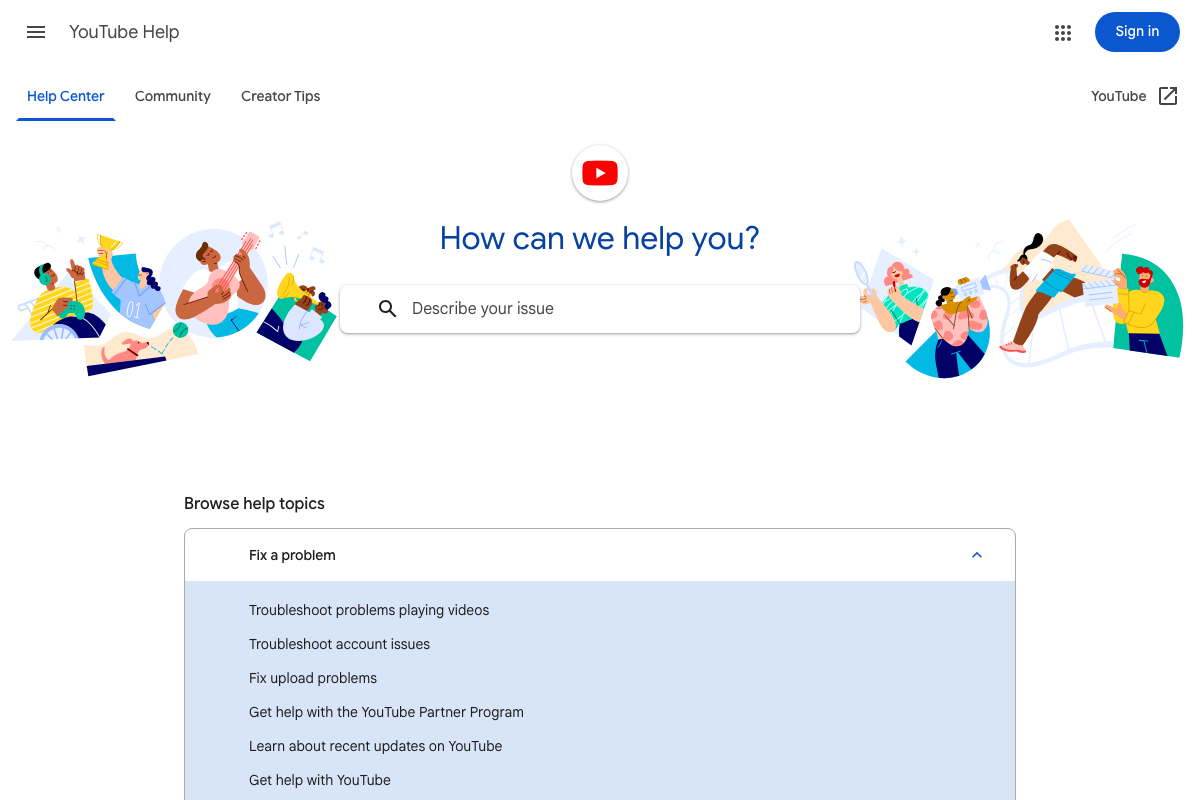
YouTube Help’s “Create & grow your channel” section is the expected home for Add Motion articles, but no dedicated help page was reachable at time of capture. Check there directly for eligibility and availability details.
2. Explore Reimagine
No official documentation was found for this step — proceed using the video’s approach and verify independently.
3. Explore Add Object
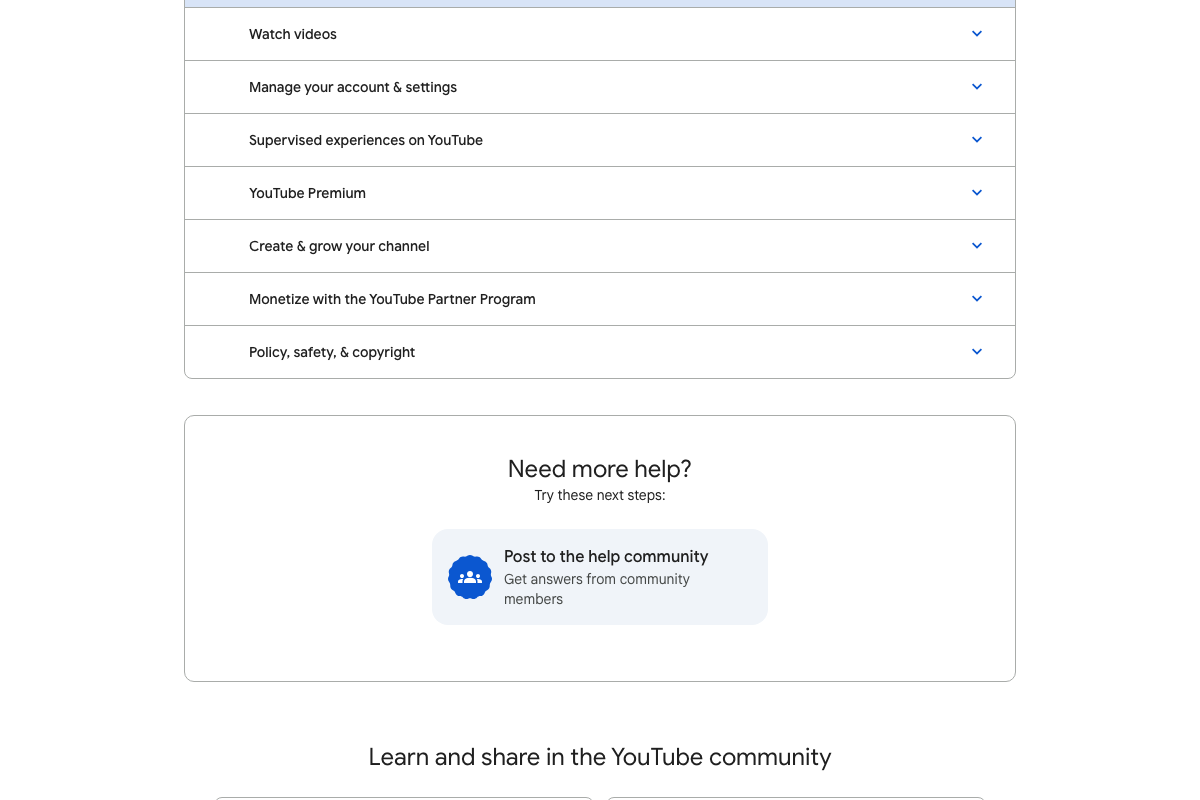
No official documentation was found for this step — proceed using the video’s approach and verify independently.
The Help Center screenshots were captured in 2026 (confirmed by the page footer), so this reflects the current state of the portal — Add Object articles simply haven’t been published yet, not missed during capture.
4. Replicate Add Motion manually with Google Gemini
The capability is real and documented — two details from the official docs sharpen the picture.
Model name: As of May 2026, the correct model for image-to-video generation is Veo 3.1 — a distinct named model from the Gemini language and multimodal family, though accessible through the Gemini API. The video attributes this to “Google Gemini” generically, which reflects an earlier or consumer-facing framing.

Native audio: As of May 2026, the correct behavior is that Veo 3.1 generates audio natively alongside the video in a single pass. The video’s instruction to separately “layer in audio” after export may be unnecessary — audio can be part of the initial generation request.
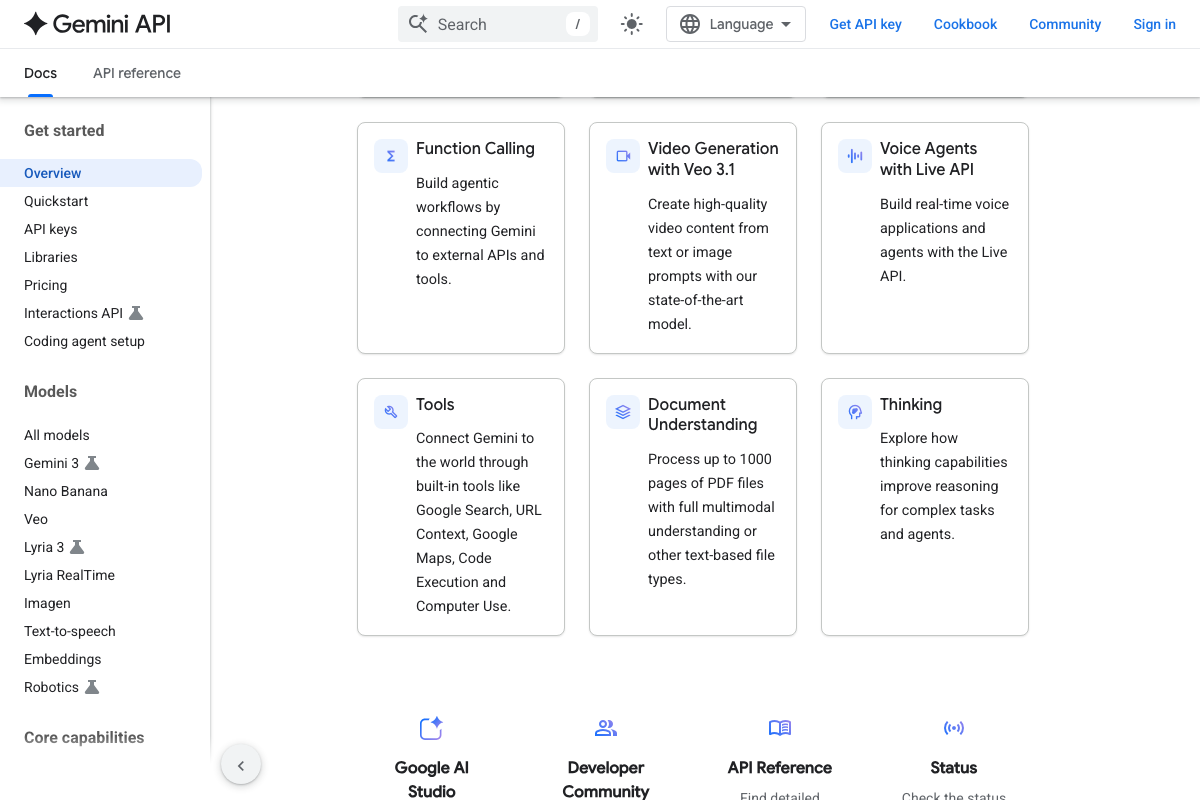
One additional note: the programmatic path uses a structured generate_content() call with explicit model and contents parameters — not a freeform upload-and-prompt interface. The consumer Gemini app is closer to what the video describes; if you’re building a workflow, expect API integration.
5. Apply the object-insertion workflow in ChatGPT for thumbnail creation
No official documentation was found for this step — proceed using the video’s approach and verify independently.
All three documentation screenshots resolved to the ChatGPT login page rather than the intended help collection. Visit help.openai.com directly for current image-editing documentation.

6. Layer brand authority over remixed content
No official documentation was found for this step — proceed using the video’s approach and verify independently.
7. Use social listening to find remix candidates
No official documentation was found for this step — proceed using the video’s approach and verify independently.
8. Evaluate each tool on its own terms for your brand
No official documentation was found for this step — proceed using the video’s approach and verify independently.
Useful Links
- YouTube Help — Official YouTube Help Center; check under “Create & grow your channel” for Add Motion, Reimagine, and Add Object articles once formally published.
- Gemini API Documentation | Google AI for Developers — Official reference for the
generate_content()method, Veo 3.1 model specifications, and native audio generation capability. - ChatGPT Help Collection — OpenAI’s ChatGPT documentation hub; image-editing articles were not reachable at time of capture — verify current feature guidance directly.


0 Comments