

Replace Your Monthly Scheduling Bill With a $29 One-Time Tool
TidyCal’s recent wave of updates — a built-in website builder, recurring payments, and native LinkedIn promotion — pushes it well past basic scheduling into lightweight business hub territory. After completing this tutorial, you’ll have a fully configured TidyCal account with working availability rules, automated follow-up sequences, a branded public booking page, and a landing page you can send cold contacts to. The one-time purchase price is $29.
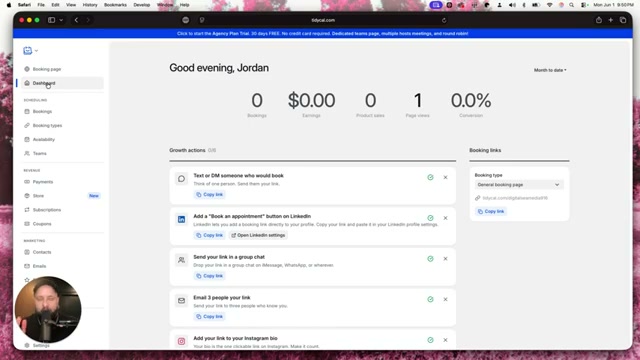
- Log into TidyCal and review the dashboard. The top row tracks bookings, earnings, product sales, page views, and conversion rate. The Growth Actions panel surfaces one-click shortcuts — copy your booking link, add a booking button to LinkedIn, or email your link directly to three contacts. The right sidebar dropdown lets you switch between saved booking types to grab a specific link instantly.
-
Click the Bookings tab to review scheduled and past meetings. Toggle between Upcoming and All to see the full history against the booking type each meeting came from.
-
Open the Contacts tab. Every person who has booked time with you appears here automatically. Hit the export button to download the full list as a CSV — a clean path into your CRM or email tool without an extra automation step.
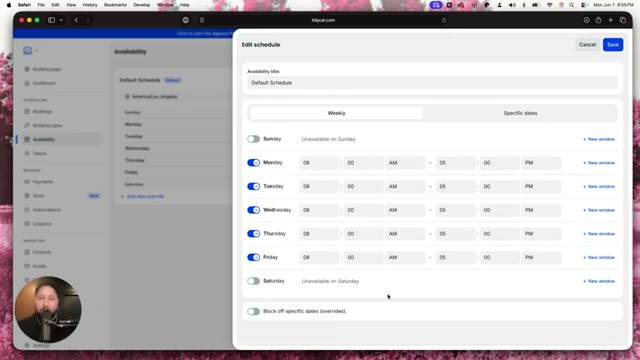
- Navigate to Availability and open the Default Schedule. Toggle days on or off, then set start and end times for each active day. To add a lunch break, create a second time window — for example, 8:00 AM–11:30 AM and 1:00 PM–5:00 PM. Use the Block off specific dates tab to override your standard schedule for holidays or travel.
-
If you manage a team or run an agency, the Teams section supports two scheduling formats: collective meetings, where all members must be free, and round-robin, where TidyCal rotates availability across the group. Solo users can move past this section.
-
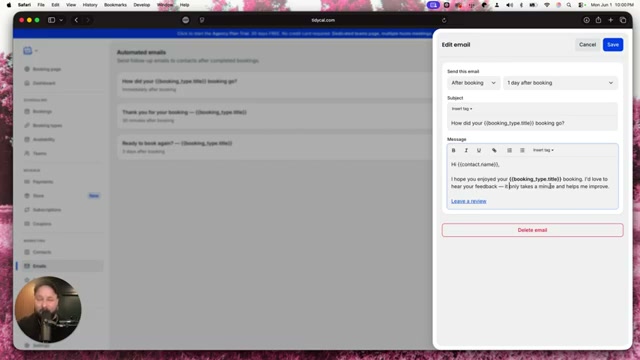
Go to Marketing → Emails to configure automated follow-ups. Each rule targets a specific booking type and fires after a delay you define — immediately post-booking, 30 minutes later, or up to a full day out. The composer supports merge tags like
{contact_name}and{booking_type_title}, and the rich-text editor handles hyperlinks so you can route clients to review forms, intake surveys, or invoices. The number of active automations available may be capped depending on your plan tier.
Warning: this step may differ from current official documentation — see the verified version below.
-
Under Marketing, open the social promotion tool. Select a booking type and TidyCal generates a 1200×627 branded banner you can post directly to LinkedIn after connecting your account. The tool also prompts you to paste your booking link as the first comment after publishing — a reach tip TidyCal surfaces inline rather than leaving you to find elsewhere.
-
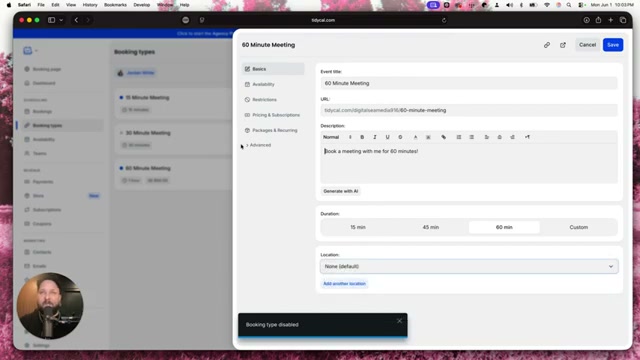
Go to Booking Types and open any entry to edit it. Set the title, URL slug, description, duration, and location type — Zoom link, phone number, or in-person address. You can also assign a currency, override the default availability schedule for that specific type, and toggle it live or disabled from the same panel.
-
Preview your public booking page. Visitors get a calendar view or time slot view, a timezone selector that auto-adjusts displayed slots to their local time, and a mutual availability toggle that highlights windows where both parties are free.
-
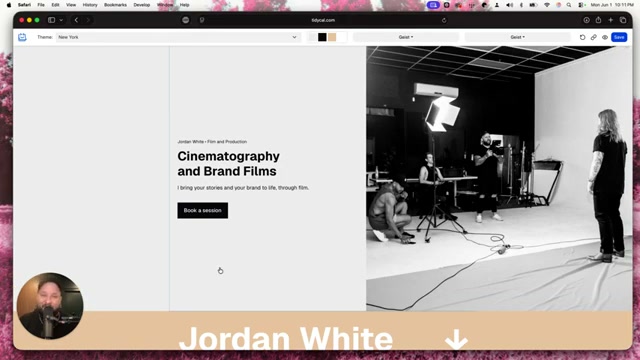
Open Booking Page settings to customize your slug, page title, description, and color theme. Switch to Website mode to access the full landing page builder — edit the hero headline, cover photo, bio, stats blocks, FAQs, and social links. The page lives on TidyCal’s domain by default, with a custom domain option available.

-
Open the Integrations panel to connect Google Calendar, Apple Calendar, or Microsoft 365 for two-way sync. Zapier is available for routing booking events downstream, and SMS reminders can be toggled on from the same screen.
-
Navigate to Subscriptions to attach recurring billing to any booking type. Set the billing cycle — weekly, monthly, or yearly — and clients who book are enrolled automatically without requiring a separate payment tool.
How does this compare to the official docs?
The video delivers a fast end-to-end orientation across every major feature, but the official documentation is where plan-tier limits, webhook behavior, and custom domain configuration get the depth they require in a production setup.
Here’s What the Official Docs Show
Act 1 gives you a fast, complete orientation to TidyCal’s feature set. This section adds a confirmed price point, flags three integration claims that couldn’t be verified from available documentation, and surfaces one feature the video doesn’t cover at all.
Steps 1–6: Dashboard, Bookings, Contacts, Availability, Teams, Automated Emails
No official documentation was found for these steps —
proceed using the video’s approach and verify independently.
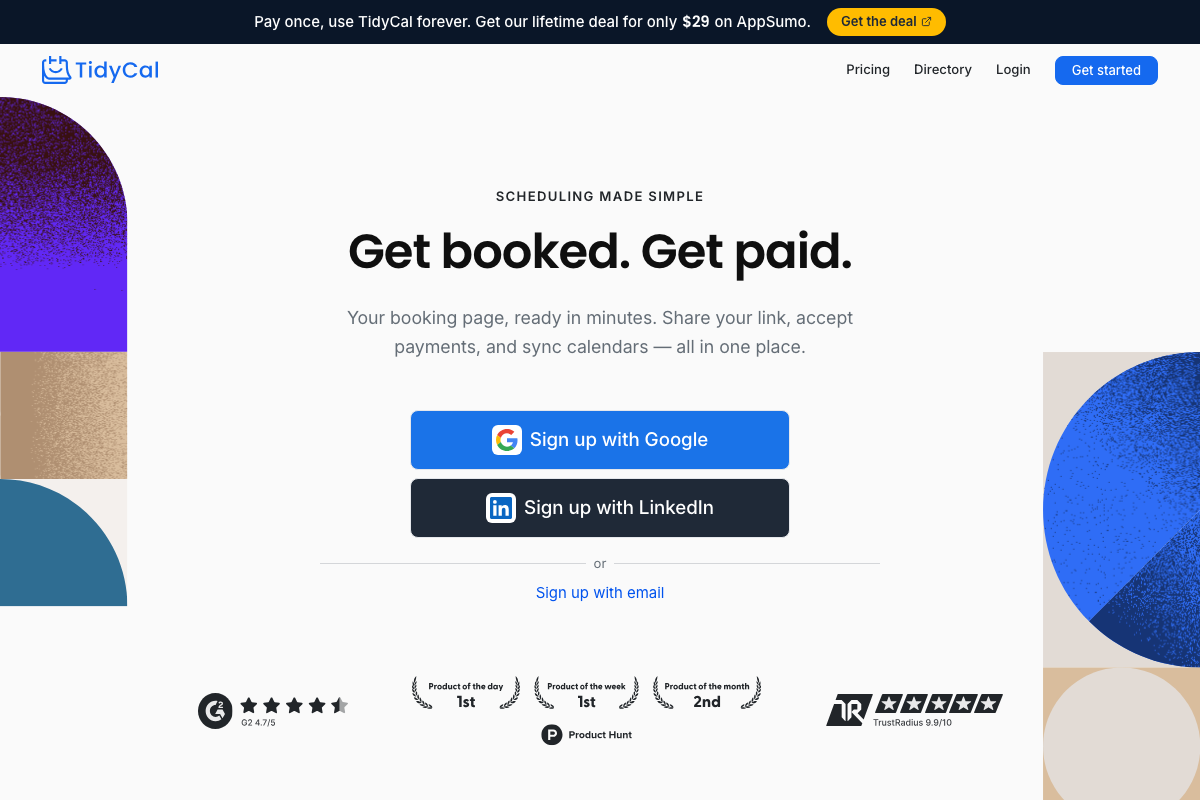
One clarification for Step 1: TidyCal’s homepage confirms the one-time purchase model and pins the current AppSumo lifetime deal at $29 — a specific price the tutorial references but never states numerically.
Step 7: LinkedIn Promotion
No official documentation was found for this step —
proceed using the video’s approach and verify independently.
All three LinkedIn screenshots returned the platform’s public unauthenticated homepage. No third-party posting API or TidyCal-specific integration documentation is visible at linkedin.com. Verify the direct-banner-post feature in your own account before building it into a client workflow.

Step 8: Booking Types (Including Zoom Location)
No official documentation was found for this step —
proceed using the video’s approach and verify independently.

Step 9: Public Booking Page Preview
No official documentation was found for this step —
proceed using the video’s approach and verify independently.
Step 10: Booking Page and Website Builder
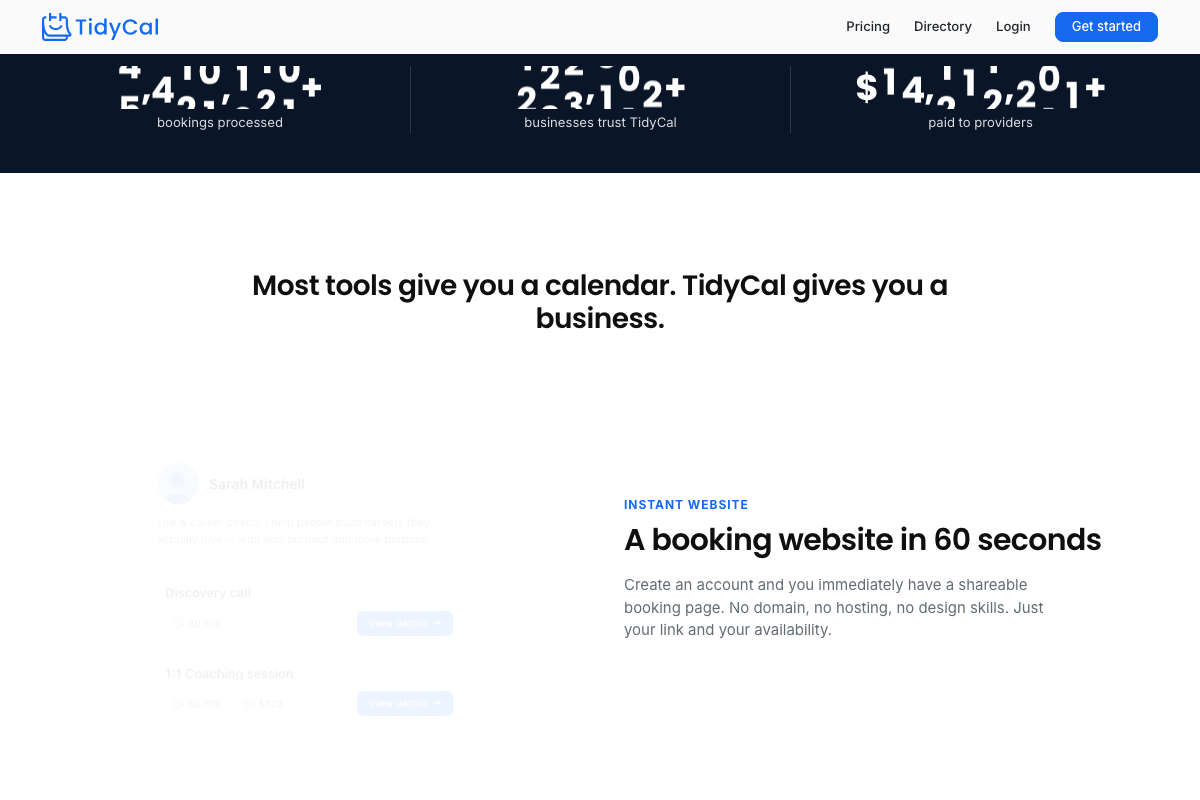
The video’s approach here matches the current docs exactly. TidyCal’s marketing page confirms the “INSTANT WEBSITE” section verbatim — “A booking website in 60 seconds. No domain, no hosting, no design skills.” — and previews multiple booking types on a single page, consistent with the builder walkthrough shown in the video.
Step 11: Integrations
No official documentation was found for Microsoft 365 sync —
proceed using the video’s approach and verify independently.
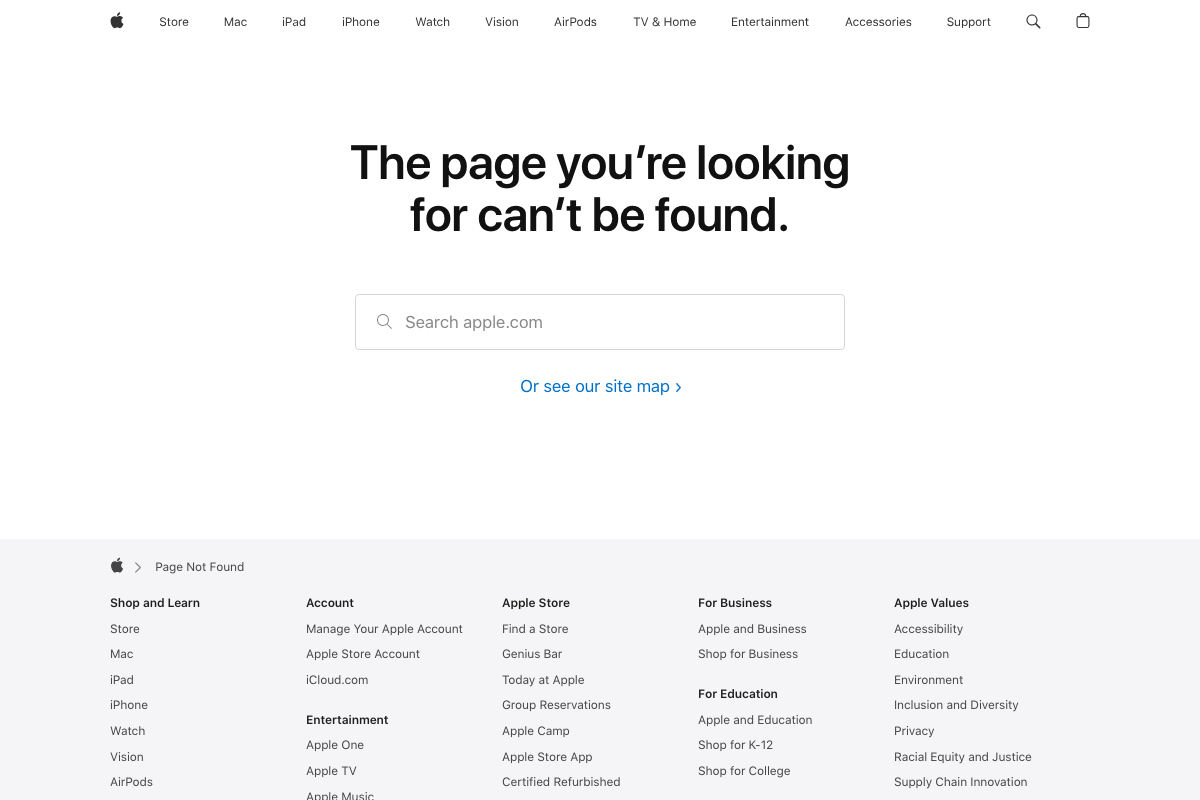
As of June 2, 2026, apple.com/ios/calendar returns a 404 Page Not Found error on Apple’s website — the video lists Apple Calendar as a supported sync option, which may still be accurate, but cannot be verified from this URL. Check support.apple.com for current CalDAV documentation.
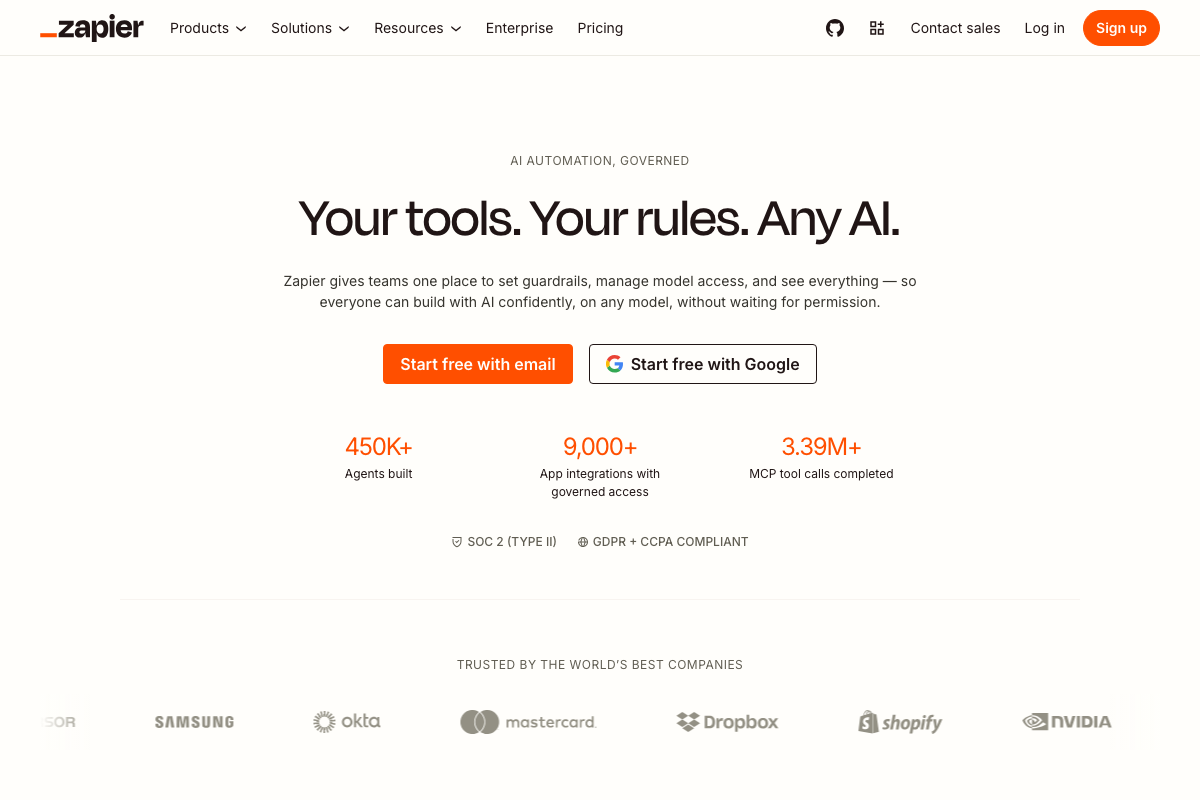
The Zapier screenshots captured zapier.com’s main homepage rather than the intended zapier.com/apps/tidycal/integrations page. TidyCal’s specific triggers and actions in Zapier are unconfirmed at the configuration level.
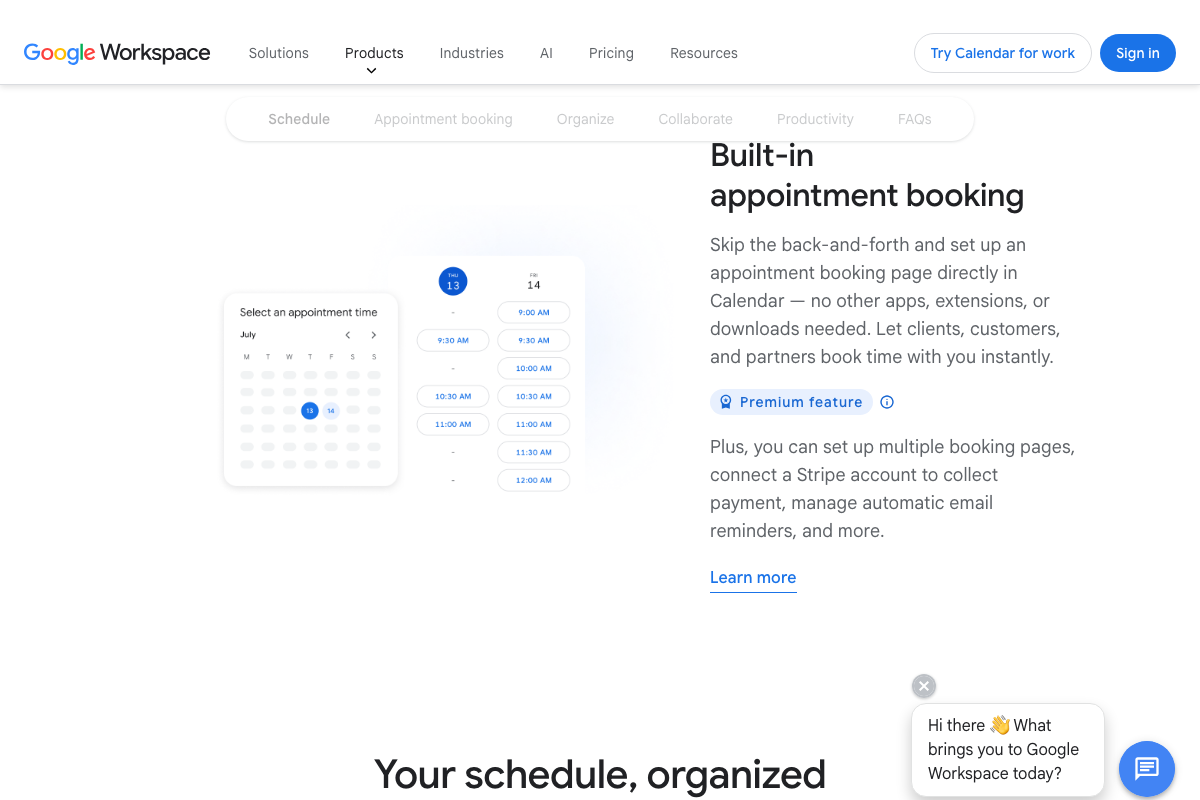
Worth flagging for context: Google Calendar now includes a built-in appointment booking page as a Google Workspace Premium feature, with Stripe payment collection and automatic email reminders. If your clients are already running Workspace, this is a zero-incremental-cost alternative worth evaluating alongside TidyCal.
Step 12: Subscriptions and Recurring Billing
The video’s approach here matches the current docs exactly. TidyCal’s marketing page confirms “Subscriptions & Recurring” with automatic client billing and self-renewing bookings. The specific cycle options — weekly, monthly, yearly — are not confirmed at the marketing page level; verify available intervals inside your account settings.

One feature the video doesn’t cover: The same marketing page surfaces a “Bundles & Packages” section — sell sessions in 5-packs, 10-packs, or custom quantities with client pre-payment. If you sell coaching blocks, audit packages, or retainer sessions, this is worth exploring before defaulting to recurring subscriptions.
Useful Links
- TidyCal | Simple calendar management and booking solution — TidyCal’s official homepage confirming the $29 AppSumo lifetime deal, Google/LinkedIn sign-up options, and full platform feature set.
- Shareable Online Calendar and Scheduling – Google Calendar — Google Calendar’s marketing page, including the Premium appointment booking feature with Stripe payments and automatic email reminders.
- One platform to connect | Zoom — Zoom’s homepage confirming its enterprise platform status and current AI-first product positioning.
- LinkedIn: Log In or Sign Up — LinkedIn’s public homepage; no TidyCal integration or third-party posting API documentation is accessible from public-facing pages.
- TidyCal Integrations | Connect Your Apps with Zapier — Intended TidyCal-specific integrations page on Zapier; verify available triggers and actions directly at this URL, as the page was not successfully captured in the screenshot set.


0 Comments