

E-commerce SEO and PPC Keyword Research Using AI
Keyword research for a full e-commerce category used to eat an entire workday. By pairing Google Keyword Planner and Answer the Public with Claude AI, you can generate 124 organized ad groups — each with a suggested URL slug, monthly search volume, and every mapped keyword — in under an hour. This tutorial applies that exact workflow to Golf Galaxy’s driver catalog, a real-world example you can replicate for any product category or client vertical.
-
Export your seed keyword list from Google Keyword Planner. Search your primary product term — here, “golf driver” — and download every related keyword the tool returns. For Golf Galaxy’s driver category, that yields roughly 2,700 keywords. Export the full list as a CSV; you’ll paste it directly into Claude later.
-
Pull a second keyword set from Answer the Public. Search the same term and export all four data types: questions, prepositions, comparisons, and alphabeticals. For “golf driver,” Answer the Public returns nearly 3,000 keywords across 11,000 total ideas, with 33,100 monthly searches at a $0.88 average CPC.

The radial wheel view segments those ideas by intent — commercial signals like “Affordable golf drivers with good forgiveness” appear alongside informational queries, letting you separate ad group candidates from content page targets before you ever open Claude.

- Copy the full product catalog from your target category page. Scroll through every page of results and copy all product listings — brand names, model names, and any visible variant data. Golf Galaxy’s driver catalog runs 231 products across two pages. This raw text becomes the third data source in your Claude prompt, giving the model real inventory context to build ad groups against.
- Write a single Claude prompt and paste all three sources into it. Specify your goals explicitly: produce the most organized keyword grouping possible, name every ad group, assign a URL slug, and sort by keyword volume. Attach your Keyword Planner CSV, your Answer the Public export, and the product catalog text in the same message.

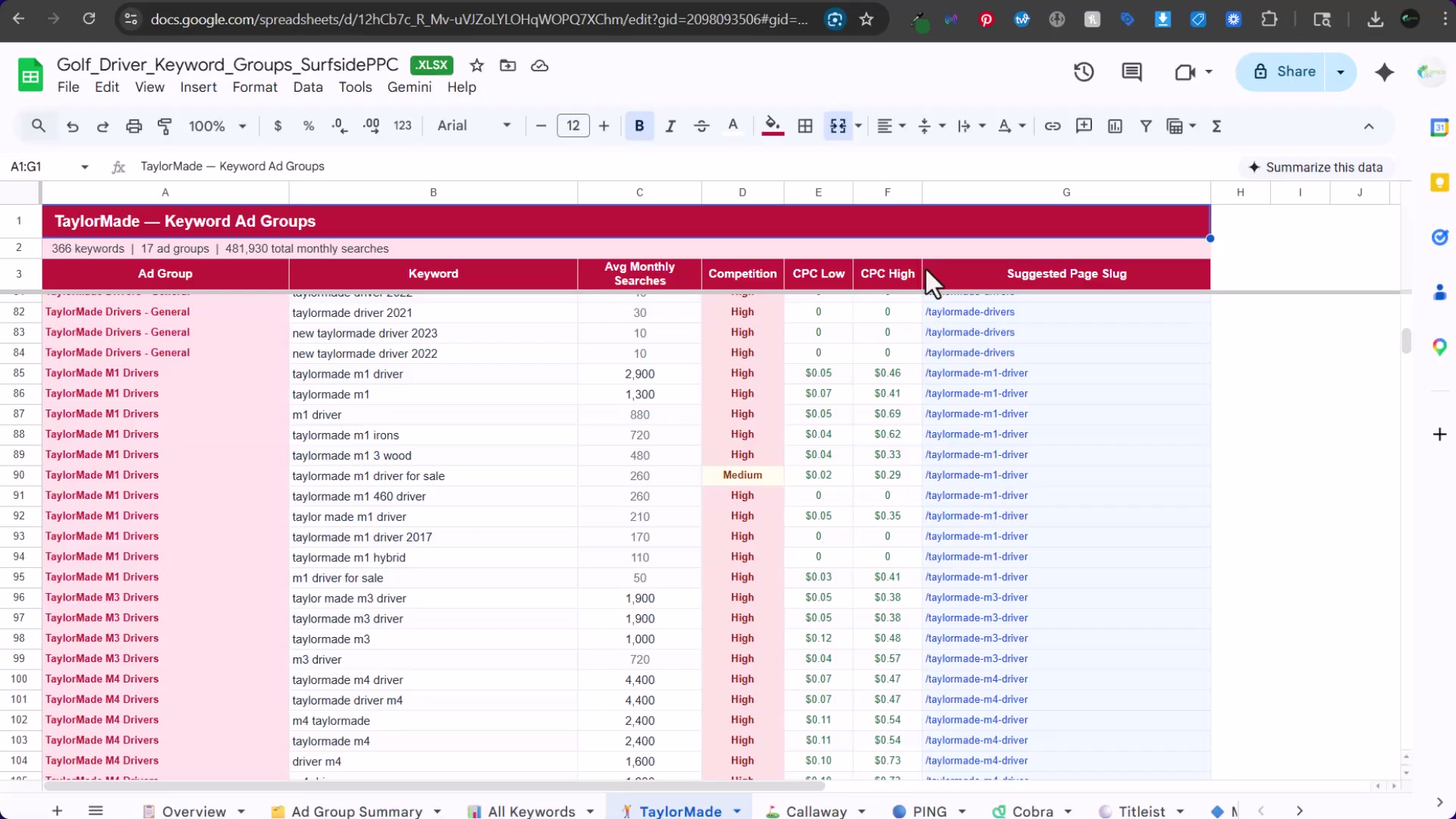
- Review Claude’s structured output. The model returns 124 ad groups — each with a name, suggested URL slug, keyword count, total monthly searches, top keyword volume, and every individually mapped keyword. A second tab delivers the complete keyword universe: every term assigned to an ad group, competition level, and target URL slug.


- Build your Google Ads search campaign directly from the ad group output. Brand-level groups — TaylorMade, Callaway, PING — each get their own tabs with model-level sub-groups, giving you targeting precision down to individual SKUs.
-
Cross-reference Claude’s suggested URL slugs against your live site. Any slug without a matching page is an SEO gap — a landing page to build. High-intent, low-competition segments like “left-hand women’s golf drivers” (five SKUs, almost no competition) surface here first.
-
Mine the question-based keywords for content page opportunities. Terms like “most forgiving drivers 2026” and “how to choose a golf driver for distance” belong on editorial pages that support organic rankings and link back to your product category.
-
Repeat the entire workflow for every additional product category. Fairway woods, irons, wedges, putters, grips, and shafts each get their own Keyword Planner pull, Answer the Public export, and Claude prompt. The process is identical; only the seed term changes.
How does this compare to the official docs?
Google Keyword Planner, Answer the Public, and Claude each publish their own guidance on intended use, and the specifics of this multi-source prompting technique are worth checking against those resources before you scale the workflow to an entire site.
Here’s What the Official Docs Show
The video covers a smart multi-tool workflow, and what follows adds context from official documentation that fills in a few meaningful gaps — particularly around tool prerequisites, plan requirements, and how Google’s own campaign guidance has shifted since the tutorial was recorded.
Step 1 — Export from Google Keyword Planner
The video directs you to search “golf driver” and download the resulting keyword list. The official docs confirm this is exactly how the tool is designed to work.

The video’s approach here matches the current docs exactly — the “Find new keywords” function is the documented entry point for keyword discovery.
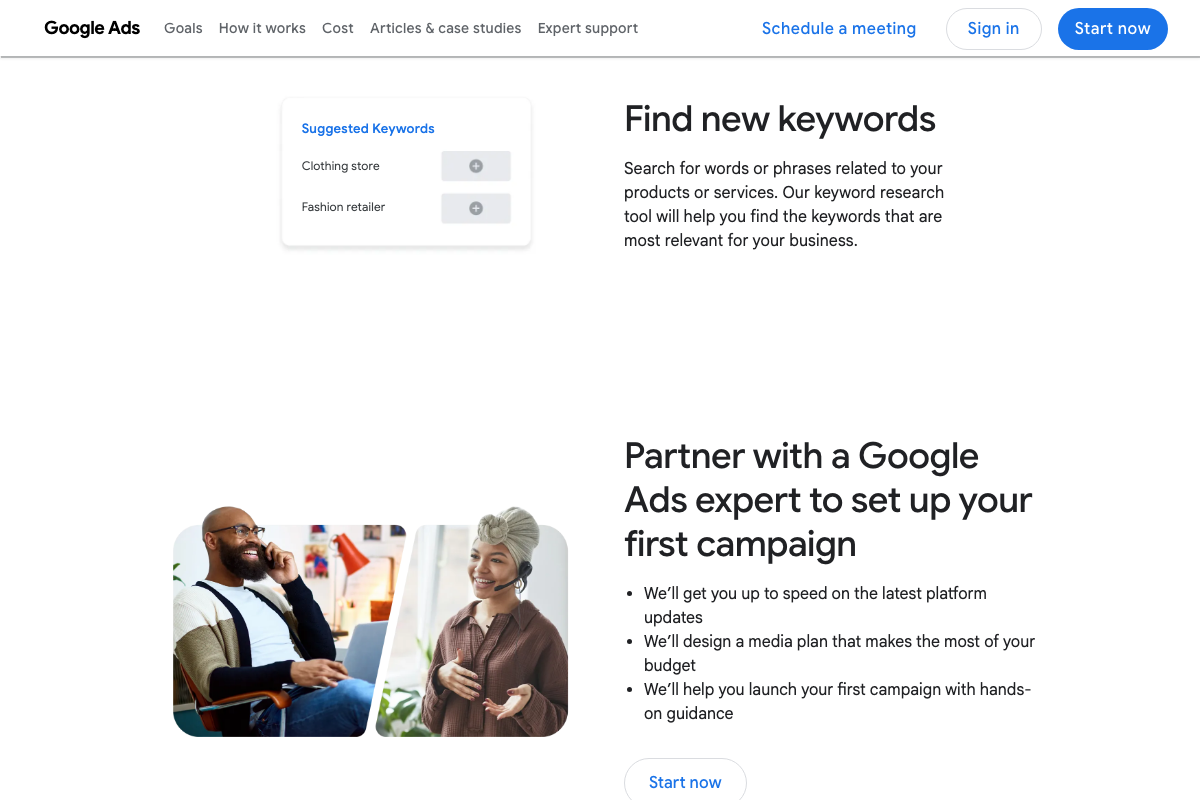
Two things the video doesn’t mention: Keyword Planner requires an active Google Ads account to access. If you don’t have one, you’ll hit a sign-in gate before you see a single keyword. Second, the official workflow has three phases — Create a keyword plan, Understand your keyword forecast, then Create campaign — and the tutorial skips the forecast phase entirely.

The forecast phase projects clicks, conversions, and impressions at various spend levels. It’s not required for the keyword export step, but it’s worth knowing it exists before you take exported volumes at face value.
Step 2 — Pull Keywords from Answer the Public
No official documentation was found for this step — proceed using the video’s approach and verify independently.

The tutorial’s claims about pulling ~3,000 keywords across questions, comparisons, and alphabeticals categories could not be verified. The answerthepublic.com domain returned a Cloudflare security block across all three capture attempts, and the official help page (answerthepublic.com/help) returned a 404. If you’re accessing the site manually from a standard browser and consumer IP, you’re unlikely to hit this block — but no official documentation of the export workflow exists in the captured sources.
Step 3 — Copy Your Product Catalog
No official documentation was found for this step — proceed using the video’s approach and verify independently.
Step 4 — Open Claude and Write Your Prompt
The video’s approach here matches the current docs exactly — claude.ai is accessible via browser, and Chat mode (the interface used in the tutorial) is available on all plan tiers.

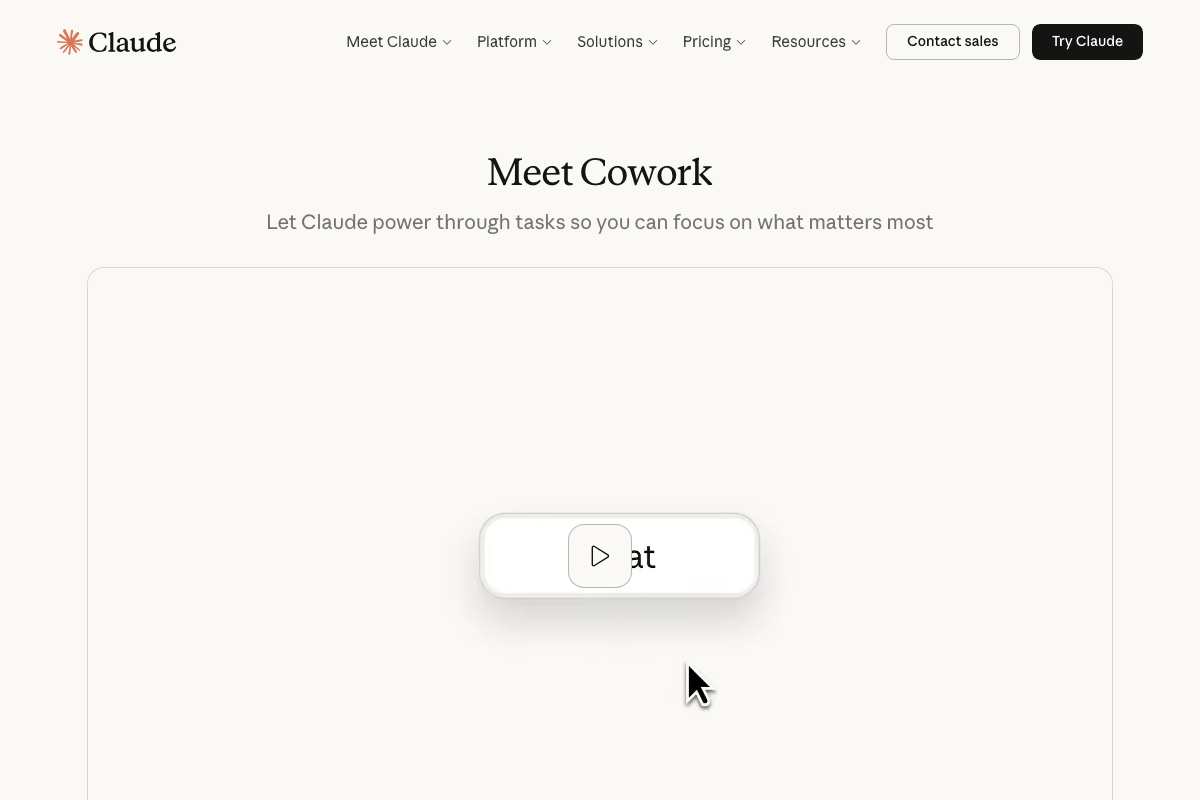
One addition worth noting: Claude now surfaces a Cowork mode alongside Chat. The toggle appears on the login page and is described as letting “Claude power through tasks so you can focus on what matters most.” It’s a separate product mode — not relevant to the keyword grouping workflow in the tutorial, which runs entirely in Chat — but it’s worth knowing the distinction if you explore the interface beyond what the video shows.
Steps 5–6 — Paste All Three Sources and Review Claude’s Output
No official documentation was found for these steps — proceed using the video’s approach and verify independently.
One critical planning note the docs do surface: the tutorial doesn’t specify which Claude plan you need, and that matters for this workflow.

As of March 2026, Claude offers three tiers: Free ($0), Pro ($17/month on annual billing), and Max (from $100/month, with 5–20× more usage than Pro). The tutorial pastes two full keyword exports — roughly 5,700 keywords combined — plus a 231-product catalog into a single prompt. That’s a substantial context load. Users on the Free plan may encounter context or rate limits that interrupt the workflow. If you’re running this at scale across multiple product categories (step 9), Max is worth evaluating over Pro.
Step 7 — Build Your Google Ads Search Campaign
The video’s approach here matches the current docs exactly — Search campaigns remain a fully supported campaign type within Google Ads.

That said, one meaningful shift has happened since the tutorial was recorded: Google’s homepage now leads with Performance Max, not Search. The headline reads “Whatever your business goal, drive better results with Performance Max.” For an e-commerce retailer like Golf Galaxy, two campaign types the tutorial doesn’t address are now standard practice:

- Shopping campaigns — purpose-built for product inventory, directly relevant to a 231-SKU driver catalog
- Performance Max — runs across Search, Display, YouTube, and more from a single campaign
The Claude-generated ad group structure from steps 5–6 is still valuable for Search campaigns and for organizing your keyword strategy regardless of campaign type. But if you’re building this workflow for an e-commerce client today, Shopping and Performance Max belong in the conversation.

Steps 8–10 — Content Mining, Gap Analysis, and Category Expansion
No official documentation was found for these steps — proceed using the video’s approach and verify independently.
Useful Links
- Get Campaign Keyword Suggestions with Keyword Planner – Google Ads — Official marketing page for Google Keyword Planner, covering the four-phase discovery-to-campaign workflow and access requirements.
- Claude — Claude.ai login and pricing pages covering Chat vs. Cowork modes, plan tiers (Free, Pro, Max), and context limits relevant to large keyword paste workflows.
- Google Ads – Get Customers and Sell More with Online Advertising — Google Ads homepage showing current campaign type options including Performance Max, Search, Shopping, and the AI-powered onboarding chat assistant.


0 Comments