

Replace Evernote With a $39 Lifetime App: Getting Started With Journal It
Journal It is a mobile-first personal management app — available as a lifetime deal on AppSumo for $39 — that unifies journaling, habit tracking, custom data trackers, and task planning inside a single timeline. By the end of this walkthrough, you’ll have a custom tracker running, a planner task scheduled, and a search query pulling results across every entry type in the app. It runs on Mac, Windows, iOS, and Android, with the desktop interface used here mapping closely to the mobile experience. If you’re migrating from Evernote or another journaling tool, data import is built in from the start.
-
Open Journal It on your desktop and check Settings → Appearance to confirm dark mode is available. For screen-sharing or recording purposes, switch to light mode. The app is classified as mobile-first by its creators — the desktop version is a full-featured companion, not the primary design target.
-
Orient yourself to the Home dashboard before touching anything else. The shortcut bar along the top surfaces Trackers, Habits, Write It, Templates, and Organizers. The master timeline below it will populate as you log entries across every feature.
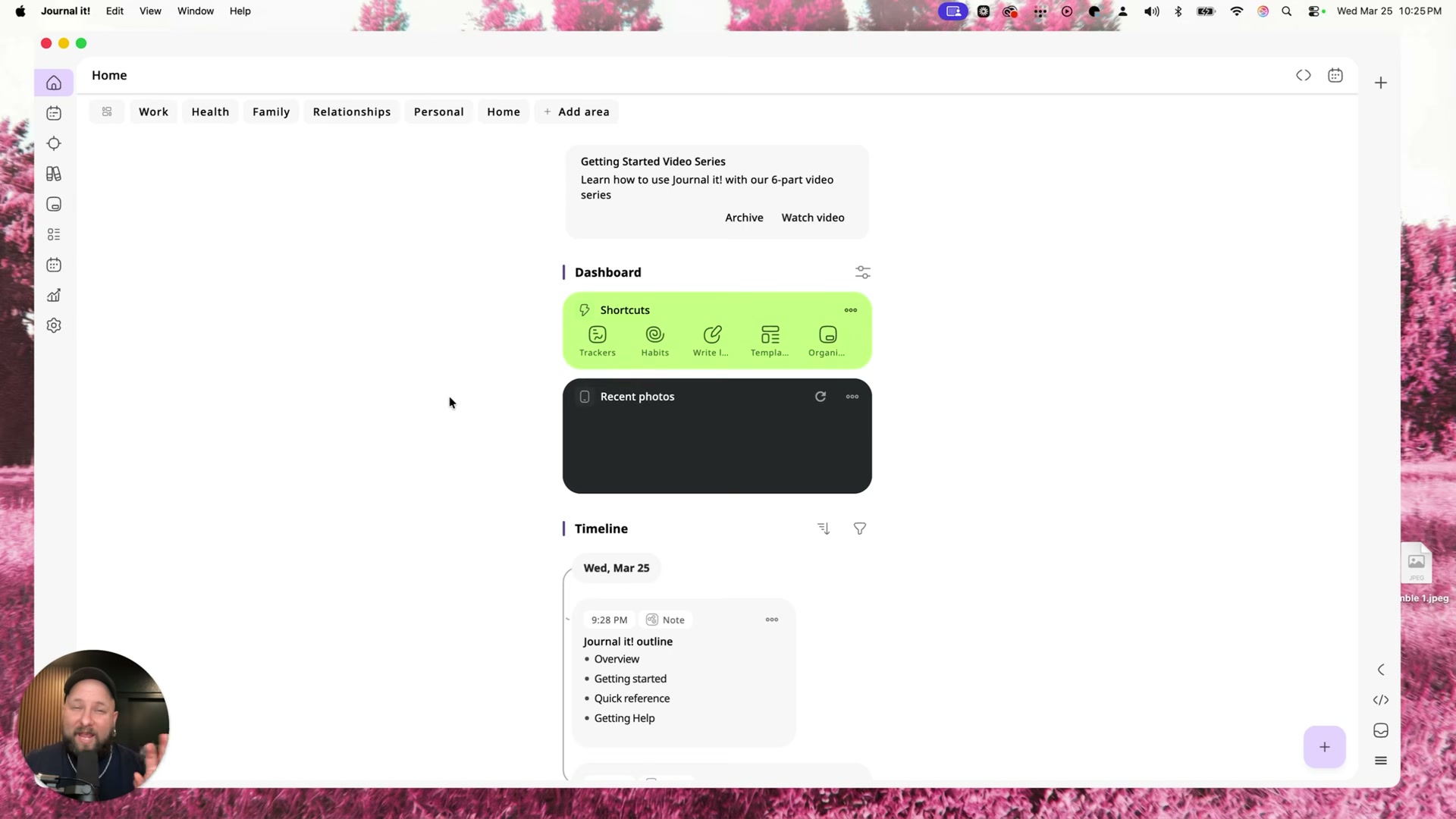
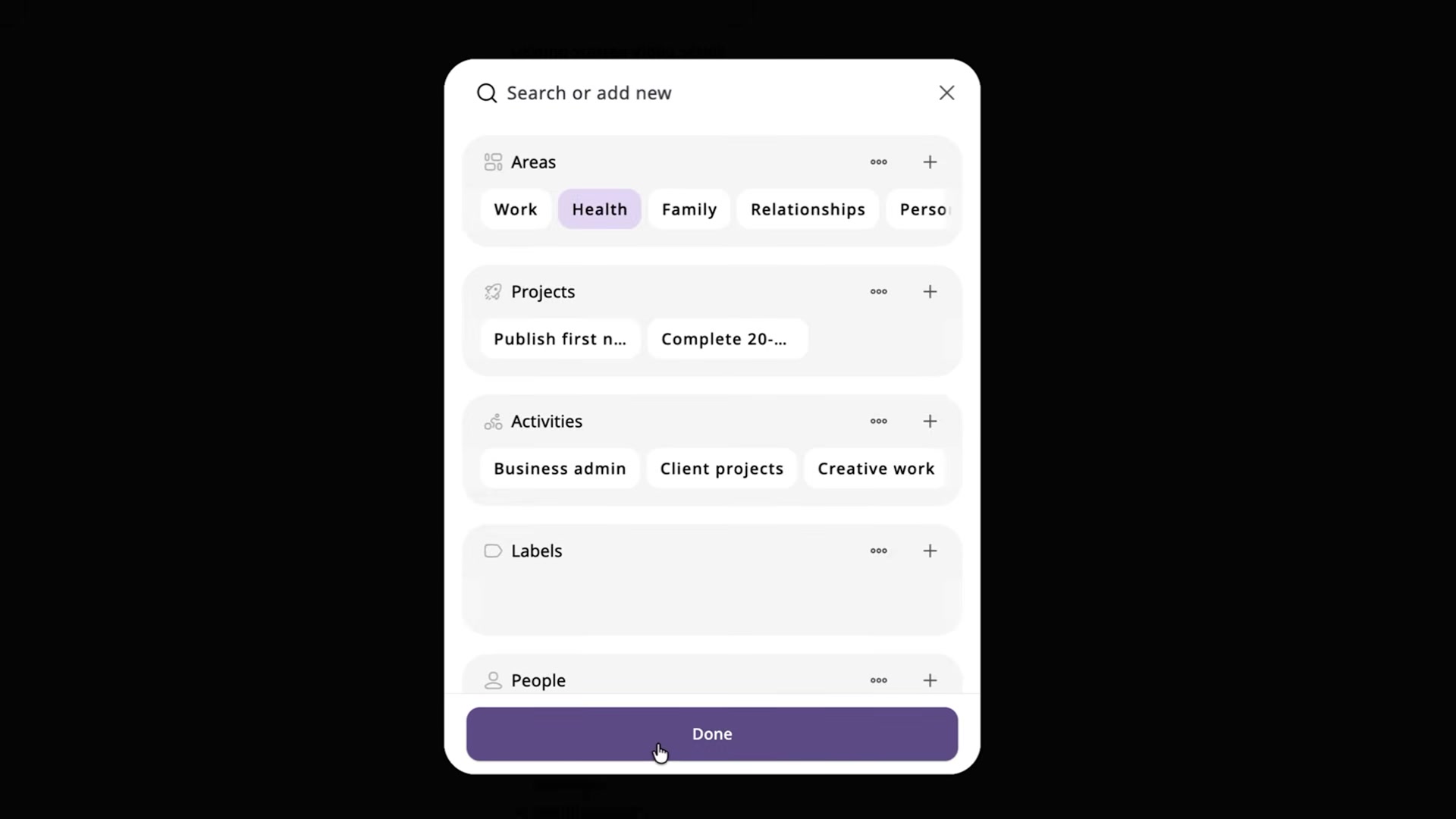
- Understand the two organizing concepts that govern the entire app: Areas and Timelines. Areas are life domains — Work, Health, Family, Relationships, Personal — that act as containers for every record you create. Each Area carries its own timeline; the dashboard master timeline aggregates everything across all Areas. Note the Getting Started video cards embedded in the dashboard — each links directly to Journal It’s YouTube channel and covers a specific feature section in roughly 11 minutes.
-
Open Trackers from the shortcut bar and select the Physical Health category to review the pre-built metrics: weight, waist circumference, sleep length, sleep quality, active level, and energy level. These are ready to log immediately — no configuration required.
-
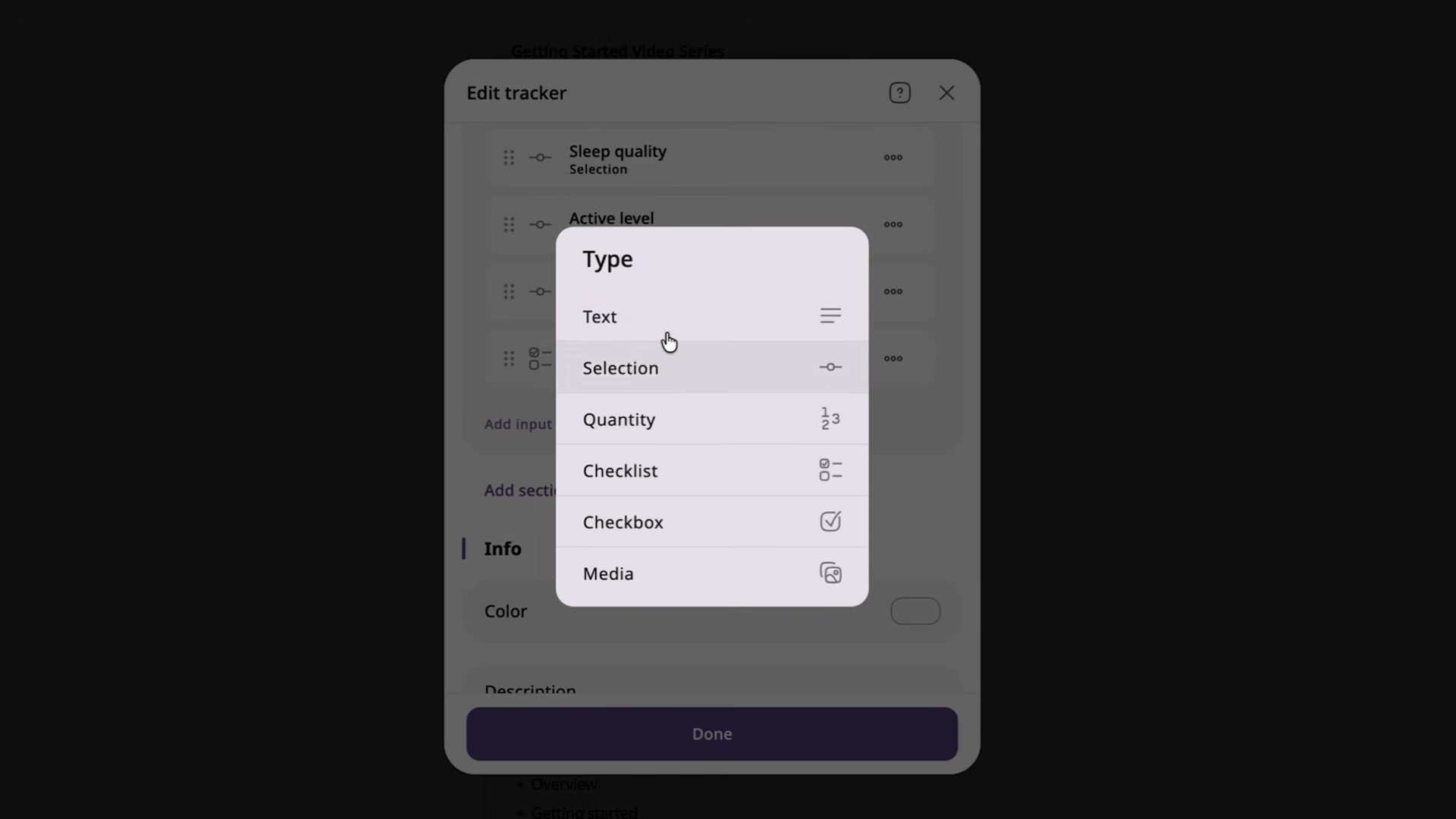
Create a custom tracker by pressing + inside the Physical Health category. Set the name (e.g., “Water Consumption”), choose the type (Quantity), specify units, select Keyboard as the input method, and optionally set a default value as a daily baseline. Assign it to the Health Area and pick a color so it’s identifiable at a glance in the timeline.
-
Log your first entry using the dashboard + button. Select the tracker, enter a value, and optionally attach a note, photo, or URL to the record. The entry surfaces in the master timeline immediately after saving.
-
Use Write Later to capture journaling ideas without committing to a full entry. The editor includes rich text formatting, mood and vibe tags, and media attachment. It functions as a quick-capture inbox you return to when time allows.
-
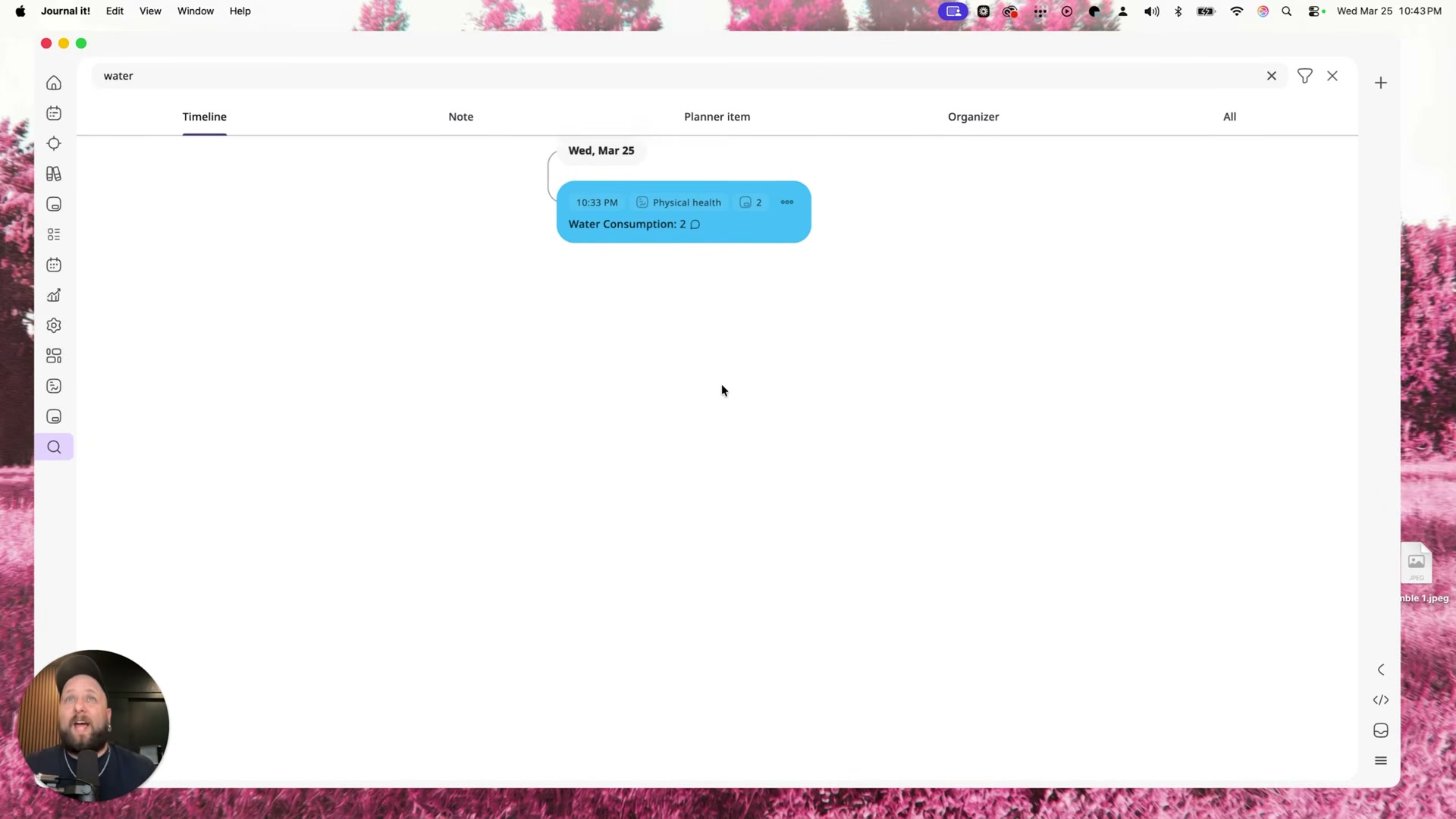
Test the global search bar by typing a keyword from any entry you’ve already created. Results are tabbed by type — Timeline, Note, Planner, Organizer — so you can narrow scope or search everything at once.
- Open Planner and create a new item. Select the type (Task, Goal, or Note), set a date and time with the date wheel, assign activity block tags (Work, Personal, Workout, Read), configure priority and repeat rules, and add a reminder. Connect Planner to an external calendar to keep scheduling in sync.
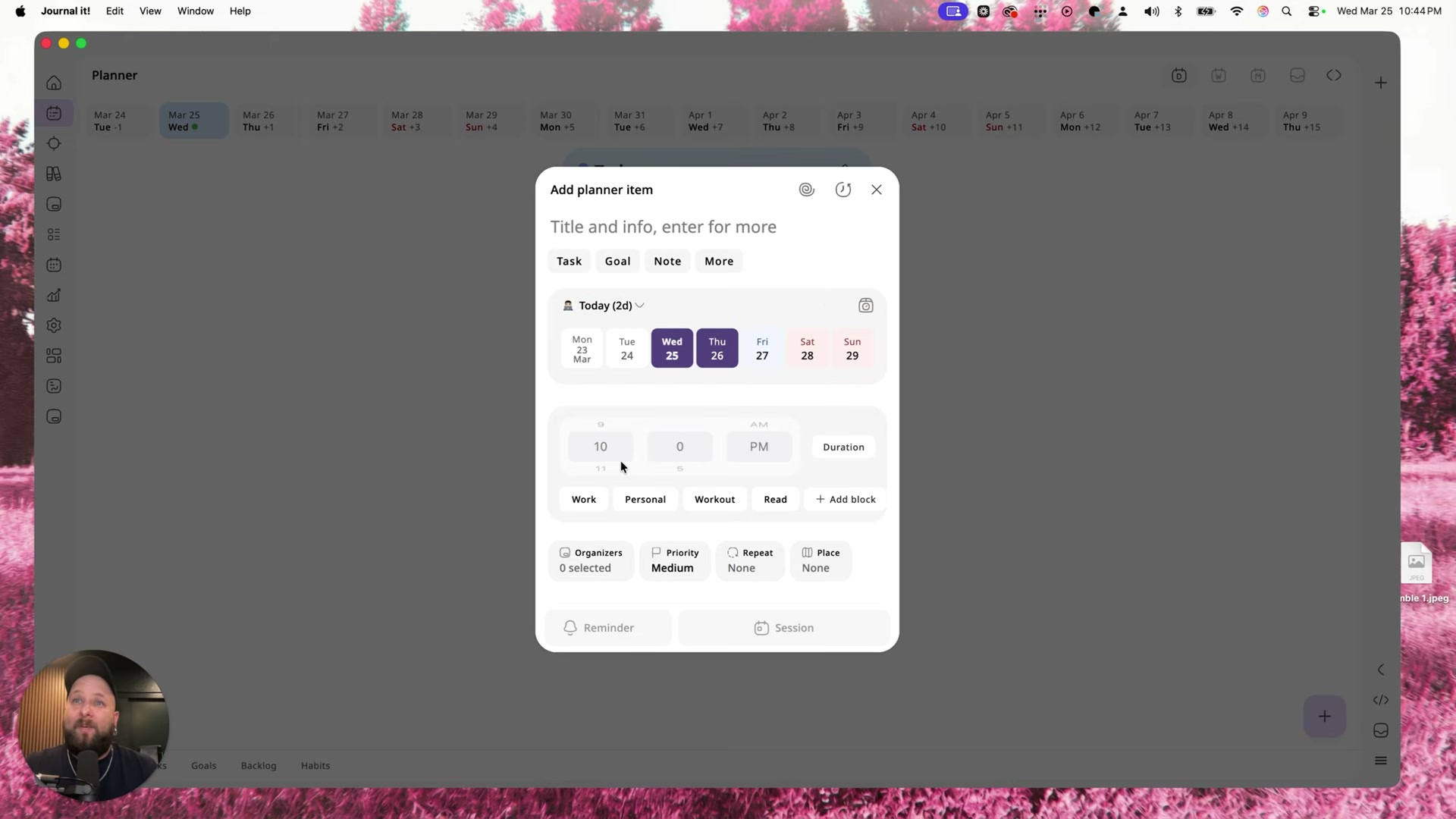
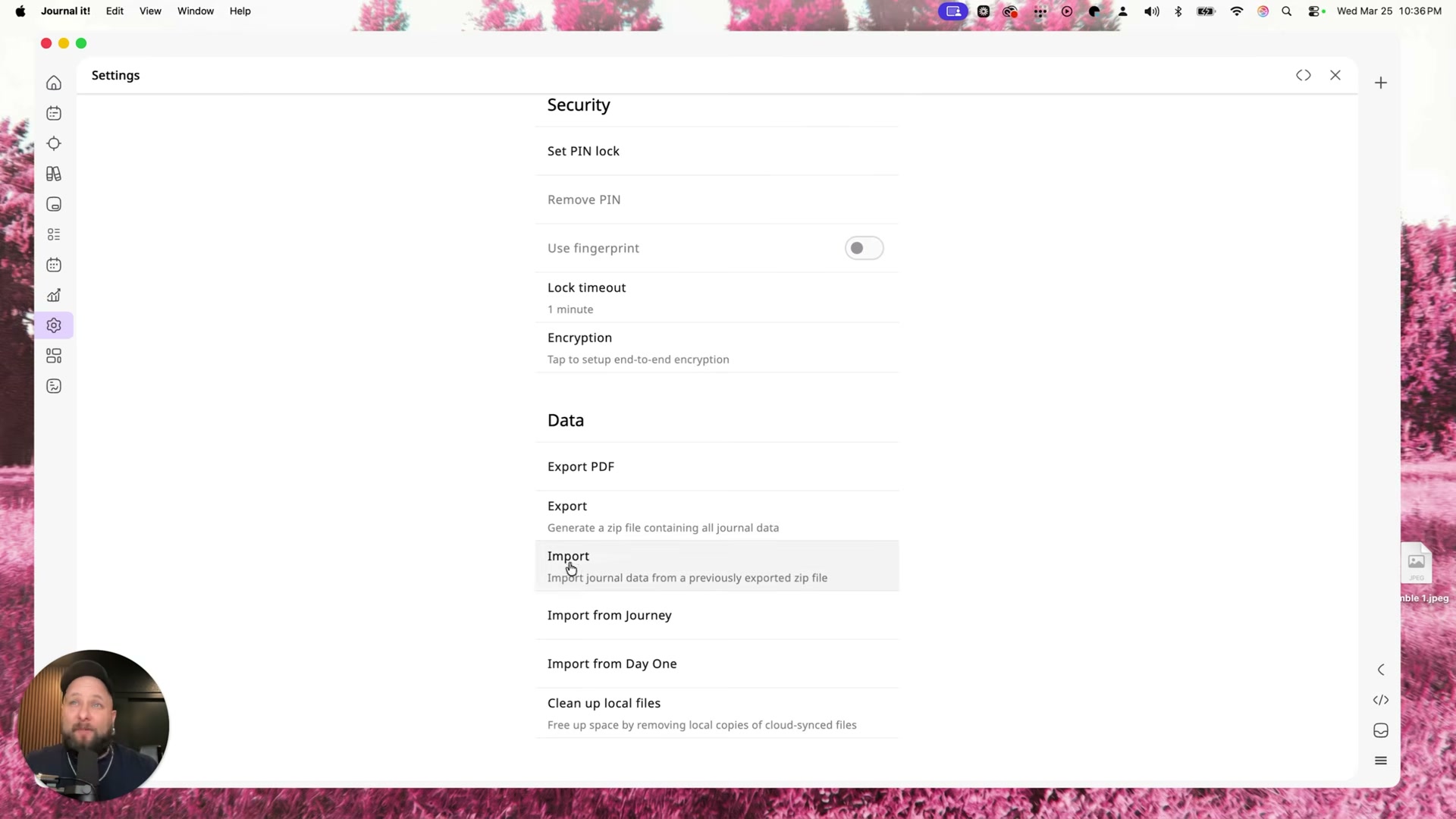
- Finish the setup tour in Settings. Scroll to the Security and Data section to find PDF export, zip export, and direct import paths from Journey and Day One. The presenter references importing data from Evernote and MyFitnessPal via zip file — the settings screen shows named import options only for Journey and Day One.
Warning: this step may differ from current official documentation — see the verified version below.
How does this compare to the official docs?
The video delivers a solid hands-on introduction, but Journal It’s official documentation fills in several gaps — particularly around Habits configuration, the Organizer’s parent-child hierarchy, calendar sync setup, and the precise import formats accepted for third-party data migration.
Here’s What the Official Docs Show
The video gives you a capable first-pass walkthrough of Journal It’s core features — this section adds what third-party platform documentation reveals about the deal, the competitive landscape, and the one step where external source data is verifiable. Because screenshot coverage was limited to AppSumo, Evernote, and MyFitnessPal — and did not include Journal It’s own interface or documentation — most steps below carry an unverified notice rather than a confirmation.
Steps 1–3 — Initial Setup, Home Dashboard, and Areas
No official documentation was found for these steps —
proceed using the video’s approach and verify independently.
Step 4 — Areas as Organizing Containers (Work, Health, Family, etc.)
No official documentation was found for this step —
proceed using the video’s approach and verify independently.
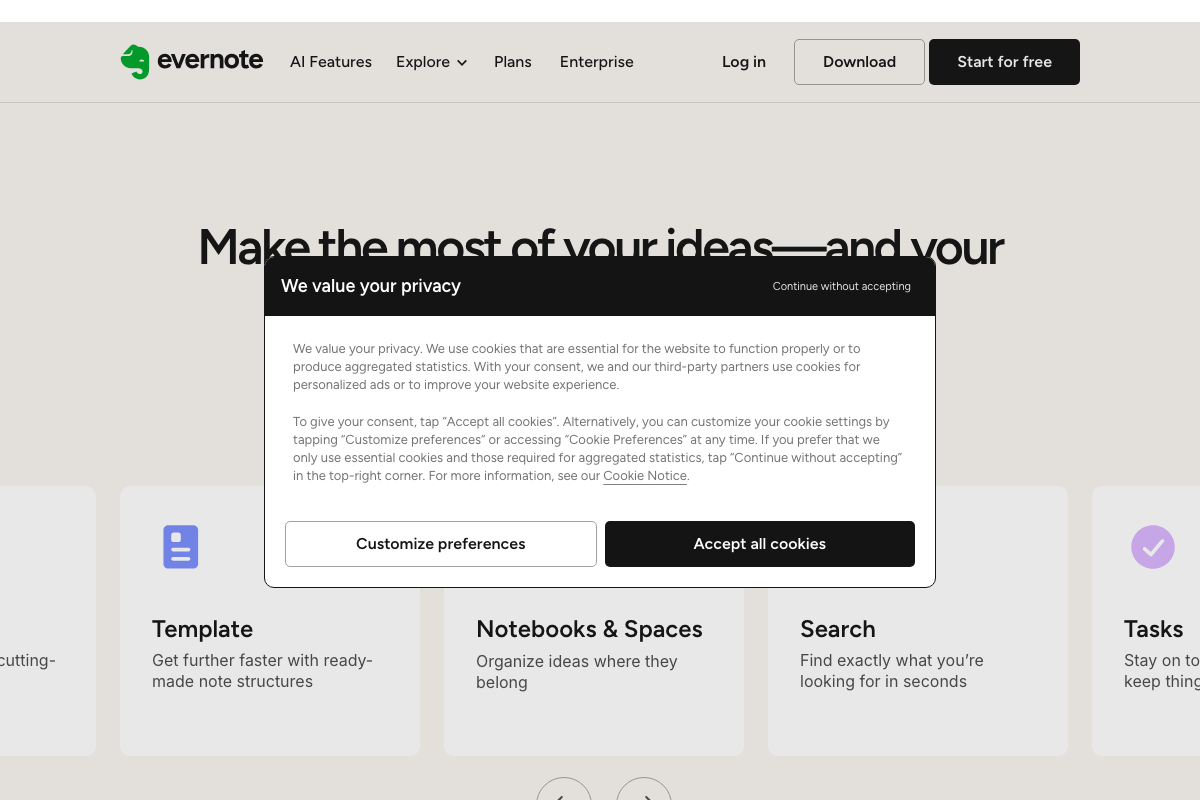
One useful addition from the Evernote side of the comparison: Evernote’s current product includes a Notebooks & Spaces organizational layer that maps structurally to Journal It’s Areas concept. If you’re evaluating Journal It as an Evernote replacement specifically because of Areas-style organization, note that Evernote already offers a parallel hierarchy. The differentiation lies in Journal It’s tracker and habit features, not in top-level organization alone.
Steps 5–6 — Physical Health Trackers and Custom Tracker Creation
No official documentation was found for these steps —
proceed using the video’s approach and verify independently.
One data-model note worth flagging before you attempt any import: Journal It’s Physical Health tracker schema uses quantity metrics — water consumption, sleep quality, energy level. MyFitnessPal’s native schema centers on calories, macronutrients, and a food diary. These are structurally different formats. Any import across these two systems implies cross-schema translation that is not verifiable from publicly available documentation.
Steps 7–11 — Write Later, Search, and Feature Navigation
No official documentation was found for these steps —
proceed using the video’s approach and verify independently.
On search specifically: Evernote’s current product prominently features a Search capability described as “Find exactly what you’re looking for in seconds” — a direct functional parallel to Journal It’s global search bar from step 8. This is parity, not a gap; both tools offer cross-content search.
Step 12 — Planner (Tasks, Goals, Scheduling)
No official documentation was found for this step —
proceed using the video’s approach and verify independently.
The competitive framing here warrants a clarification: Evernote’s current feature set includes a Tasks feature that is a direct functional parallel to Journal It’s Planner. As of March 2026, the video’s implicit framing of task planning as a Journal It advantage over Evernote does not reflect Evernote’s current product. Evaluate the Planner on Journal It’s execution — date wheels, repeat rules, activity block tags — not on category exclusivity.
Steps 13–15 and Step 17 — Habits, Organizer, Settings Tour, and Remaining UI
No official documentation was found for these steps —
proceed using the video’s approach and verify independently.
Step 16 — Purchasing on AppSumo and Data Import
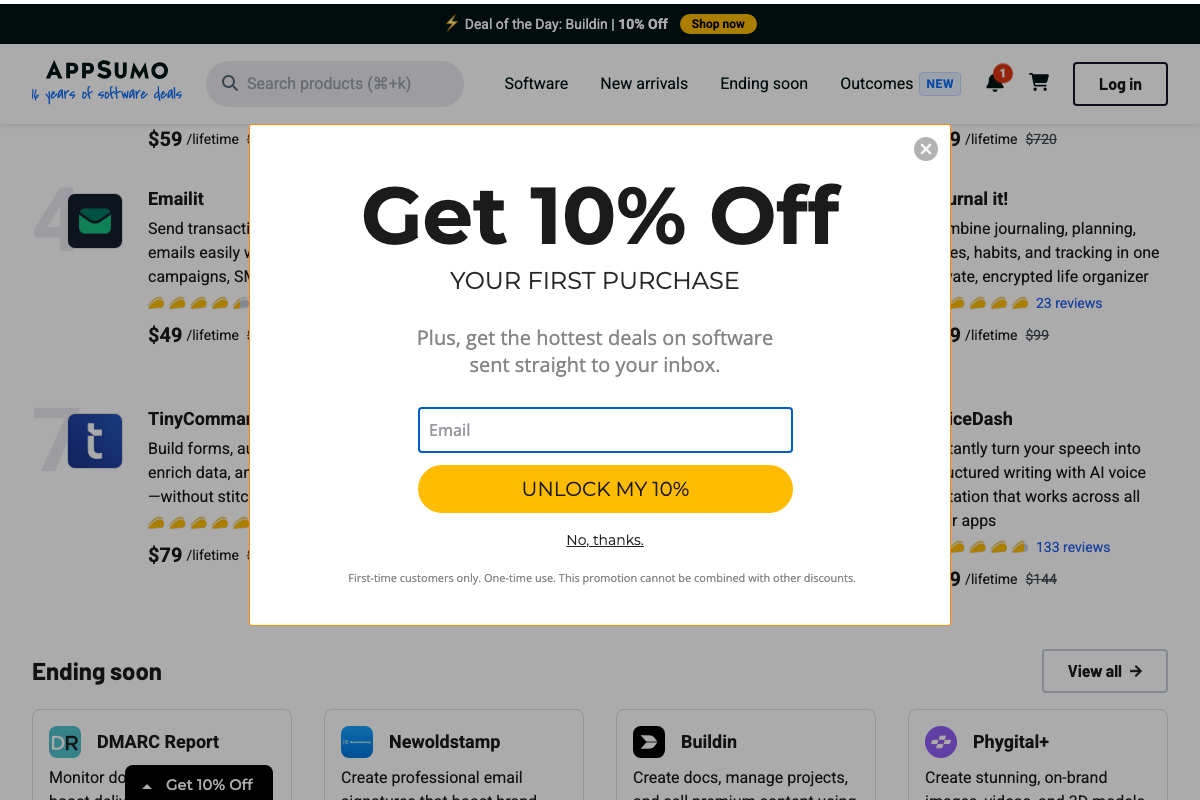
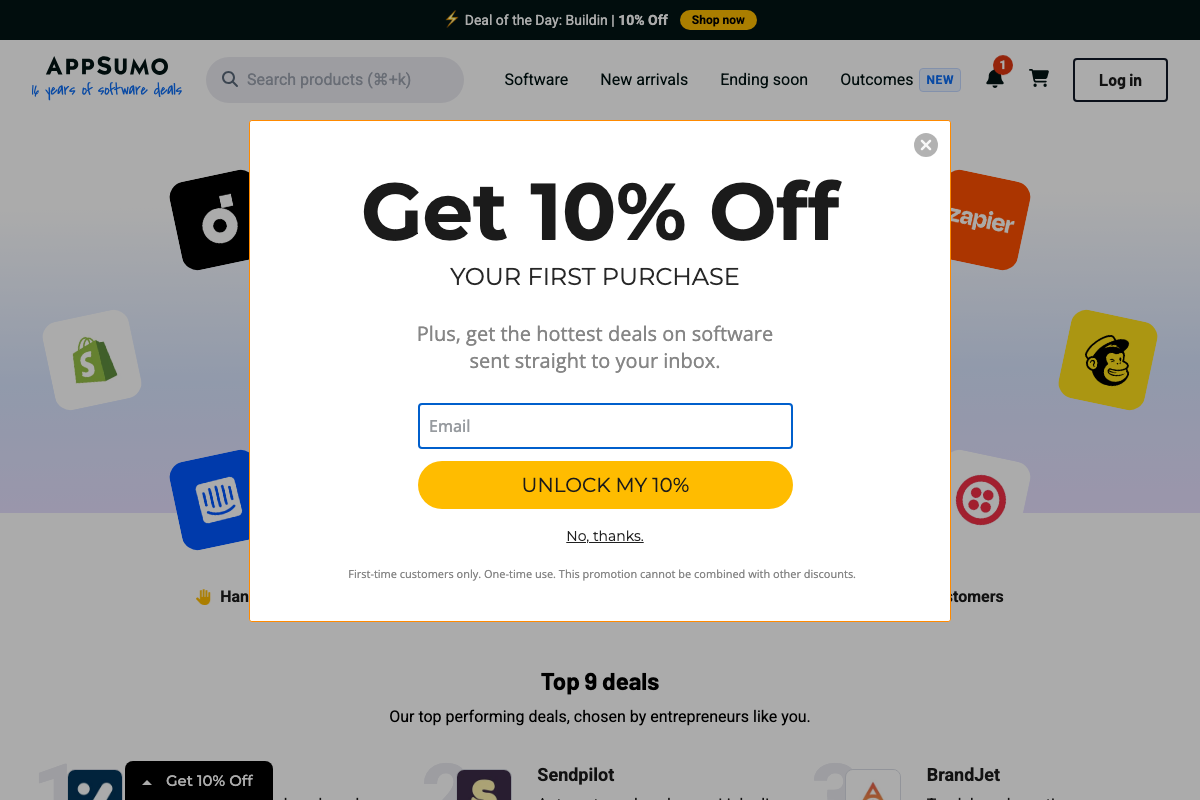
The video’s core claim — that Journal It is available as a lifetime deal on AppSumo — is confirmed. Journal It appears in AppSumo’s active “Top 9 deals” section with a description that matches the feature set covered throughout the tutorial: journaling, planning, habits, and tracking.
Two clarifications the video does not cover:
On price: The video states $39. The AppSumo listing shows a price ending in “9 /lifetime” against a strikethrough of $99, consistent with $39 — but the leading digits are obscured by a discount modal in the available screenshot. Verify the current price directly on the AppSumo product page before purchasing. Additionally, AppSumo’s homepage displays a 10% off first-purchase modal; if you’re a new AppSumo customer, this could reduce the effective price below the stated $39.
On encryption: The AppSumo listing describes Journal It as an “encrypted life organizer.” This feature is not mentioned anywhere in the 17-step video tutorial. If data privacy or local encryption is relevant to your use case — particularly for health data logged in steps 5 and 6 — verify the encryption implementation directly with the Journal It developer before committing.
On the MyFitnessPal import claim: MyFitnessPal is confirmed as a real, active application. The video’s account of importing a zip file from MyFitnessPal into Journal It is not verifiable from publicly available documentation. MyFitnessPal’s data model (food diary, calories, macros) is structurally distinct from Journal It’s quantity-based health tracker format. Test this import in a trial environment before relying on it for data migration.
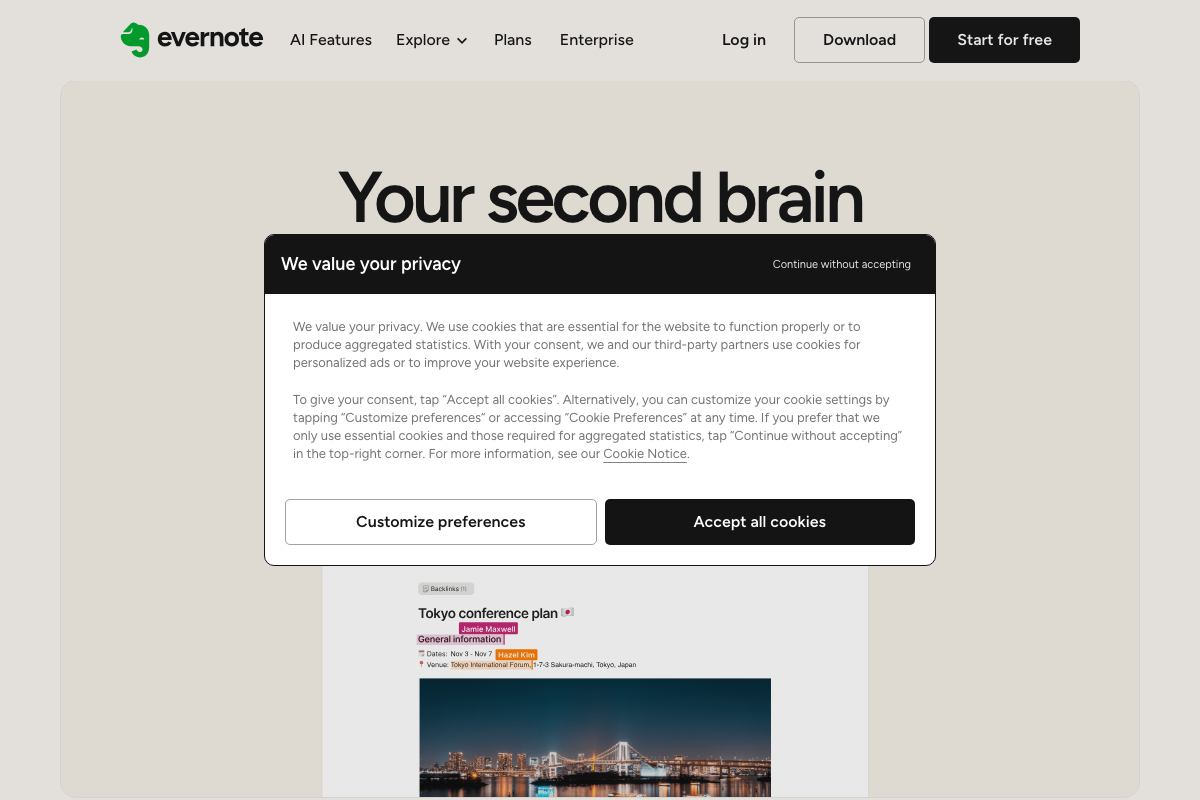
On Evernote’s current state: The video frames Journal It as an “all-in-one replacement” for Evernote. As of March 2026, Evernote’s homepage positions the product as “Your second brain” and includes AI Features as a top-level navigation item — a material product development not referenced in the tutorial’s comparison framing. If you’re migrating from Evernote, the gap the video implies is narrower than it was at time of recording.
Useful Links
- AppSumo – Discover products. Stay weird. — Platform hosting the Journal It lifetime deal; verify current pricing and deal availability directly on the product listing page.
- Best Note Taking App – Organize Your Notes with Evernote — Evernote’s current marketing homepage, showing AI Features positioning and the Tasks and Notebooks & Spaces features referenced in the competitive comparison above.
- Calorie Tracker & BMR Calculator to Reach Your Goals | MyFitnessPal — MyFitnessPal homepage documenting the app’s calorie and macronutrient data model, relevant to evaluating the step 16 import claim.


0 Comments