

Salesforce shipped more than 30 new AI capabilities into Slack on March 31, 2026, and two of them permanently change how knowledge workers interact with their computers: an AI-powered meeting transcription engine and a new Operator Mode that completes multi-step desktop tasks autonomously. The Deep View broke the announcement, and if your team runs on Slack, this release deserves more than a passing glance. This tutorial covers every major feature in the package, explains exactly how to enable each one, and walks through the real-world workflows that separate dabbling from actual deployment at scale.
What This Is
Salesforce has been positioning Slackbot—Slack’s native AI assistant—as the centerpiece of a broader agentic workplace strategy since January 2026. Within two months of that launch, Slackbot achieved the fastest-adoption milestone in Salesforce’s company history, according to The Deep View. The March 31 release builds on that momentum with a package of more than 30 new capabilities, moving Slackbot from a reactive Q&A assistant into something that can see your screen, attend your meetings, and push work forward without you supervising every step.
Here’s what’s in the release:
Meeting Transcription and Notes
Slackbot now automatically captures meeting content, generates structured summaries, and surfaces action items. The feature works across Zoom, Google Meet, and other major conferencing platforms, according to The Deep View. It requires the Slack desktop application—browser-based Slack won’t trigger it. When a meeting ends, the transcript and structured summary land directly in your Slackbot DM, already organized and ready to share with the relevant channel.
Operator Mode
This is the headline feature. Operator Mode lets Slackbot complete multi-step desktop tasks on your behalf. The workflow is intentionally simple: you select content on your screen—an email thread, a document, a CRM record—and type a natural-language instruction like “Summarize this and draft a follow-up message.” Slackbot reads the selected content and executes the instruction across apps on your desktop, not just inside Slack. Rob Seaman, EVP & GM of Slack, framed the vision directly in his comments to The Deep View: “We’re building a personal agent that’s got all of your context in Slack, but is immensely capable.”
AI Skills
Salesforce introduced a built-in library of reusable AI instructions called AI Skills. These are pre-built and user-created prompt templates, organized by function, that you can deploy directly or customize for your workflow. Users can build their own Skills and share them across a workspace, creating a standardized library of automation patterns that any team member can invoke. Think of it as a shared prompt repository, but the executor is always Slackbot and the trigger is always a natural-language instruction.
MCP Client Integration
Slackbot now ships as a Model Context Protocol (MCP) client, meaning it can pull live data from and take actions inside connected third-party tools: Google Workspace, Microsoft 365, Notion, and others on the growing list, per The Deep View. Instead of switching between apps, you stay in Slack and instruct Slackbot to retrieve a Google Doc, update a Notion database, or query a spreadsheet. The action happens in the connected tool; the result surfaces in Slack.
Native CRM
Salesforce is embedding lightweight CRM functionality directly into Slackbot. From any channel, Slackbot can log deals, save contacts, and capture call notes—routing them into Salesforce CRM in the background automatically. The stated target audience, per The Deep View, is small businesses that don’t have a dedicated CRM system or don’t want their team managing a separate tool for customer data.
All five feature sets are shipping to Free and Pro tier Slack users in April 2026. That’s a notably broad distribution for capabilities at this level of sophistication—previous Slack AI features were restricted to paid Business+ plans.
Why It Matters
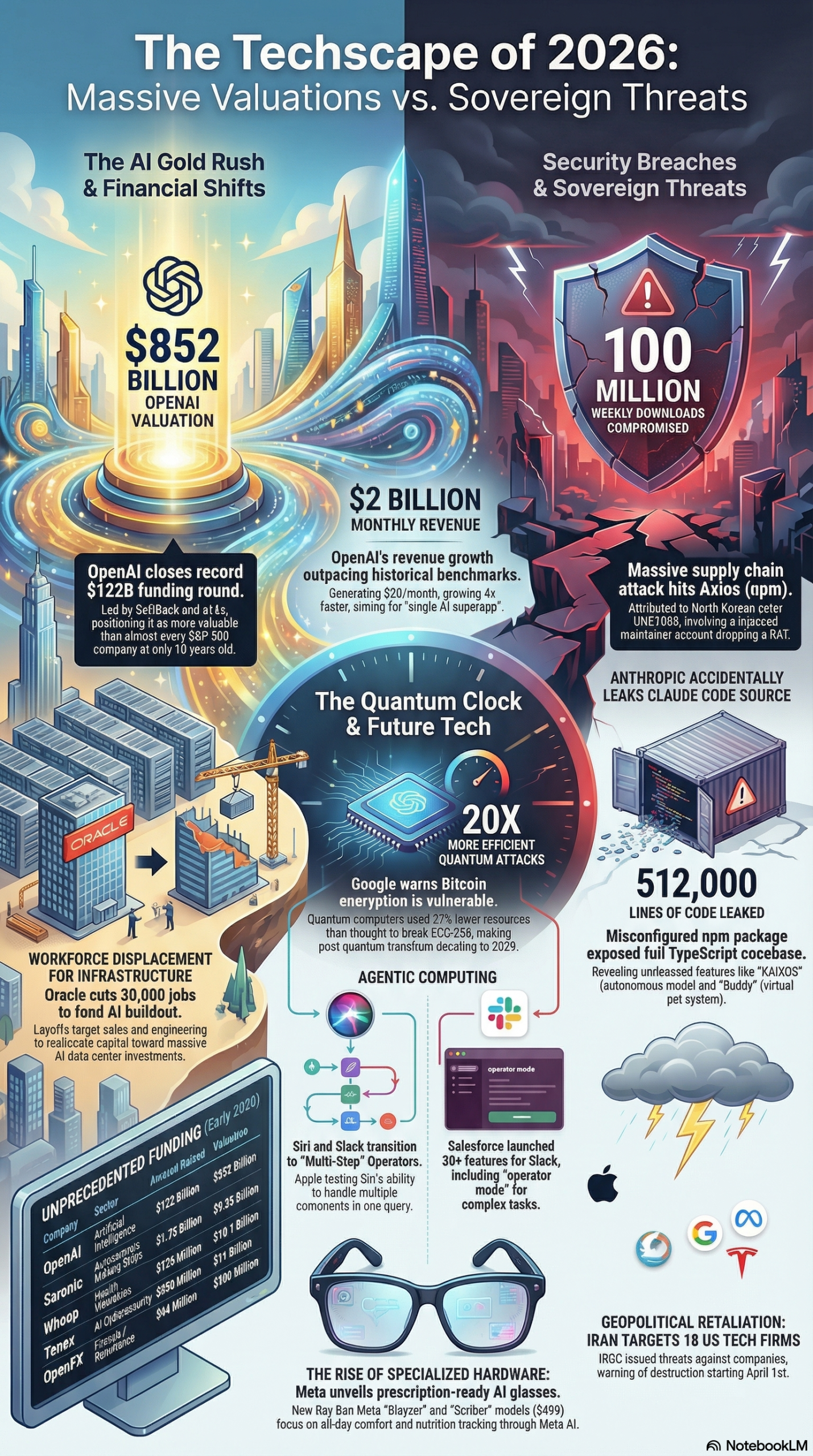
The context for this release is important. Salesforce is not shipping features in a vacuum—they’re responding to a market signal that is loud and getting louder. As of March 2026, OpenAI is generating $2 billion in revenue per month and actively pivoting toward what it calls an “AI Superapp”—a single interface that integrates chat, code execution, browsing, and autonomous agents, according to the MarketingAgent research briefing. Salesforce’s Slack release is a direct counter-move: instead of asking users to migrate to a new superapp, they’re building the superapp layer on top of a tool where tens of millions of knowledge workers already spend their working hours.
For practitioners, the impact breaks down by role:
Developers and Technical Teams
The MCP client is the most immediately useful feature for this group. If your team is already running MCP servers for Google Workspace, Notion, or custom internal tooling, Slackbot can now query and act on those systems without a separate orchestration layer. You no longer need a dedicated integration pipeline to get AI actions into your existing workflow—Slackbot handles it through the protocol.
Marketers and Content Teams
Meeting transcription and Operator Mode together solve one of the most persistent pain points in content operations: turning conversations into usable artifacts. When a strategy session ends, there’s no waiting for someone to write up notes—Slackbot has already produced a structured summary with action items flagged. Operator Mode then lets you push that summary forward immediately: “Turn these action items into a project brief in Notion.” That workflow previously required 20-40 minutes of manual work per meeting.
Small Business Operators
The native CRM feature is a direct challenge to the segment that runs on HubSpot Starter or manages contacts in spreadsheets. If you can log deals and customer context without ever leaving Slack, you eliminate onboarding friction and reduce the number of paid tools your team maintains. For a solo operator or a sub-10-person team, this is meaningful.
Enterprise Teams
Operator Mode and AI Skills together create a framework for systematizing recurring, multi-step workflows across large organizations. Instead of every employee building individual workarounds, the Skills library establishes shared, auditable automation patterns. IT and operations teams will adopt this faster than individuals, because it lets them enforce standards while still giving employees flexibility in execution.
What distinguishes this release from prior Slack AI features—like the channel summarization and search capabilities shipped in 2024—is architectural scope. Previous features were confined to the Slack interface. Operator Mode crosses the boundary into the operating system layer. That places Slack in direct competition with Microsoft Copilot and Apple Intelligence, both of which have been operating at the OS level longer. Salesforce’s advantage is distribution: Slack is already the communication layer for a massive portion of the knowledge workforce, which makes adoption of OS-level features significantly lower-friction than adopting a new standalone agent tool.
The Data
Here’s a feature-by-feature comparison of the March 2026 Slack AI release against Slack’s previous state and its primary competitors in the AI-native collaboration space:
| Feature | Slack (Pre-March 2026) | Slack (March 2026) | Microsoft Copilot for Teams | Google Gemini in Workspace |
|---|---|---|---|---|
| Meeting Transcription | No | Yes (Zoom, Meet, others) | Yes | Yes |
| Auto Action Item Extraction | No | Yes (automatic) | Yes | Yes |
| OS-Level Task Execution | No | Yes (Operator Mode) | Partial (Copilot Actions) | No |
| MCP Client Support | No | Yes (Google, M365, Notion) | No | No |
| Shareable AI Skills Library | No | Yes (workspace-wide) | No | No |
| Native CRM Logging | No | Yes (Salesforce CRM) | No | No |
| Availability Tier | Pro+ paid only | Free + Pro (April 2026) | M365 Business subscription | Workspace Business+ |
| Fastest Platform Adoption | — | Yes (2 months post-launch) | — | — |
Sources: The Deep View, MarketingAgent Research Briefing
The adoption data point is worth dwelling on. Slackbot achieved the fastest-adoption milestone in Salesforce’s company history within two months of its January 2026 launch. Salesforce has shipped Salesforce Sales Cloud, Marketing Cloud, Service Cloud, and dozens of major platform releases over 25 years. Slackbot outpaced all of them on the adoption curve. That signals both strong user demand for AI-native communication tools and Slack’s structural distribution advantage—the product is already embedded in users’ daily workflows before they ever activate a new feature.
The MarketingAgent research briefing explicitly flags this trend: “With Salesforce adding 30+ AI features to Slack and OpenAI pursuing a ‘Superapp,’ business leaders should evaluate their stack for ‘Operator Modes’—the ability for AI to complete multi-step tasks across desktops.”
Step-by-Step Tutorial
This walkthrough covers setting up and using the four most impactful features from the March 2026 release: Meeting Notes, Operator Mode, AI Skills, and the MCP Client. Follow the phases in sequence—each one builds on the prior.
Prerequisites
Before starting, confirm the following:
- You have a Slack Free or Pro account (Business+ and Enterprise Grid also qualify)
- You are running the Slack desktop application—Meeting Notes and Operator Mode both require the desktop app; browser Slack will not work
- Slackbot AI is enabled at the workspace level (workspace admins control this under Settings → Administration → AI Features)
- For MCP integration: you have admin access to the third-party tools you intend to connect (Google Workspace, Microsoft 365, Notion)
- For meeting transcription: your video conferencing application (Zoom or Google Meet) is installed on the same machine as your Slack desktop app
Phase 1: Enable and Configure Meeting Notes
Step 1: Verify Slackbot Is Active
Open Slack and click on Slackbot in your direct messages sidebar. If it’s active, you’ll see a message input and a set of Quick Actions at the top of the conversation. If Slackbot is not visible or shows no AI options, ask your workspace admin to enable Slack AI features under Settings → Administration → AI Features.
Step 2: Grant System Audio Permissions
Meeting transcription requires Slack to access your system’s audio output so it can capture what’s being said in a call without being explicitly invited to a meeting as a bot participant. On macOS: go to System Settings → Privacy & Security → Screen Recording and enable Slack. On Windows 11: navigate to Settings → Privacy & Security → Microphone and set Slack to Allow. These permissions are a prerequisite—without them, Slackbot will not detect active meetings.
Step 3: Start a Meeting and Monitor Slackbot
Start or join a meeting in Zoom or Google Meet. After approximately 60 seconds, Slackbot will automatically send you a direct message confirming it has detected an active meeting and begun capturing. You do not need to take any action—detection and capture are fully automatic once permissions are granted.
Step 4: End the Meeting and Retrieve Your Notes
When the meeting ends, return to your Slackbot DM. Within 2-3 minutes, Slackbot posts a structured summary with three components: (1) a brief description of what was discussed, (2) a bulleted list of key decisions, and (3) action items with the name of the responsible speaker next to each item—pulled from who was speaking at the time the commitment was made. This attribution is what makes the feature genuinely useful rather than a generic summary.
Step 5: Edit and Share to a Channel
Below the meeting summary, you’ll see a Share to Channel button. Before clicking it, review the summary—Slackbot’s text is fully editable. Click any section to enter edit mode, correct any misattributed action items or misheard content, then select the appropriate project channel and share. The summary posts as a formatted message, not an attachment, so it’s searchable and linkable in Slack immediately.
Phase 2: Set Up and Use Operator Mode
Step 1: Locate the Operator Mode Toggle
In the Slack desktop app, click Slackbot in the left sidebar to open the Slackbot panel. Look for the Operator Mode toggle in the top-right corner of the panel. Enable it. You’ll see a small persistent overlay indicator appear in the bottom-right corner of your screen confirming that Operator Mode is active and watching for selection input.
Step 2: Select Content on Your Screen
Operator Mode works via a screen-selection mechanism. Hold Option+Shift (macOS) or Alt+Shift (Windows) and drag to draw a selection rectangle around any content on your screen—a paragraph in an email, a row in a spreadsheet, a section of a webpage, a Salesforce record. The selected region highlights in blue. Release the keyboard shortcut to confirm the selection.
Step 3: Type Your Instruction in Slack
After releasing the selection, focus automatically returns to Slack’s message input in the Slackbot panel. Type your instruction in plain language and hit send. Practical examples that work well in real workflows:
– "Summarize this email thread and surface the two most important open questions."
– "Turn this table into a three-sentence status update for the #project-q2 channel."
– "Draft a reply that confirms we will deliver by April 15 and asks for confirmation of the revised scope."
– "Extract every number mentioned in this section and format them as a bullet list."
Slackbot receives the visual selection and your instruction simultaneously, processes them together, and returns the result.
Step 4: Review and Deploy the Output
Slackbot returns the result directly in the Slackbot DM thread. For draft replies, you’ll see a Copy to Clipboard button and, where Slackbot can detect the source application, a Send via [App] option that attempts to route the output back to the originating tool. For summaries intended for a channel, use the Share to Channel button, identical to the Meeting Notes flow.
Step 5: Chain Instructions for Multi-Step Tasks
Operator Mode supports sequential instructions within the same session. After Step 4, while Slackbot retains context from the prior exchange, you can follow up without re-selecting content: "Now reformat that summary as a Notion page structure: one title, three bullet points, one CTA." Slackbot treats the conversation thread as working memory and refines or extends the prior output. This is how you build multi-step workflows—draft, then transform, then format—without breaking out of the Slack interface.
Phase 3: Create and Publish an AI Skill
Step 1: Open the Skills Library
In Slackbot, click AI Skills in the feature navigation (visible in the left panel when the Slackbot panel is open). The library opens with a pre-populated set of Skills organized into categories: Meeting Tools, Writing, Research, CRM, and Custom.
Step 2: Create a New Skill
Click + New Skill. You’ll be prompted for three inputs:
– Skill Name: A plain-language label describing what this Skill does (e.g., “Weekly Status Summary” or “Client Call Brief”)
– Trigger Prompt: The exact instruction Slackbot executes when this Skill is invoked (e.g., “Summarize the key updates from the past 7 days in #project-channel and list the three most critical blockers with owners identified”)
– Output Format: Bullet list, paragraph, table, or formatted Slack message
Write the Trigger Prompt as if you were giving the instruction directly to Slackbot. The more specific the prompt, the more consistent the output.
Step 3: Test Before Publishing
Click Test. Slackbot runs the Skill against your current workspace data and returns a preview. Review the output for accuracy, completeness, and tone. Revise the Trigger Prompt until the output matches what you would actually send to a stakeholder. This step is mandatory before sharing to the workspace—publishing a poorly configured Skill propagates inconsistent outputs to every team member.
Step 4: Publish to Workspace
Click Publish to Workspace. The Skill is now available to any team member from their own Slackbot interface. Workspace admins can view all published Skills and remove any that no longer reflect current standards or that produce unreliable outputs.
Phase 4: Connect the MCP Client
Step 1: Navigate to MCP Integrations
In the Slackbot settings panel, click Integrations → MCP Connections. You’ll see a list of available MCP servers: Google Workspace, Microsoft 365, Notion, and additional tools as the integration catalog expands.
Step 2: Authenticate Your Tools
Click the tool you want to connect. Slack redirects you through that service’s OAuth flow. Authenticate with the account that has read/write access to the resources you want Slackbot to reach. For Google Workspace, this authorizes Docs, Sheets, and Calendar access. For Microsoft 365, this covers Outlook, SharePoint, and Teams file storage.
Step 3: Test a Cross-App Command
In the Slackbot message input, issue a command that references the connected tool: "Pull the latest version of the Q2 Marketing Plan from Google Drive and summarize the Objectives section." Slackbot searches your connected Drive, retrieves the document, reads the specified section, and returns the summary in Slack—without you opening a browser tab or switching applications.
Step 4: Layer MCP Retrieval with Operator Mode
The most powerful workflow in this entire release is combining MCP retrieval with Operator Mode transformation. First, ask Slackbot to retrieve a document via MCP. Then enable Operator Mode, select Slackbot’s returned output, and issue a transformation instruction: "Format this as a Slack channel announcement with all internal jargon removed and action items bolded." You’ve just executed a retrieve-transform-format pipeline entirely within Slack, with no copy-paste steps between applications.
Expected Outcomes
After completing all four phases, your team can:
– Receive structured meeting summaries with attributed action items in Slack within 3 minutes of ending any Zoom or Google Meet call
– Execute document transformation and drafting tasks without leaving Slack
– Query and act on live data in Google Workspace, Microsoft 365, and Notion through natural-language instructions
– Deploy shared AI workflow templates across the workspace through the Skills library with zero code required
Real-World Use Cases
Use Case 1: Agency Client Reporting
Scenario: A 12-person digital agency runs weekly status calls with 6 clients. Each call produces notes that need to be reformatted into client-facing update emails before end of day.
Implementation: Enable Meeting Notes for all client calls. After each call, invoke a pre-built AI Skill: “Reformat this meeting summary as a client update email with a formal tone, removing all internal references and flagging only externally relevant action items.” Publish this Skill to the workspace so every account manager generates client updates from the same template.
Expected Outcome: Client update drafts are ready within 5 minutes of each call ending, compared to the 25-40 minutes previously spent on manual transcription and formatting. For a 12-person team running 6 weekly calls, that’s 3-4 hours of recovered time per week—time that previously evaporated between the end of a call and the send button on an email.
Use Case 2: Sales Team CRM Hygiene
Scenario: A B2B SaaS sales team loses an estimated 2-3 hours per rep per week to manually logging call notes and updating deal records in Salesforce, leading to inconsistent data and unreliable pipeline reporting.
Implementation: Enable both Meeting Notes and Slackbot’s native CRM logging. After each prospect or customer call, Slackbot captures the conversation, extracts key discussion points and next steps, and logs them to the relevant deal record in Salesforce CRM automatically. Reps review and approve the proposed entry from Slack before it’s finalized—maintaining accuracy without requiring manual data entry.
Expected Outcome: CRM data quality improves because logging is automatic rather than dependent on rep discipline. Each rep saves 2+ hours per week. Sales managers get more reliable forecasting data because notes are captured consistently, not selectively based on rep availability post-call.
Use Case 3: Distributed Engineering Decision Log
Scenario: A distributed engineering team makes architectural decisions in Zoom calls but has no reliable process for maintaining a searchable decision log in Notion. New engineers onboard by watching meeting recordings, which is slow and inconsistent.
Implementation: Enable Meeting Notes, then create an AI Skill: “Extract all technical decisions from this meeting summary and format each as a Notion decision log entry with three fields: Decision, Rationale, and Trade-Offs Accepted.” Connect the MCP client to Notion. After each architecture meeting, run the Skill, review the output, and use the MCP connection to push the formatted entries directly to the team’s Notion decision log database.
Expected Outcome: Every architectural decision is documented in Notion within 10 minutes of the meeting ending, with rationale captured while it’s still fresh. New team members onboard by reading the decision log rather than watching hours of recordings, compressing the context-acquisition phase from days to hours.
Use Case 4: Content Team Briefing Pipeline
Scenario: A content marketing team holds weekly editorial planning meetings that generate assignments for writers. Turning meeting discussion into structured creative briefs is a 90-minute weekly manual task currently handled by one senior editor.
Implementation: Use Meeting Notes to capture the editorial planning call. Build an AI Skill with this Trigger Prompt: “Convert this meeting summary into a structured content brief for each piece discussed, with these sections: Target Audience, Core Message, SEO Angle, Key Points to Cover, Call to Action. Format as a separate brief for each piece.” After the planning call, run the Skill and distribute the resulting briefs to the relevant channel.
Expected Outcome: Writers receive fully structured briefs in Slack within 15 minutes of the planning call, instead of waiting 1-2 hours for manual write-up. Brief quality becomes consistent across all content types because every brief is generated from the same Skill template rather than varying by whoever was responsible for documentation that week.
Use Case 5: Small Business Customer Follow-Up
Scenario: A small e-commerce business owner handles all sales calls solo and frequently loses context between conversations because notes end up scattered across apps, calendar entries, and email threads.
Implementation: Enable Meeting Notes and the native CRM feature. After each customer call, Slackbot logs the contact, the discussion summary, and the agreed next steps to Salesforce CRM automatically. The owner then uses Operator Mode to select the logged CRM entry and prompts: “Draft a personalized follow-up email based on this call summary that references our specific discussion and confirms the next step.”
Expected Outcome: Every customer interaction is logged in CRM and has a follow-up email drafted within 5 minutes of the call ending, with no context switching between CRM, email, and notes tools. The business owner’s customer follow-up rate improves from irregular to consistent, without additional time investment.
Common Pitfalls
Pitfall 1: Using Browser Slack for Meeting Notes
Meeting transcription will not trigger in the browser version of Slack. Many remote workers default to the browser for tab-management reasons—this is a real adoption blocker. Don’t assume your team knows the difference between browser Slack and desktop Slack. Communicate the desktop app requirement explicitly when rolling out Meeting Notes, and consider enforcing desktop app usage through your MDM policy for teams where this feature is business-critical.
Pitfall 2: Skipping System Audio Permissions
Slackbot requires screen recording and microphone permissions to capture meeting content. On corporate devices managed through MDM platforms, these permissions are often restricted by default for security reasons. If you’re deploying this to managed hardware, coordinate with your IT team before the rollout to pre-approve Slack’s permission requests through your MDM policy. Waiting until users encounter a permission wall mid-call creates immediate abandonment and negative first impressions of the feature.
Pitfall 3: Publishing Untested AI Skills
The Skills library propagates across the entire workspace the moment you hit Publish. A poorly tested Skill that produces plausible-but-wrong outputs—misattributed action items, confidently stated inaccuracies, wrong tone—is more dangerous than no Skill at all because it generates false confidence in the output. Before publishing any Skill, run it against at least five real examples from your actual workflow and review each output with a critical eye. Treat the testing step as mandatory, not optional.
Pitfall 4: Treating Operator Mode Outputs as Final
Operator Mode is a force multiplier, not a replacement for human judgment. Every Operator Mode output should be treated as a first draft requiring review before it reaches a client, customer, or external stakeholder. Build an explicit review checkpoint into any workflow that uses Operator Mode for external-facing content—don’t let the automation’s fluency become a reason to skip the review step.
Pitfall 5: Approving Overly Broad MCP Permissions
When connecting the MCP client to Google Workspace or Microsoft 365, Slackbot requests access during the OAuth flow. Read the permission scope carefully before approving. For organizations handling sensitive client data or working under compliance requirements (HIPAA, SOC 2, GDPR), broad read/write access to cloud file systems may be inappropriate without additional controls. Configure data loss prevention policies through your SSO provider or identity platform before enabling MCP connections in regulated environments.
Expert Tips
Tip 1: Stack Meeting Notes with a Channel Routing Skill
Build an AI Skill that reads a meeting summary and routes it to the correct channel automatically based on content: "Read this meeting summary and determine which of the following channels it belongs in: #sales, #product, #ops, #clients. Post the summary with a two-sentence context intro to the correct channel." This eliminates the manual routing decision from every meeting workflow and reduces the friction between a meeting ending and its artifacts reaching the right audience.
Tip 2: Use Operator Mode for Competitive Intelligence Triage
When reviewing competitor content—pricing pages, release notes, launch announcements—select the key sections using Operator Mode and prompt: "Compare this to our current product offering. Identify three gaps where they have capabilities we don't, and two areas where our offering is demonstrably stronger." The output is a thinking partner, not a definitive analysis, but it surfaces the right questions faster than reading alone and gives you a structured starting point for exec briefings.
Tip 3: Version-Control Your AI Skills
Before publishing any Skills update to your workspace, document the previous version’s Trigger Prompt in a shared wiki or Notion page. When outputs degrade over time—and they will as your workflows evolve and your data changes—you need to know exactly what changed in the prompt to diagnose the issue. Treat Skill prompts like code: version them, annotate your changes, and test against a consistent set of sample inputs before deploying updates.
Tip 4: Combine Native CRM with Meeting Notes for Full Call Coverage
Running both features simultaneously produces two complementary artifacts from every sales or customer call: the meeting summary in Slack (for the team’s real-time use) and the CRM log entry in Salesforce (for pipeline reporting and forecasting). These serve different audiences and different time horizons. The key operational habit is reviewing both outputs immediately after the call—while your memory of the conversation is fresh—so any corrections are fast and accurate rather than reconstructed hours later.
Tip 5: Build an Onboarding Skill for New Hires
Create an AI Skill called “Onboarding Briefing” with this Trigger Prompt: "Query the most important project channels over the past 30 days and produce a narrative summary covering: active projects, key decisions made, team priorities, and any open blockers that are currently unresolved." When a new team member joins, the first thing they do in Slack is run this Skill. It compresses the context-acquisition phase from days of reading backlog to a single structured briefing, and it updates automatically as the team’s work evolves.
FAQ
Q: Do I need a paid Slack plan to use Operator Mode and Meeting Notes?
A: No. According to The Deep View, the full suite of features—including Operator Mode and Meeting Notes—is rolling out to Free and Pro tier users in April 2026. Business+ and Enterprise Grid plans are also included. This is a significant departure from prior Slack AI features, which were exclusively available to paid Business+ subscribers. The broad distribution reflects Salesforce’s strategy of using adoption volume to establish Slackbot as the default AI agent layer in the workplace.
Q: Which video conferencing platforms work with Slack Meeting Notes?
A: The Deep View confirms support for Zoom and Google Meet at launch, plus “other platforms” without specifying which ones. Microsoft Teams is not confirmed as a supported source at launch—which is worth flagging explicitly if your organization runs a hybrid Slack/Teams environment, since Teams meetings will not automatically generate Slackbot summaries under the current announcement.
Q: Is Operator Mode safe to use with sensitive or confidential documents?
A: Operator Mode processes screen content through Slack’s servers. Before enabling it for workflows involving client data, contract terms, personally identifiable information, or protected health information, review Slack’s current data processing agreement and your organization’s acceptable use policy. For highly regulated industries—healthcare, legal, financial services—consult your compliance team before deploying Operator Mode in production workflows. The feature is powerful, but the data handling implications need to be understood at an organizational level, not just an individual one.
Q: How does the native CRM in Slackbot compare to Salesforce Sales Cloud?
A: The native CRM feature is explicitly designed for small businesses without dedicated CRM infrastructure. It handles basic deal logging, contact saving, and call note capture, routing entries into Salesforce CRM in the background. It is not a replacement for Salesforce Sales Cloud or HubSpot for teams with complex multi-stage pipelines, advanced reporting requirements, or large contact databases. Think of it as an automatic quick-capture layer for small teams that currently use nothing—it solves the “notes in three different places” problem, not the “enterprise pipeline management” problem.
Q: Can workspace admins control who publishes AI Skills to the workspace library?
A: Yes. Workspace administrators have full control over the Skills library. By default, any user can publish a Skill, but admins can restrict publishing rights to specific roles or require admin approval before a Skill becomes available workspace-wide. For organizations deploying this to large teams, setting up an approval workflow for Skill publication before the rollout is strongly recommended—it prevents the library from becoming cluttered with redundant or inconsistent Skills and ensures that published Skills meet organizational quality standards.
Bottom Line
Salesforce’s March 2026 Slack release crosses a threshold that previous Slack AI features never reached: it moves the AI agent outside the Slack interface and into the operating system layer through Operator Mode. Combined with automatic meeting transcription across Zoom and Google Meet, a shareable AI Skills library, MCP client integration for Google Workspace and Microsoft 365, and native CRM logging for small businesses, this is a meaningfully different product than Slack was six months ago. The fastest-adoption milestone in Salesforce history—achieved by Slackbot within just two months of its January 2026 launch—confirms that users are not merely curious about AI-native collaboration tools; they are actively embedding them into daily work. As the MarketingAgent research briefing documents, the race to build the AI Superapp layer on top of existing enterprise infrastructure is accelerating across the entire industry. Slack’s position is that the winner will be whoever already owns the communication layer—and with more than 30 new features shipping to Free tier users in April 2026, they are making that case with urgency.


0 Comments