

Live Streaming with eCam Live: Build an Authentic, Algorithm-Proof Channel
AI-generated video is flooding every platform, but live content has one property synthetic media can’t replicate: it happens right now, in front of witnesses. Pat Flynn has run a weekly live stream on his Pokémon channel, Deep Pocket Monster, for four consecutive years — and the numbers make the case for anyone still on the fence. After working through this tutorial, you’ll understand why live is the highest-leverage format available to creators today and have a working eCam Live setup ready for your first simulcast.
- Recognize that live resists AI displacement and earns algorithmic priority. Platforms are surfacing live content in feeds where pre-recorded videos don’t appear. No AI model can fake being present in the moment — the unpredictability and real-time interaction are precisely what make live valuable to audiences drowning in synthetic content.

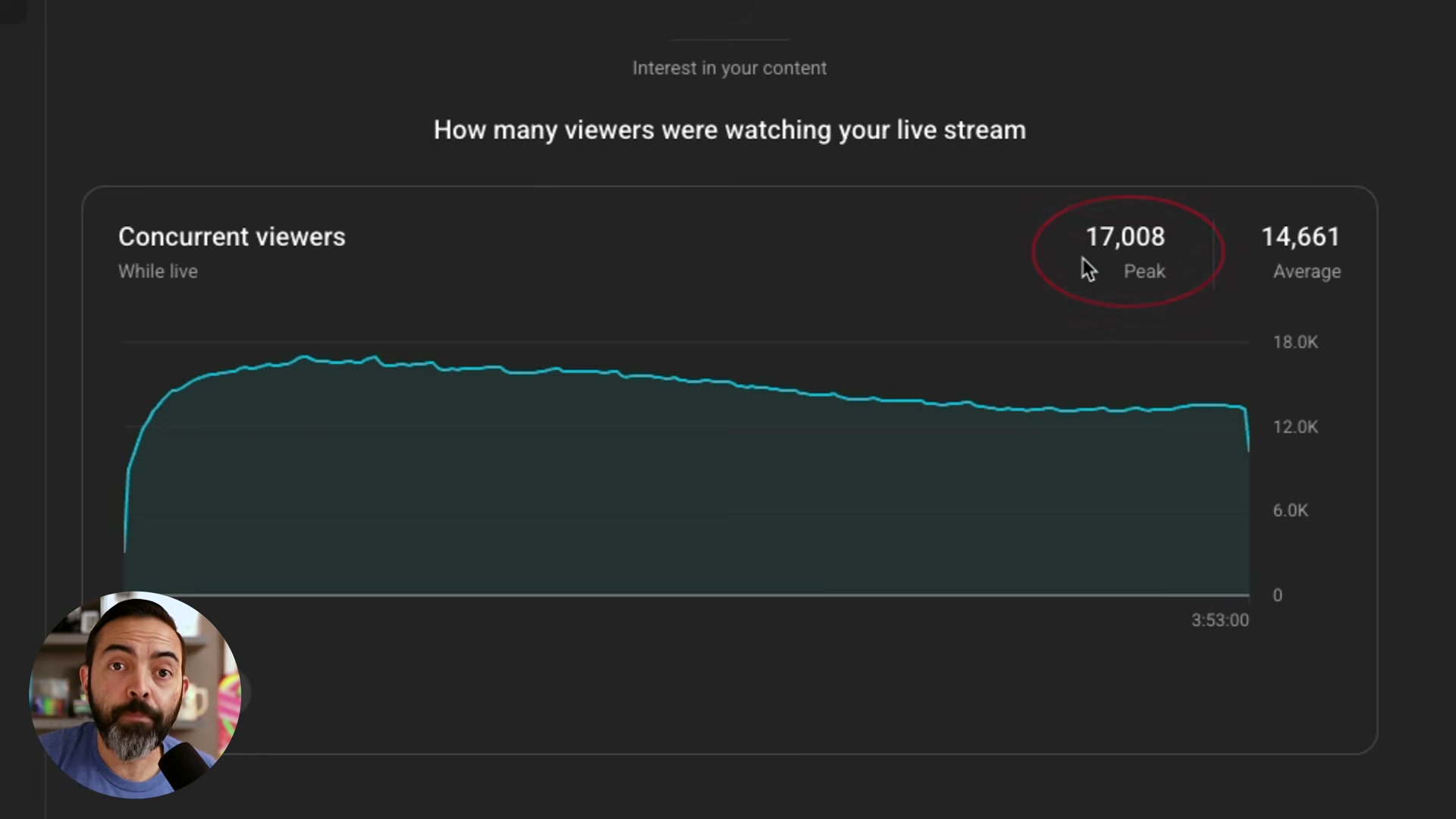
- Commit to a fixed, recurring slot and treat it as non-negotiable. Consistency converts viewers into a ritual audience. Flynn streams every Monday at 4:30 p.m. Pacific without exception — a cadence that built the trust behind a single stream that peaked at 17,008 concurrent viewers, with 65% watching on television screens and retention holding nearly flat across four hours.
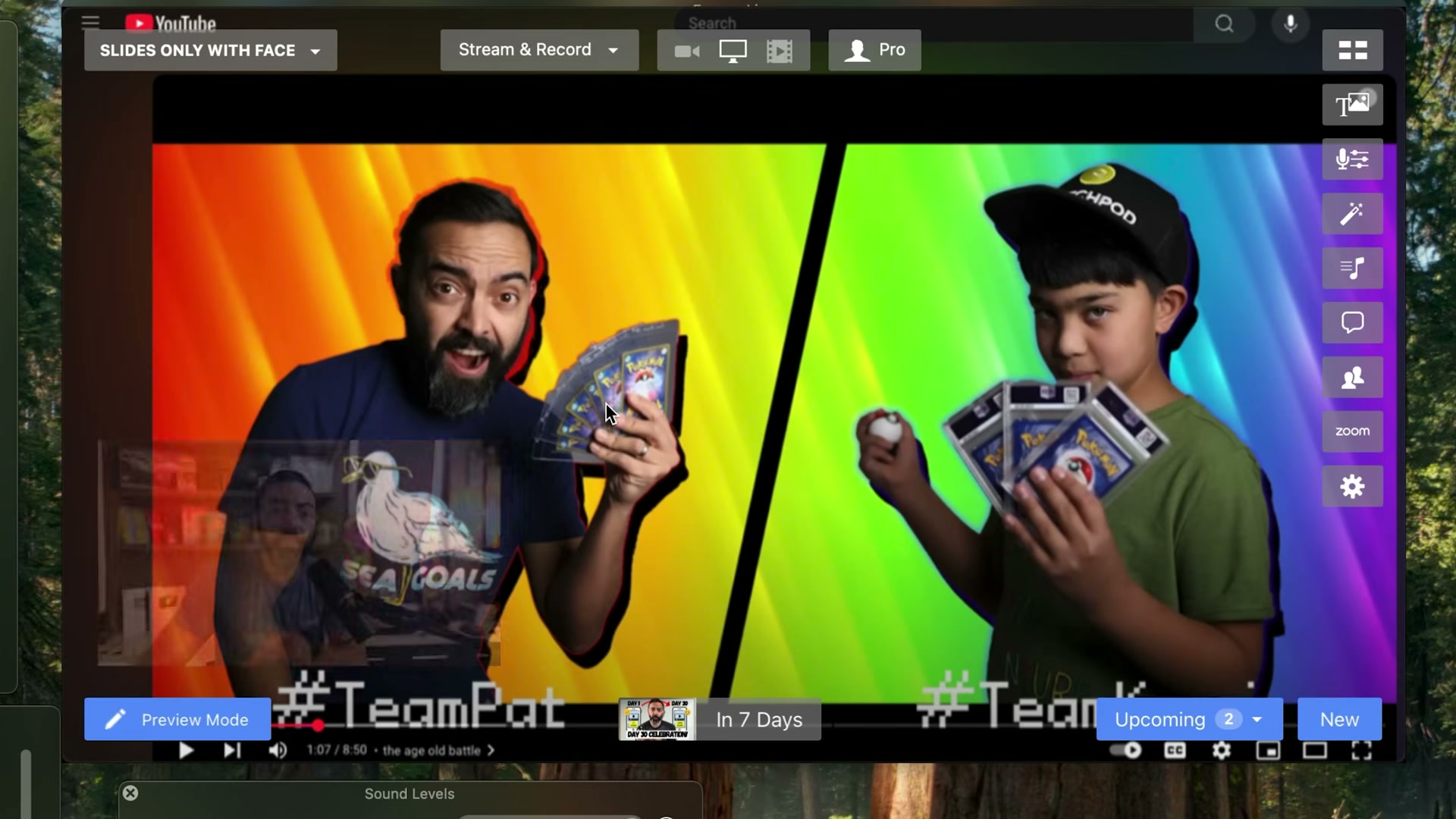
- Install eCam Live on Mac and build your scene library before going live. eCam Live is the Mac-native production tool Flynn has used for every stream since 2020. On launch you’ll find a scene switcher on the left, live preview in the center, and camera and audio controls on the right. Configure your scenes — camera only, camera-plus-slides, picture-in-picture — before you hit “go live” so every transition is a single click mid-stream.

-
Design transparent-background overlay graphics in Canva. Lower thirds, branding bars, and URL callouts are exported as PNGs with transparent backgrounds. Set your Canva canvas to your stream resolution, design the graphic, and export with transparency enabled. Flynn uses this workflow for name bars, course URLs, and event-specific visuals.
-
Import overlays into eCam Live and assign them to scenes. Drag the exported PNGs into eCam Live’s asset library, then attach each overlay to the appropriate scene. During a stream, the graphic composites over your camera feed automatically — no manual toggling required once the scene is configured.

-
Connect a Stream Deck to trigger scene and camera switches hands-free. The Stream Deck sends button presses directly to eCam Live, letting you cut cameras and toggle overlays without breaking eye contact with your lens or reaching for a keyboard mid-conversation.
-
Configure simultaneous horizontal and vertical simulcast destinations. Inside eCam Live’s streaming settings, add YouTube, Instagram, and TikTok as concurrent destinations. eCam Live also outputs a vertical crop alongside the standard 16:9 feed, so a single broadcast populates both long-form and short-form channels at once.
-
Enable on-screen chat display to pull viewer comments into your frame. eCam Live renders incoming chat as an overlay on your live preview. Tools like commentpicker.com integrate directly here — Flynn runs on-screen giveaways during streams, selecting a winner from live chat in real time while the audience watches.
-
Connect a Shopify store and reference products on air. eCam Live integrates with Shopify to surface your catalog during a stream. Flynn attributes $5,000 in monthly merch revenue directly to live stream product mentions — viewers see the item in use on camera, then follow the link to the connected store.
-
Start streaming while your audience is still small. Audio glitches, overlay timing, scene misfires — expect all of it. A small audience means low-stakes iteration. Flynn streamed every single day for a full year in 2020 specifically to develop technical muscle memory before his viewer count scaled.
-
Pre-configure upcoming broadcasts using eCam Live’s scheduler. The “Upcoming” panel lets you set stream titles, descriptions, destinations, and scene configurations ahead of your scheduled start time, removing day-of friction and ensuring the broadcast goes live correctly.
How does this compare to the official docs?
Flynn’s walkthrough demonstrates what eCam Live can do in a live context rather than walking through each configuration panel methodically — which is exactly where the official documentation picks up the story.
Here’s What the Official Docs Show
Pat Flynn’s demonstration excels at showing Ecamm Live in motion — this layer adds what official documentation confirms, clarifies, and flags as open questions as of March 23, 2026. Nothing here contradicts the core workflow; treat it as the spec sheet alongside the demo.
1. Live resists AI displacement
No official documentation was found for this step — proceed using the video’s approach and verify independently.
2. Commit to a fixed recurring slot
No official documentation was found for this step — proceed using the video’s approach and verify independently.
3. Install Ecamm Live on Mac and build your scene library
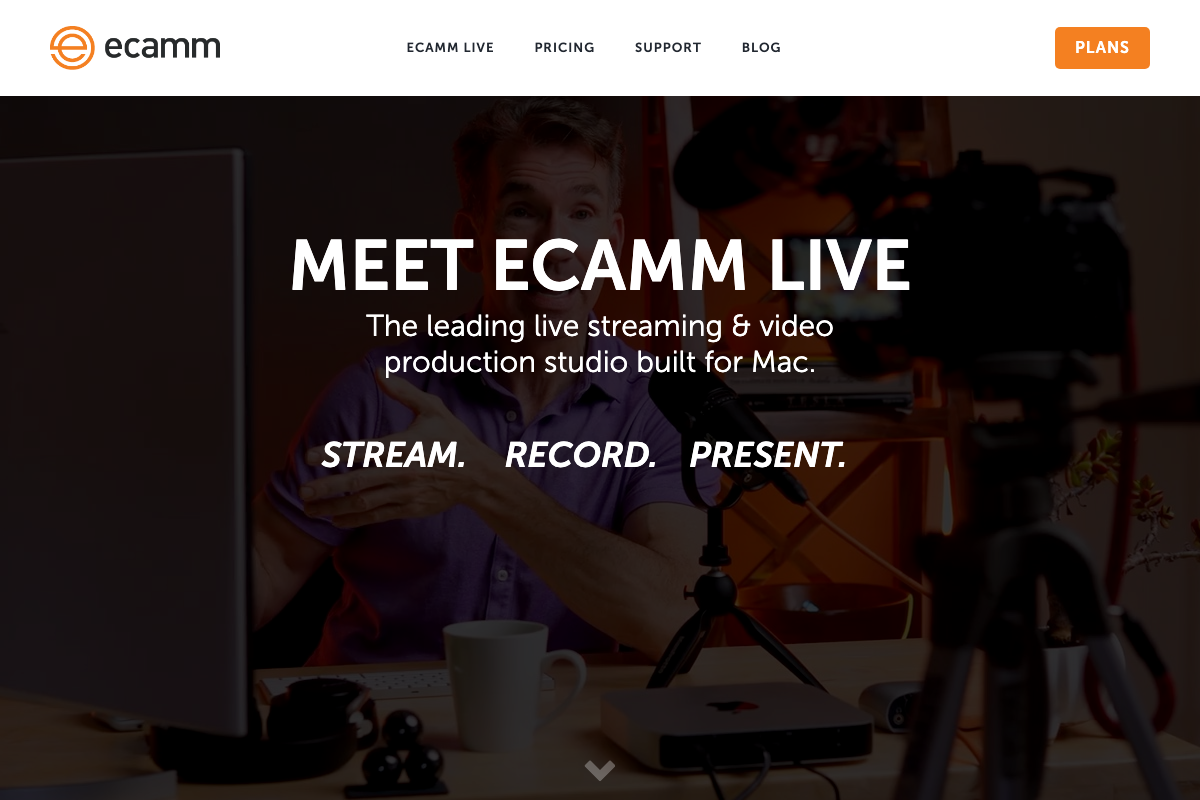
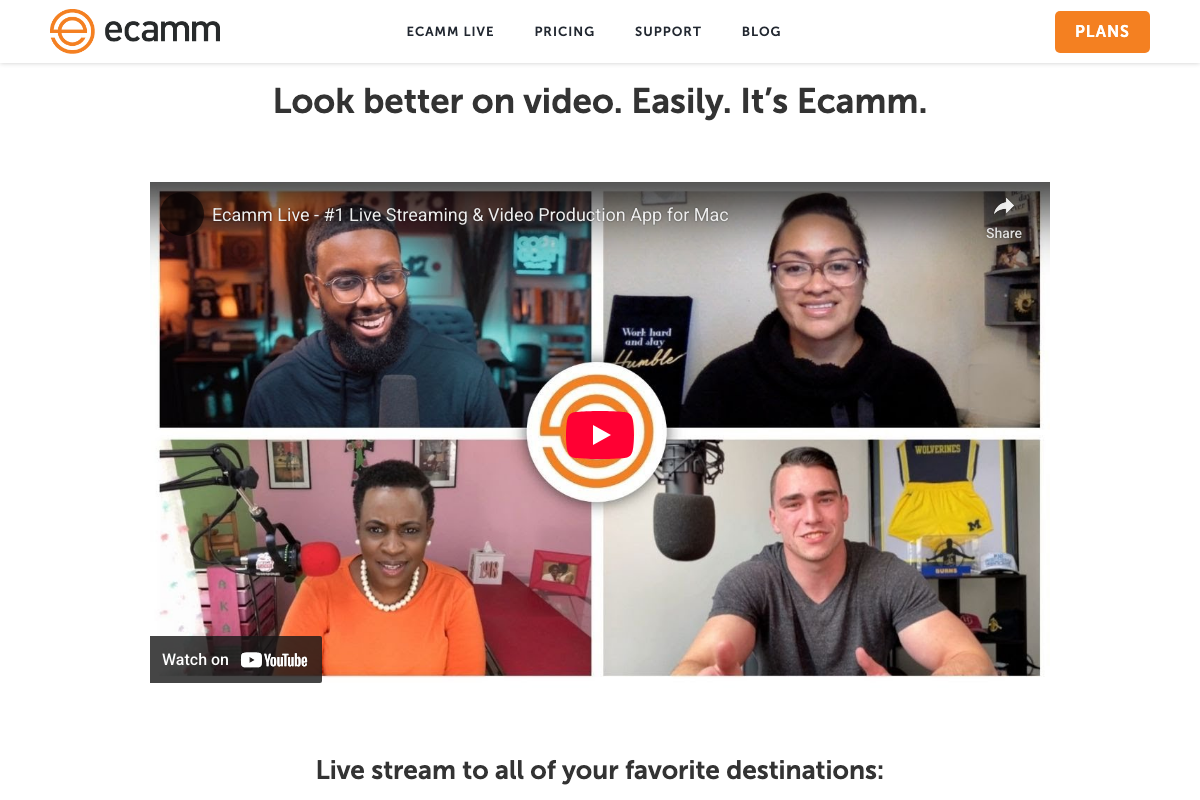
The video’s approach here matches the current docs exactly. One name note worth carrying into your own content: the official product is “Ecamm Live” — two words, double-m. The product page tagline reads “STREAM. RECORD. PRESENT.” — recording-only sessions and presentation mode are fully supported first-class use cases alongside simulcasting.
4. Design transparent-background overlays in Canva
The video’s approach here matches the current docs exactly. The tutorial skips one practical constraint: transparent PNG export is a paid-tier Canva feature. The Help Center confirms background removal as documented and available, but Canva’s plan tiers — Free, Pro, Business, Enterprise — gate the transparency export behind Pro or higher. Verify your subscription before building your overlay library.

5. Import overlays into Ecamm Live and assign to scenes
No official documentation was found for this step — proceed using the video’s approach and verify independently.
6. Connect a Stream Deck for hands-free switching
No official documentation was found for this step — proceed using the video’s approach and verify independently.
The Elgato help URL for Stream Deck documentation returned an Access Denied error as of March 2026 — Stream Deck and Ecamm Live integration cannot be confirmed or corrected against official Elgato sources at this time.
7. Configure simultaneous horizontal and vertical simulcast destinations
No official documentation was found for this step — proceed using the video’s approach and verify independently.
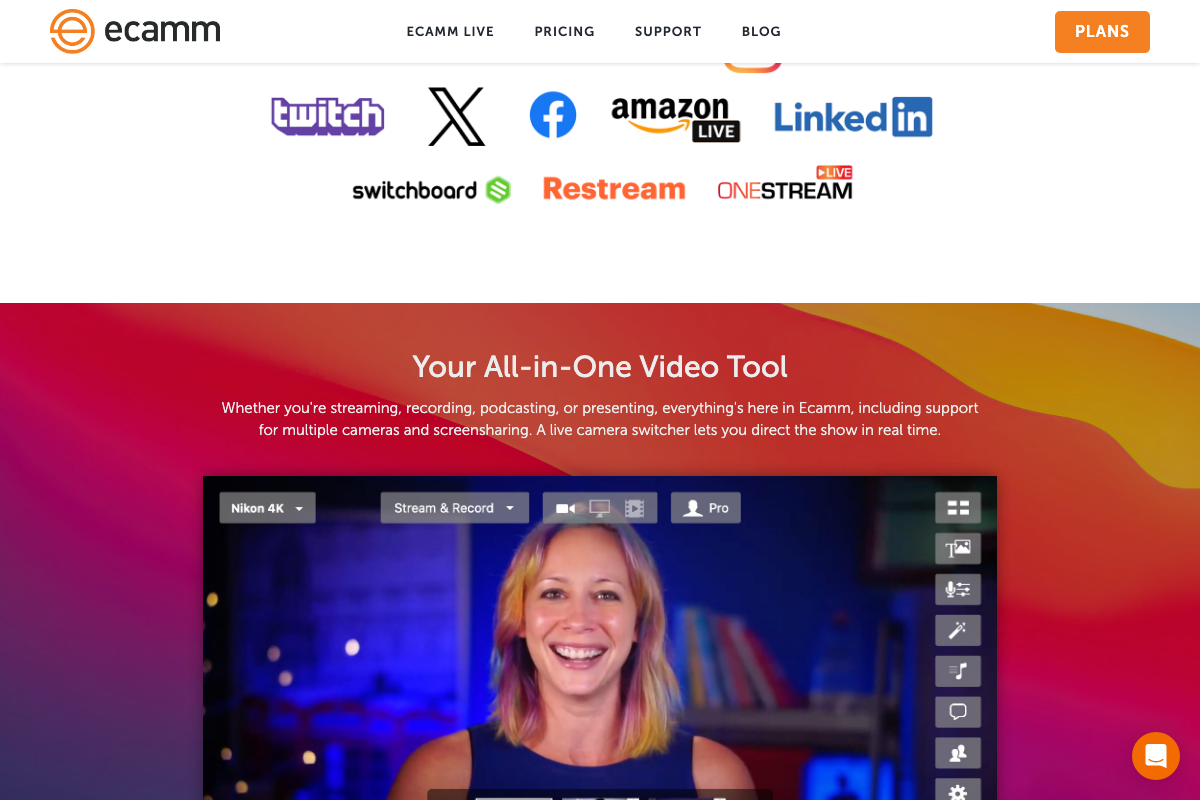
One important clarification from Ecamm’s own product page: the confirmed destination logos include Twitch, X, Facebook, Amazon Live, LinkedIn, Switchboard, Restream, and OneStream. YouTube, Instagram, and TikTok do not appear in the destination row as captured. Restream and OneStream are third-party relay services that can route to those platforms — the tutorial does not specify whether the connections described are direct RTMP or relay-routed, which affects how you configure each destination.
8. Enable on-screen chat display
No official documentation was found for this step — proceed using the video’s approach and verify independently.
9. Connect a Shopify store and reference products on air
No official documentation was found for this step — proceed using the video’s approach and verify independently.
All three Shopify captures returned the marketing homepage — no Help Center documentation on Ecamm Live integration was accessible. Treat step 9 as a workflow tip sourced from the video until official Shopify documentation confirms the integration method.
10. Start streaming while your audience is small
No official documentation was found for this step — proceed using the video’s approach and verify independently.
11. Pre-configure upcoming broadcasts using the scheduler
No official documentation was found for this step — proceed using the video’s approach and verify independently.
Useful Links
- Ecamm Live — Powerful Live Streaming Platform for Mac — Official Ecamm Live product page confirming Mac-only availability, destination integrations, and the full STREAM / RECORD / PRESENT feature set.
- Canva Help Center — Canva’s official help documentation covering background removal, plan tier comparisons, and design workflows relevant to overlay creation.
- Get started with live streaming — YouTube Help — YouTube’s official live streaming setup guide; authentication may be required to access full article content.
- Live | Instagram Help Center — Instagram’s official Live help article; a login wall prevented content from loading at time of capture.
- TikTok LIVE — TikTok’s official LIVE support hub covering eligibility requirements and streaming setup.
- Stream Deck — Elgato Help Center — Elgato’s Stream Deck documentation category; returning Access Denied errors as of March 2026, so verify direct with Elgato support.
- Shopify — The All-in-One Commerce Platform — Shopify’s main marketing site; Help Center articles specifically covering live stream integration were not accessible from captured sources.


0 Comments