

Use Google Search Console’s AI Filter to Find Transactional Low-Hanging-Fruit Keywords
Google Search Console’s most significant update in years quietly landed inside the Performance report — an AI-powered natural language filter that turns plain-English intent goals into regex query filters on the fly. By the end of this walkthrough, you’ll be able to surface transactional keywords your site already ranks for at positions 4–10, identify the exact terms to move up on your pages, and repeat the workflow across multiple buyer-intent categories. No third-party keyword tool required.

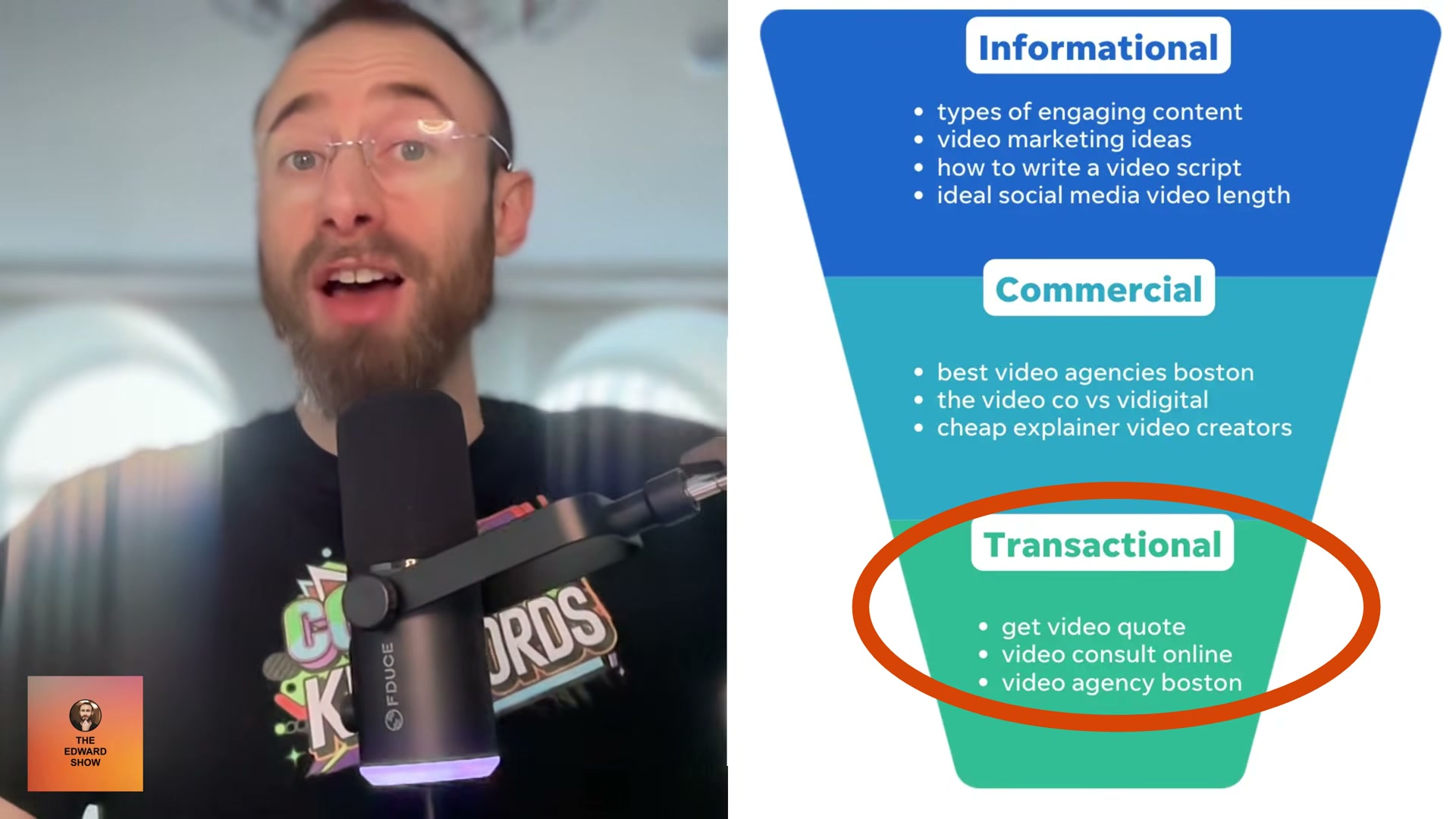
Before touching the interface, ground the strategy in intent segmentation. Keyword intent runs a spectrum from Informational through Commercial to Transactional. Transactional searchers have already decided to buy — they’re choosing a brand, not evaluating a category. This workflow targets that bottom tier exclusively, using your existing ranking data to find demand your site is already capturing but not fully converting.
- Log in to Google Search Console and open the Search Results performance report. Select Search results from the left sidebar, then click Full report to access the complete query dataset.
- In the report toolbar, locate the blue “Customize your performance report using AI” button that appears directly next to the Add filter control. Depending on your account’s rollout, it may display as a spark icon.
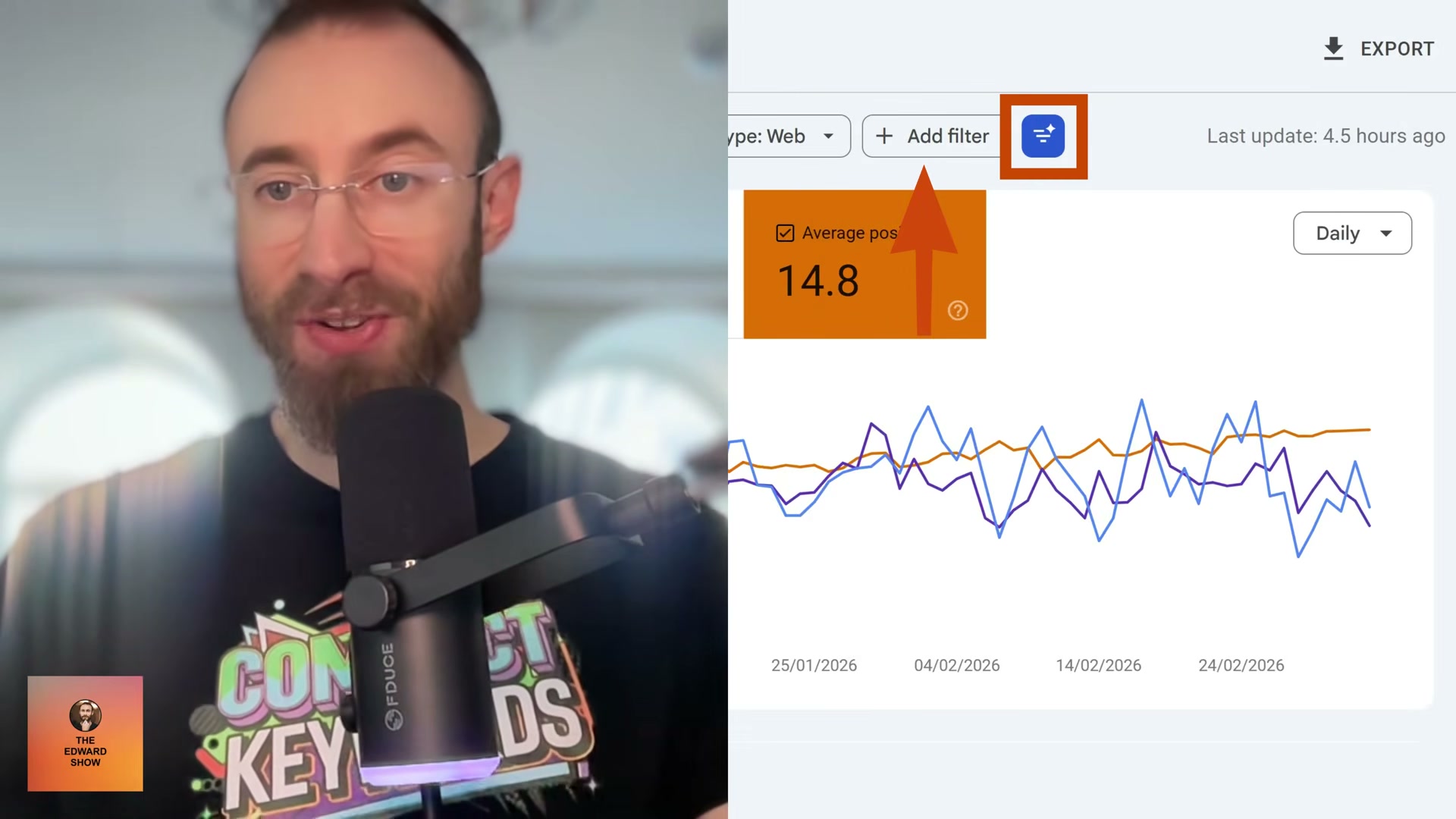
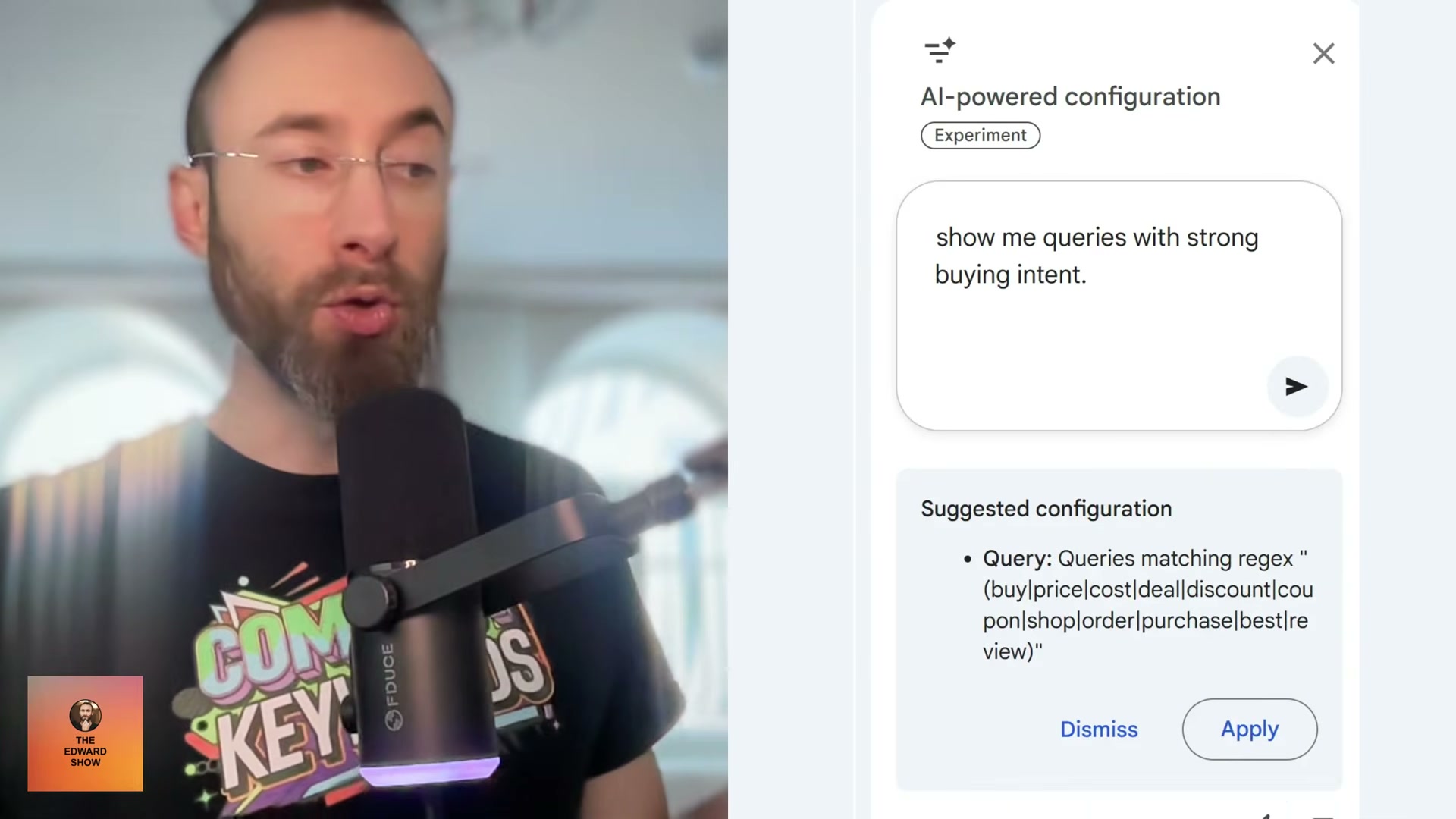
3. Click the button to open the AI-powered configuration panel. Enter a plain-English intent prompt — for transactional keywords, use: Show me queries with strong buying intent. GSC parses your input and generates a regex filter, such as (buy|price|cost|deal|discount|coupon|shop|order|purchase|best|review), displayed for your review before applying.
Warning: this step may differ from current official documentation — see the verified version below.
4. Click Apply. The Performance report refreshes showing only queries that match the AI-interpreted intent pattern.
5. In the column metrics bar above the query table, toggle on Average Position to add that column to your results.
6. Click + Filter, choose Position, set the operator to greater than 3, and apply. This stacks a position filter on the AI intent filter, narrowing results to transactional queries where your site ranks fourth or below.
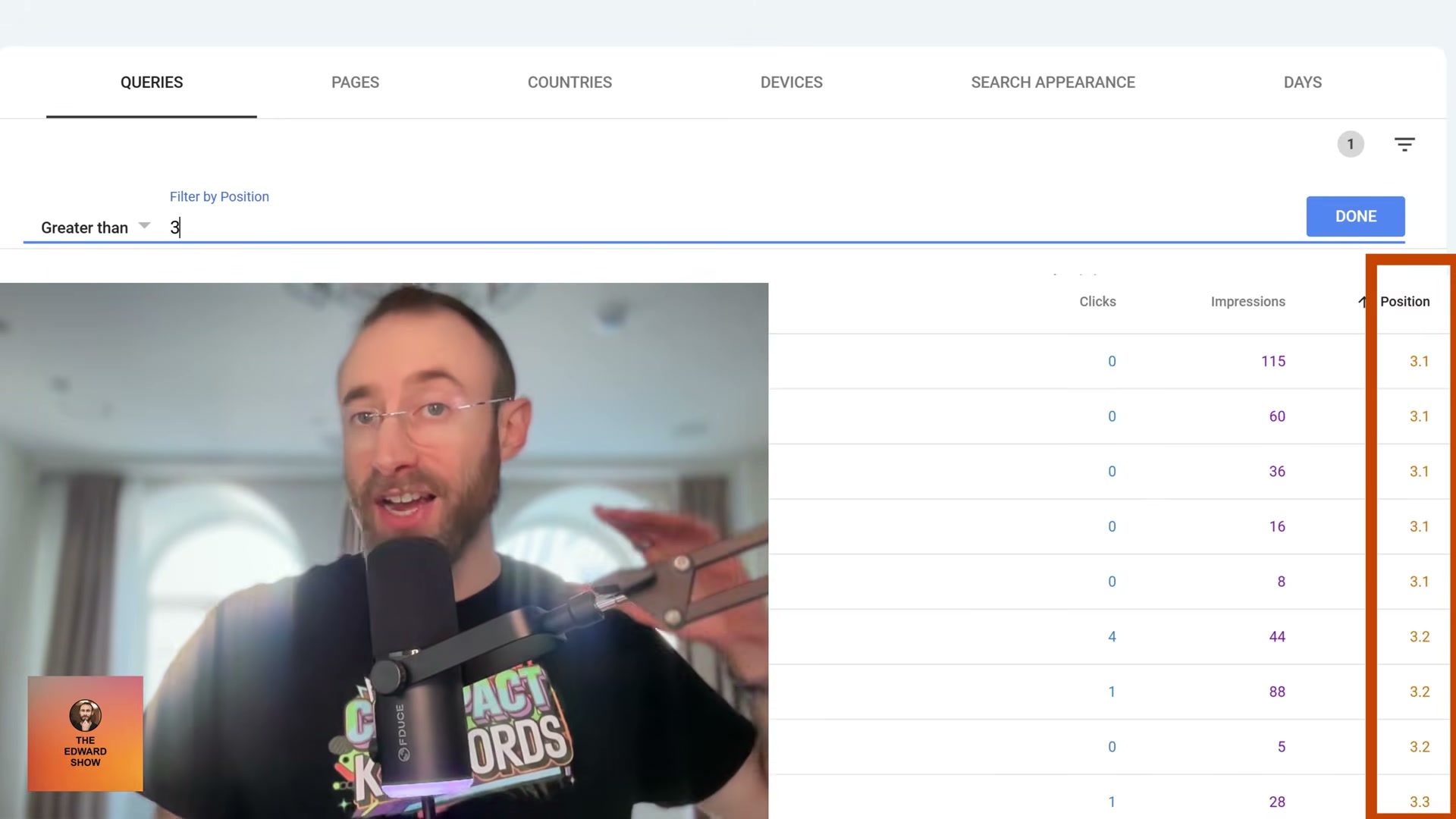
7. Review the filtered query list. Every keyword here is low-hanging fruit: Google already associates your domain with it, and your ranking is close enough to the top three that targeted on-page changes can close the gap. These are not cold-start opportunities — they’re revenue signals already in motion.
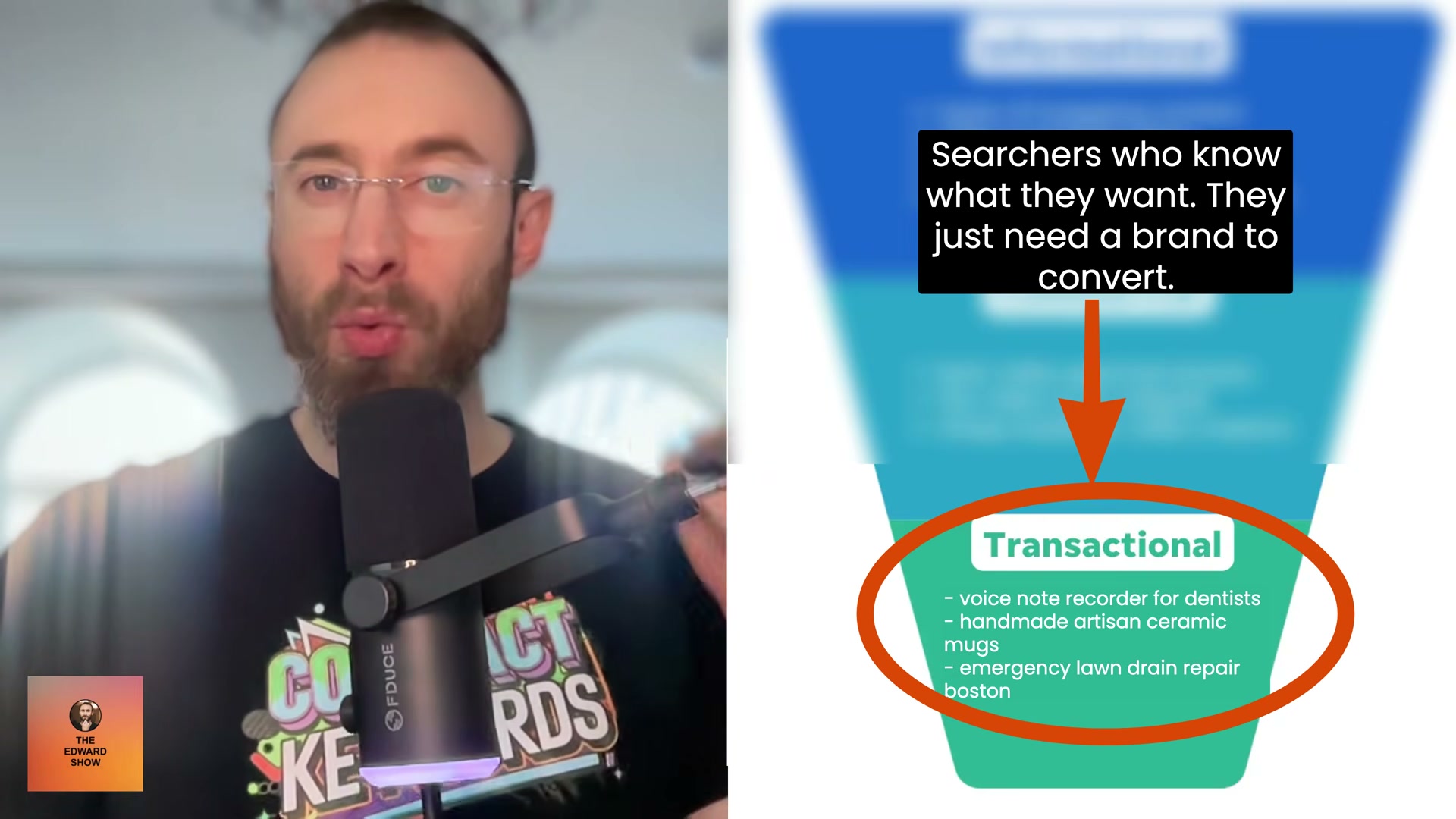
8. Repeat steps 3 through 7 with additional intent prompts to build coverage across buyer stages: Show me queries with local intent, Show me comparison and evaluation queries, Show me queries containing best, top, review, rating, recommended, and Show me queries containing price, cost, pricing, how much, quote, estimate.
9. For each keyword cluster surfaced, open the corresponding ranking page and move the exact-match query term higher — into the H1, opening paragraph, or a prominent subheading. Positional placement is the primary lever; a full rewrite is rarely necessary.
10. If no existing page on your site maps cleanly to a surfaced keyword cluster, create a dedicated landing page for it. Because your domain is already generating impressions for these terms, a purpose-built page will rank faster than targeting a cold keyword from scratch.
How does this compare to the official docs?
The “(Experiment)” label visible in the AI configuration panel signals that Google treats this feature as a moving target — and Act 2 examines exactly what the official documentation confirms, what it omits, and where the prompt behavior you saw here diverges from the verified specification.
Here’s What the Official Docs Show
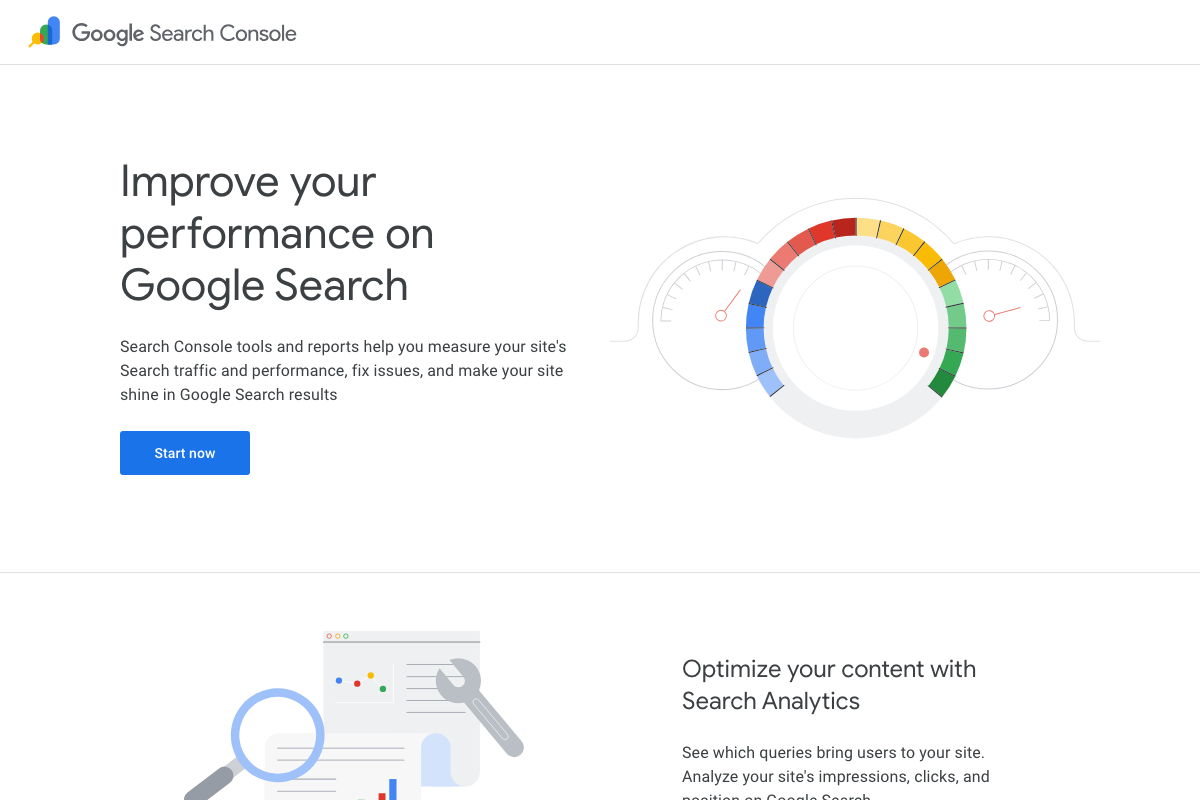
Act 1 walks through a compelling workflow for surfacing transactional keywords — Act 2 maps that same workflow against the best available official documentation to show you exactly where public evidence exists and where it runs out. That second part matters here, because the screenshot evidence covers only Google Search Console’s public marketing page, not the authenticated reporting interface where every tutorial step actually occurs.
Step 1 — Open the Search Results performance report
The GSC about page confirms the product exists and is built to surface “which queries bring users to your site” alongside impressions, clicks, CTR, and position data — the data layer the entire tutorial depends on. Access requires a verified property; use the Start now entry point at search.google.com/search-console/about if you haven’t registered one.
No official documentation was found for this step — proceed using the video’s approach and verify independently.
Step 2 — Locate the “Customize your performance report using AI” button
No official documentation was found for this step — proceed using the video’s approach and verify independently.
Step 3 — Enter a natural language intent prompt
No official documentation was found for this step — proceed using the video’s approach and verify independently.
Step 4 — Apply the AI-generated regex filter
No official documentation was found for this step — proceed using the video’s approach and verify independently.
Step 5 — Toggle on Average Position
The GSC about page confirms position is a native metric in the platform, which is consistent with an Average Position column existing in the interface. The toggle mechanism itself is not shown in any available screenshot.
No official documentation was found for this step — proceed using the video’s approach and verify independently.
Step 6 — Add a Position greater-than-3 filter
No official documentation was found for this step — proceed using the video’s approach and verify independently.
Step 7 — Review the filtered keyword list
No official documentation was found for this step — proceed using the video’s approach and verify independently.
Step 8 — Repeat with additional intent prompts
No official documentation was found for this step — proceed using the video’s approach and verify independently.
Step 9 — Update on-page elements with exact-match terms
No official documentation was found for this step — proceed using the video’s approach and verify independently.
Step 10 — Build dedicated landing pages for unmapped keyword clusters
No official documentation was found for this step — proceed using the video’s approach and verify independently.
Useful Links
- Google Search Console — Public about page confirming Search Console’s core capabilities: query performance, impressions, clicks, CTR, and position tracking for verified properties.
- ChatGPT — OpenAI’s ChatGPT interface; included in the documentation screenshot set but not referenced by any step in this tutorial workflow.


0 Comments