

Write High-Quality Content with ChatGPT or Gemini Using This 7-Step Framework
Most people prompt an LLM with a vague request and get vague output — then blame the tool. After working through this methodology, you’ll know how to train an LLM on your voice, structure sessions for consistent output, and layer in the human expertise that makes AI-assisted content worth publishing.
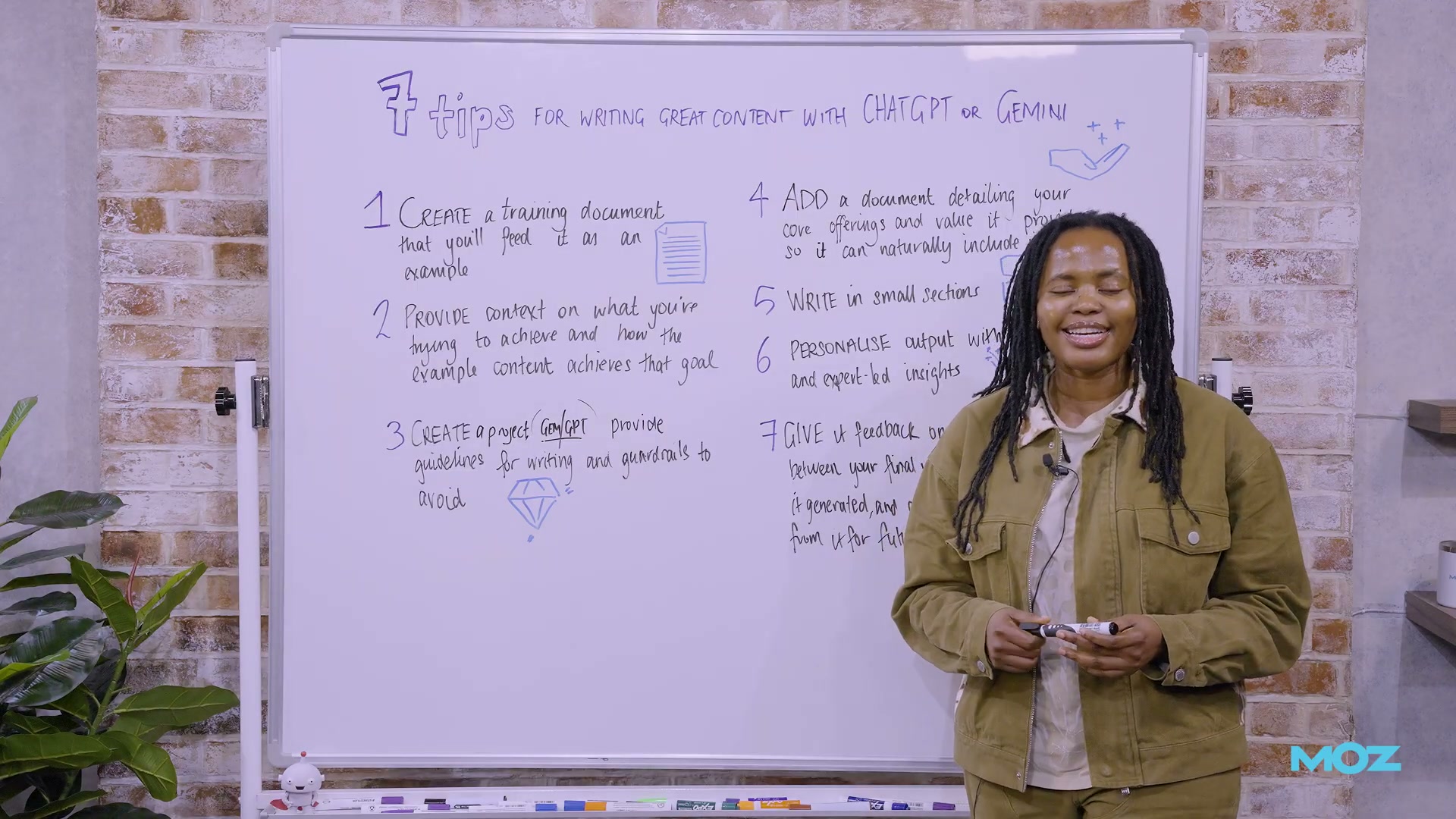
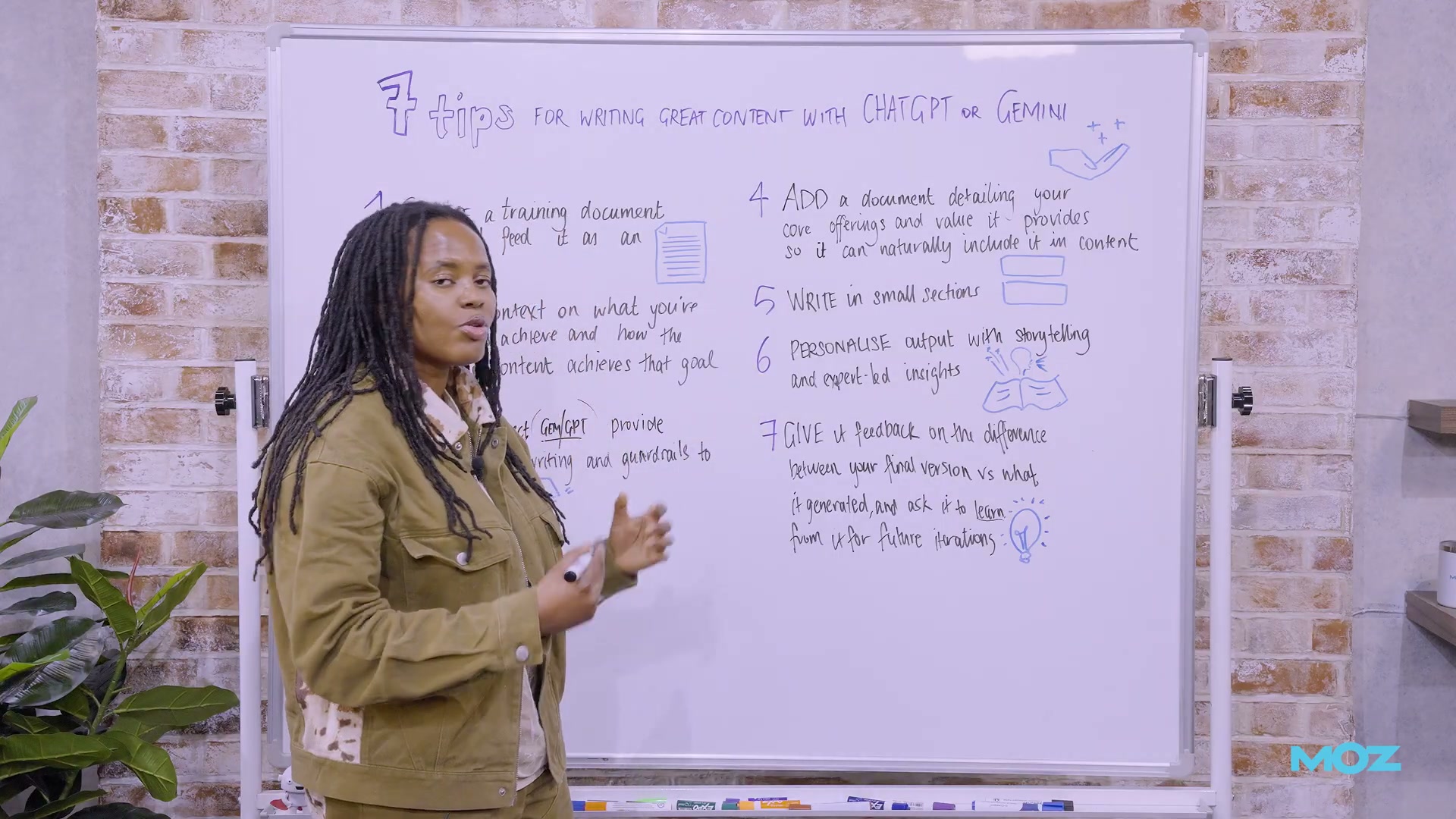
- Create a training document. Pull a past piece of your own writing that matches the style and format you’re targeting — a thought leadership post, a landing page, whatever fits the job. Feed that document to the LLM at the start of every session as a style exemplar. Asking an LLM to write without a concrete example is asking it to guess what you want.
-
Provide rich context alongside the training document. Explain what you’re trying to achieve, what you liked about the training document, how the piece moves from opening to conclusion, and the exact tone of voice you’re after. There is no such thing as too much context here — the more the LLM understands your intent and structure, the less cleanup you’ll do later.
-
Create a persistent project workspace. Set up a Custom GPT in ChatGPT, a Gem in Gemini, or a Project in Claude to store your instructions and training documents across sessions. You can prompt the LLM itself to help you draft those project instructions.
- Add detailed writing guidelines and guardrails. Supply a long, specific checklist of what you want — and an equally specific list of what to avoid. Common offenders include overuse of em-dashes, two- or three-word sentences, and filler words like “shape.” If it looks AI-generated to you, name it explicitly in the guardrails.

-
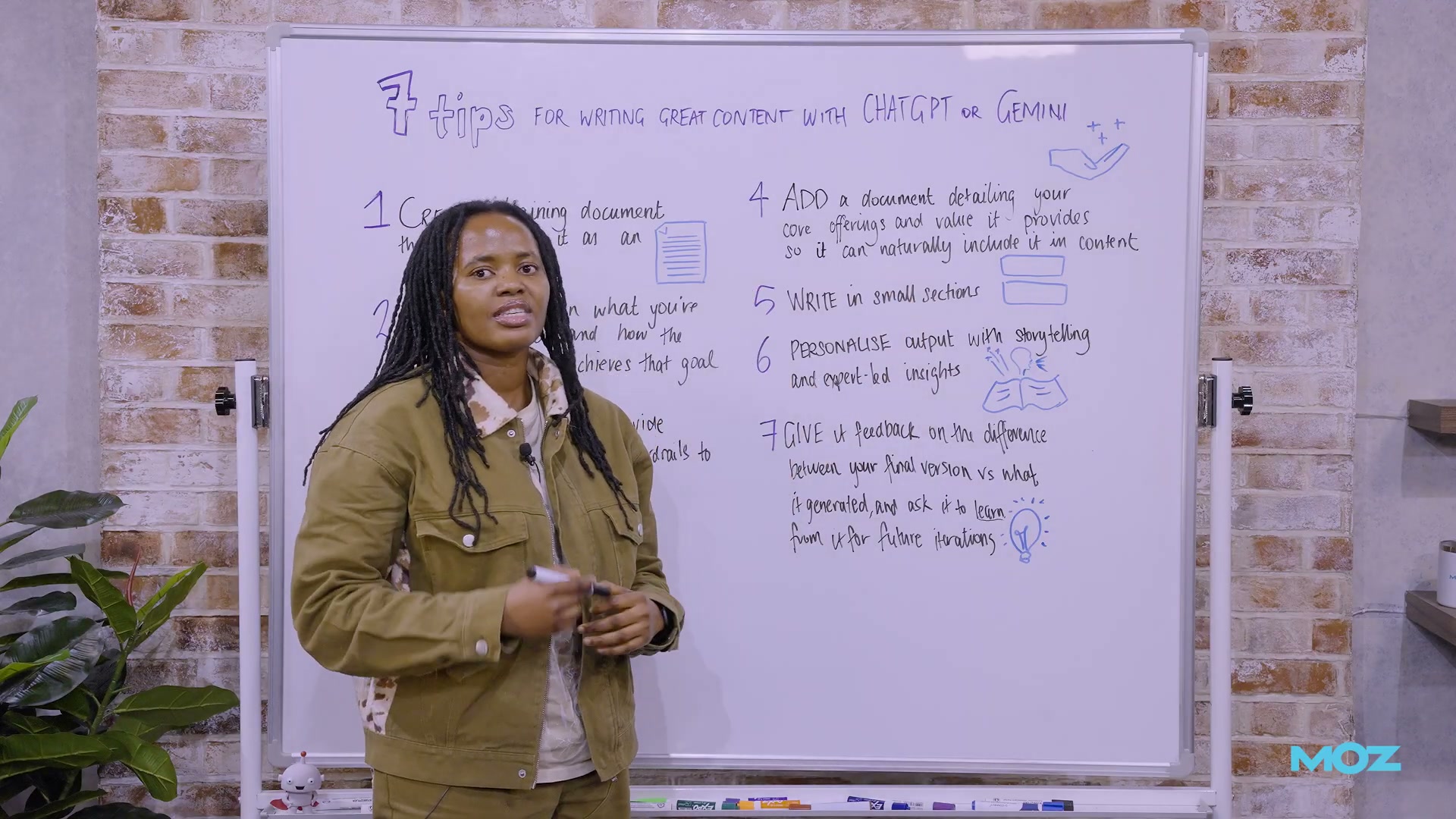
Add a core offerings and values document. Write up each product or service — what it does, who it’s for, its value, and its positioning statement — and attach it to the project. This lets the LLM insert product-led mentions naturally when an opportunity arises in the content, without you having to re-prompt every time.
-
Write one section at a time. Prompt for a single introduction or a single H3 — not the full piece. Specify exactly what each paragraph should cover. When you get the output, review it, make edits, and give granular feedback before prompting for the next section. You cannot give useful feedback on a 2,000-word draft; you can give precise feedback on a three-paragraph introduction.

- Personalize every section before moving on. Add first-person stories, specific mistakes you’ve made, concrete results you’ve seen, and expert observations no one else can replicate. This is the step that separates content that reads as authored from content that reads as generated. No LLM can supply your experience — you have to insert it manually.
Ongoing — give structured feedback after every section. After editing a section, return the final version to the LLM with a clear explanation of every change you made and why. The more consistent this feedback loop, the fewer errors appear in subsequent outputs. The realistic target is 70% quality output from the LLM — enough that your edits shrink over time without chasing full automation.
How does this compare to the official docs?
The framework Chima outlines draws on platform-specific features — Custom GPTs, Gems, and Claude Projects — each of which has its own documented setup process, capability limits, and constraints worth understanding before you build your workflow around them.
Here’s What the Official Docs Show
The seven-step framework in the video is grounded in solid process thinking, and this section runs the same sequence against official platform documentation to surface details that affect your setup decisions. The honest disclosure upfront: documentation coverage was incomplete across every platform tested, so expect transparency notes alongside the verified findings.
Step 1 — Create a training document
No official documentation was found for this step — proceed using the video’s approach and verify independently.
Step 2 — Provide rich context alongside the training document
No official documentation was found for this step — proceed using the video’s approach and verify independently.
Step 3 — Create a persistent project workspace
This is where the docs tell a more complicated story than the video can, and you deserve the full picture.
ChatGPT Custom GPTs: The platform is live and accessible, but the sidebar entry point has changed. As of May 15, 2026, the label is “Apps” — not “Explore GPTs,” which is what earlier interface versions showed. The Custom GPT builder is only reachable after authentication; nothing in the logged-out state surfaces it.

Gemini Gems: As of May 15, 2026, the official Gemini Apps Help page for Gems at support.google.com/gemini/answer/15235877 returns a 404. The page’s own error message reads: “It may be deleted because the feature doesn’t exist anymore, or the URL may be incorrect.” The Gems workflow described in Step 3 cannot be confirmed against current official documentation — search the Gemini Apps Help center directly for current status before building here.

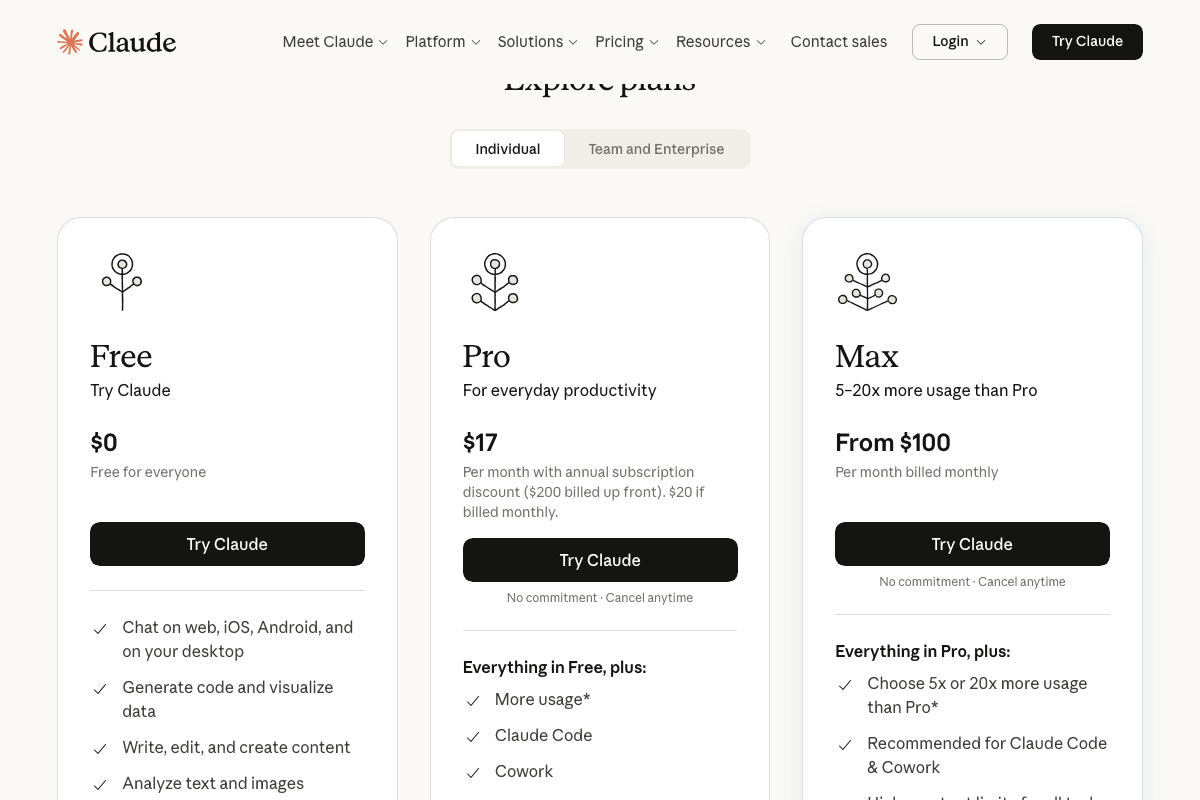
Claude Projects: The Projects interface requires an authenticated session and was not captured in available screenshots. Two things worth knowing before you follow Step 3 here: Anthropic has introduced a product called Cowork as a primary surface on claude.ai since the video was recorded — this is distinct from Projects, not a replacement for it. Current pricing is $17/month (annual) or $20/month (monthly) for the Pro plan. Projects is not explicitly listed by name in the visible plan feature comparison, so confirm your tier includes Projects via the Anthropic Help Center before committing to this workspace.
Steps 4, 5, 6, 7, and the ongoing feedback loop
No official documentation was found for these steps — proceed using the video’s approach and verify independently.
Useful Links
- ChatGPT — ChatGPT web platform; Custom GPT builder is accessible post-authentication via the “Apps” sidebar item
- Gemini Apps Help — Gems — Official Gems documentation URL; returns a 404 as of May 2026, verify current status before following Step 3 for Gemini
- Claude — Claude web platform; sign in to access Projects and explore the separately marketed Cowork product
- Moz SEO Products — Moz product suite including Moz Local, Moz Pro, and STAT; not referenced in this tutorial’s methodology


0 Comments